






Windows CLAT (WinCLAT) is now generally available, and many organizations are beginning to evaluate it in their IPv6-mostly and IPv6-only environments. I’ve written extensively about WinCLAT recently, including how it works, when to use it, and how it discovers the NAT64 prefix. Today, I’m pleased to announce the release of the WinCLAT PowerShell module, a free, open-source tool that makes managing, reporting on, and troubleshooting WinCLAT much easier, especially at scale.
Background
Today, WinCLAT is configured and managed using the netsh.exe.exe interface clat command context. While netsh.exe works well enough on a single computer, it has some notable limitations. Its output is plain text, which is difficult to filter, sort, or export. It also provides no built-in way to collect information from many computers at once. And, in some cases, netsh.exe reports success even when Group Policy overrides the change, which can be misleading.

The WinCLAT PowerShell module addresses these challenges. It wraps netsh.exe and returns structured objects to the pipeline, so administrators can work with WinCLAT the same way they work with any other PowerShell command. Every function runs against the local computer or against many remote computers in parallel using WinRM.
Key Features
Version 1.0 of the WinCLAT PowerShell module includes the following capabilities.
- Fleet-wide reporting. Every function accepts computer names directly, from a text file using Get-Content, or from Get-ADComputer. Results include one row for every computer, including those that are offline, do not have the feature, or are not elevated. It detects unreachable computers in about two seconds rather than waiting for a WinRM timeout.
- Health checks with remediation. Test-WinClat checks the global configuration and every IPv6-enabled interface, explains each warning and failure, and optionally validates the CLAT path end to end.
- Safe configuration changes. Set-WinClatConfiguration refuses changes that would prevent CLAT from ever activating, reads back every change to detect Group Policy overrides, and prompts for confirmation before any change that stops CLAT.
- Baselines. Export and import the WinCLAT configuration or reset computers to the Windows defaults.
- Structured output. Every function returns flat objects that can be filtered, sorted, and exported to CSV.
Every result includes a Status property (Success, Unreachable, FeatureNotAvailable, NotSupported, ElevationRequired, PolicyOverride, or Failed) and a Message property that explains anything other than Success.
Requirements
The WinCLAT PowerShell module has the following requirements.
- Windows PowerShell 5.1 or PowerShell 7 on the computer running the commands.
- Windows 11 25H2 build 26200.9550 or later on target computers. WinCLAT is not available on Windows Server.
- WinRM enabled on remote target computers.
- Administrative privileges on target computers for Get-WinClatInstance, the Set, Import, and Reset functions, and the interface checks performed by Test-WinClat. Get-WinClatConfiguration and Export-WinClatConfiguration do not require elevation.
- English (en-US) netsh.exe output on target computers.
Installation
The WinCLAT module is available in the PowerShell Gallery. To install it, open an elevated PowerShell window and run the following command.
Install-Module -Name WinCLAT
The module needs to be installed only on the computer where the commands are run. It is not required on target computers. To update to the latest release, run the following command.
Update-Module -Name WinCLAT
Once installed, run the following command to view the available functions.
Get-Command -Module WinCLAT

The source code is also available on GitHub.
Functions
The WinCLAT PowerShell module includes the following functions.
| Function | Description |
| Get-WinClatConfiguration | Returns the global WinCLAT configuration |
| Get-WinClatInstance | Returns the WinCLAT state of each network interface |
| Test-WinClat | Diagnoses WinCLAT readiness and operation |
| Set-WinClatConfiguration | Changes the global WinCLAT configuration |
| Set-WinClatInstance | Manually enables or disables WinCLAT on an interface |
| Export-WinClatConfiguration | Saves the WinCLAT configuration to a file |
| Import-WinClatConfiguration | Applies a saved WinCLAT configuration |
| Reset-WinClatConfiguration | Returns the WinCLAT configuration to the Windows defaults |
Every function accepts the -ComputerName, -Credential, and -ThrottleLimit parameters. The -ComputerName parameter accepts pipeline input, including output from Get-Content and Get-ADComputer. Blank lines and lines beginning with # are ignored, so a simple text file of computer names works without modification. The default -ThrottleLimit is 32 concurrent connections.
Get-WinClatConfiguration
The Get-WinClatConfiguration function returns the global WinCLAT settings: Permit, Pref64FromDns, Pref64FromRA, and AutoEnable. By default, it returns the active (effective) configuration. Use the -Store parameter to view the persistent (local) configuration, or both. Comparing the two is helpful for identifying settings controlled by Group Policy. The output also includes the OS build number, which is useful for tracking which computers have received the feature.
Get-WinClatConfiguration -Store Both

Get-WinClatInstance
The Get-WinClatInstance function returns the WinCLAT state for each active network interface with IPv6 enabled. The output shows whether the interface is translating, the NAT64 prefix and its remaining lifetime, and the CLAT addresses assigned. It also reports whether the instance was enabled automatically or manually (Mode and TriggerSource), which the module reads from the Microsoft-Windows-IPxlatCfg/Operational event log.
Get-WinClatInstance

To identify every interface actively translating across a group of computers, run the following command.
Get-Content -Path .\clients.txt | Get-WinClatInstance | Where-Object IsTranslating

Note: Get-WinClatInstance requires administrative privileges on the target computer.
Test-WinClat
Test-WinClat is the function I expect administrators will use most often. It performs a series of health checks on the global configuration and on each IPv6-enabled interface. By default, it returns a single summary per computer with an overall result of Pass, Warning, Fail, or NotApplicable, along with a list of the checks that failed or returned a warning.
Test-WinClat

Use the -Detailed switch to return one result per check. Each warning and failure includes a Detail explaining what was found and a Remediation describing how to correct it.
Test-WinClat -Detailed | Format-List
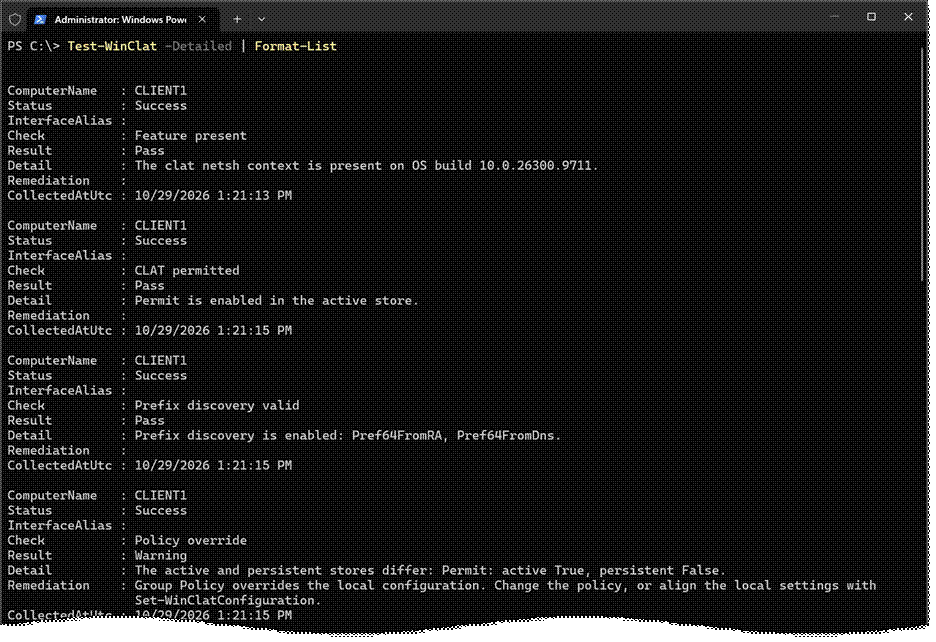
Note: The screen capture above contains additional information. It has been truncated for brevity.
Global checks include whether the feature is present, whether CLAT is permitted, whether NAT64 prefix discovery is enabled, and whether Group Policy overrides the local configuration. These do not require elevation. Interface checks include a SLAAC address, an IPv6 default route, the presence of native IPv4, an active CLAT instance, a CLAT address, and prefix consistency. Interface checks require administrative privileges and are skipped when the function is not run elevated.
Functional Test
Test-WinClat can also validate the CLAT path end to end. When the -IPv4Target parameter is specified, and an interface is translating, the function sends up to three ICMP echo requests to the target. Optionally, include the -IPv4Port parameter to test with a TCP connection instead. The results show which interface and source address the traffic used.
Test-WinClat -IPv4Target 192.0.2.10 -IPv4Port 443 -Detailed | Select-Object Check, Result, Detail

Important: Always specify an IPv4 address, not a hostname, for -IPv4Target. A hostname can be reached using DNS64 and NAT64 without CLAT, which defeats the purpose of the test. Also, Windows prefers a native IPv4 route over CLAT. If the computer has native IPv4 connectivity on another interface, the functional test reports Info rather than testing CLAT.
To test many computers and return only failures and warnings, run the following command.
Get-Content -Path .\clients.txt | Test-WinClat -Detailed | Select-Object ComputerName, Check, Result, Detail

Set-WinClatConfiguration
The Set-WinClatConfiguration function changes the global WinCLAT settings. Only the settings specified are changed. Before making any change, the function reads the current configuration and refuses any change that would leave both Pref64FromRA and Pref64FromDns disabled, since CLAT would never activate in that state. To enable WinCLAT, run the following command.
Set-WinClatConfiguration -Permit Enabled

Note: In the example above, the WinCLAT configuration is managed by group policy, which overrides the locally configured settings.
As I mentioned earlier, netsh.exe reports success even when Group Policy overrides a setting. To address this, Set-WinClatConfiguration reads back every change after it is made. If policy enforces a different value, the result is reported with a Status of PolicyOverride, as shown here.

The function supports -WhatIf. Disabling Permit or AutoEnable prompts for confirmation by default, because doing so stops CLAT on every interface where it was enabled automatically.
Set-WinClatInstance
The Set-WinClatInstance function manually enables or disables WinCLAT on a single interface, specified by name or interface index. This is primarily useful for testing and troubleshooting. Because netsh.exe refuses manual changes while AutoEnable is enabled, the function disables AutoEnable first, under a single confirmation prompt.
Set-WinClatInstance -InterfaceAlias 'Ethernet' -State Enabled

Please note that a Manual instance state does not survive a reboot, but the AutoEnable setting remains disabled. After a reboot, WinCLAT will not activate until AutoEnable is enabled again using Set-WinClatConfiguration -AutoEnable Enabled.
Reset-WinClatConfiguration
The Reset-WinClatConfiguration function returns the WinCLAT global configuration to the Windows defaults without requiring an export file. It sets Pref64FromDns, Pref64FromRA, and AutoEnable to enabled. Only settings that differ from the defaults are changed. To reset the WinCLAT configuration, run the following command.
Reset-WinClatConfiguration

Crucially, the Permit setting is changed only when the -Permit parameter is specified. This means a basic reset never stops CLAT. For a full reset to the current Windows defaults, including Permit, specify -Permit Disabled. Since this stops CLAT, the function prompts for confirmation by default.
Reset-WinClatConfiguration -Permit Disabled

Export and Import
The Export-WinClatConfiguration function saves the WinCLAT global configuration of one or more computers to the local computer, one file per computer. Files are named WinCLAT-<ComputerName>-<yyyyMMdd-HHmmss>.txt and are never overwritten, so repeated runs maintain a history of baselines. Export the WinCLAT configuration by running the following command.
Export-WinClatConfiguration -Path <folder name>

The Import-WinClatConfiguration function applies those files. Importantly, the files are never executed. Each file is parsed strictly, and any file containing content other than what netsh.exe writes is rejected before any computer is contacted. Only settings that differ from the file are changed.

Known Issues
During testing, I encountered the following issues. These are Windows behaviors, not issues with the module. They were observed on builds 26200.9711 and 26300.9711.
- Stale CLAT address. After a network change, CLAT may retain its IPv6 address on the previous network’s prefix, causing IPv4 traffic through CLAT to fail. Test-WinClat reports a CLAT address failure in this scenario. Restarting the network adapter resolves the issue.
- DNS registration. CLAT registers its IPv4 address (192.0.0.x) in DNS, which is unnecessary and may have negative side effects.
- ICMP errors. ICMP error messages returned by NAT64 for IPv4 destinations do not reach IPv4 applications. As a result, ping to an unreachable IPv4 address times out rather than reporting that the destination is unreachable.
Summary
The WinCLAT PowerShell module makes it easier for administrators to configure, report on, and troubleshoot Windows CLAT across their environment. Whether you’re evaluating WinCLAT on a handful of test machines or preparing for a broad IPv6-only deployment, the module provides structured output, fleet-wide reporting, and built-in health checks that netsh.exe alone does not. Download it today from the PowerShell Gallery and let me know what you think. Feedback, issues, and feature requests are always welcome on GitHub.
Additional Information
WinCLAT PowerShell Module on the PowerShell Gallery
WinCLAT PowerShell Module on GitHub
Windows CLAT (WinCLAT): IPv4 Application Support on IPv6 Networks
Windows CLAT Overview and Configuration
When Windows CLAT (WinCLAT) Is Used on IPv6-Mostly and IPv6-Only Networks


