WEBINAR: Preparing for 100-Day Certificates with CertKit

Join me and the CertKit team on Tuesday, October 6, 2026, at 9:00 AM PDT for a free, live webinar about the upcoming reduction in public TLS certificate lifetimes. Beginning March 15, 2027, the maximum validity period for public TLS certificates will be reduced to 100 days. This change will make manual certificate management increasingly difficult for many organizations.

Automation

Shorter certificate lifetimes require organizations to identify, enroll, deploy, and renew certificates more frequently. Automation can help reduce the administrative effort and the risk of service interruptions caused by expired certificates. This is especially important for public-facing Microsoft workloads such as Internet Information Services (IIS), Remote Desktop Services (RDS), Always On VPN, DirectAccess, and other services that use public TLS certificates.

Visibility

Effective certificate management begins with knowing which certificates exist, where they are installed, and when they expire. Without this visibility, organizations may overlook certificates until they are close to expiration or have already expired.

Internal Certificates

Certificates issued by a private certification authority (CA) aren’t subject to the lifetime restrictions imposed on public TLS certificates. However, they still require inventory, monitoring, and renewal. A consistent approach to managing public and private certificates can help reduce operational overhead.

How CertKit Helps

CertKit is a cloud-based service for managing public and private TLS certificates. During the webinar, we’ll demonstrate how CertKit provides visibility into certificate inventories and expiration dates while automating common lifecycle tasks such as enrollment, deployment, and renewal. We’ll also review recent additions to the service.

Register Now

The webinar takes place on Tuesday, October 6, at 9:00 AM PDT. Registration is required. Everyone who registers will be notified when the session recording is available.

Intranet Certificate Monitoring with CertKit

CertKit is a cloud-based solution that automates the issuance and management of public TLS certificates. It also provides certificate monitoring and alerting for public-facing workloads. However, many organizations have internal (non-public-facing) services that also use TLS. CertKit agent v1.13.0, currently in preview, closes this gap by providing visibility into TLS certificates used by intranet resources. After installing the latest release of the agent, CertKit can now provide visibility into the status of TLS certificates for internal resources.

Intranet Monitoring

After installing or updating the CertKit agent to v1.13.0, administrators can select an internal TLS service to monitor. Follow the steps below to enable this feature.

Certificate Collection

I recommend creating a separate Certificate Collection to support intranet monitoring. In the CertKit management console, click Add Collection, enter a unique, descriptive name, and click Add Collection.

Install the Agent

Once the new collection is created, navigate to the Agents tab, select your platform, then download, install, and register the agent.

Monitor New Host

After the agent is installed and registered, navigate to the Monitoring tab and click Monitor New Host. Enter the fully qualified domain name (FQDN) of the resource and specify its TLS port. Under Host Visibility, select Internal, and then choose the agent to monitor the host from. When finished, click Monitor Host.

Note: The server running the CertKit agent does not require a TLS certificate of its own to monitor internal resources.

Monitored Hosts

CertKit can track certificates for any internal workload that uses TLS. In this example, the monitored resources include web applications, security appliances, load balancers, and HTTP CRL distribution points. The list also includes LDAPS on the domain controllers and the RDP and WinRM HTTPS services on the management workstation.

The circle next to each resource indicates its certificate status. Green indicates a healthy certificate, yellow indicates one approaching expiration, and red indicates an expired certificate or another detected issue.

Note: The RDP certificate on the management workstation appears red because it contains only the Remote Desktop Authentication EKU (1.3.6.1.4.1.311.54.1.2). It intentionally does not include Server Authentication, which CertKit currently expects when validating the service. CertKit is aware of this limitation and plans to address it in a future release.

Host Discovery

CertKit provides robust discovery for public websites but does not currently offer equivalent functionality for intranet resources. Administrators can identify internal systems listening on a specific port by using Nmap.

nmap.exe -Pn -p [port] --open [internal subnet]

For example:

nmap.exe -Pn -p 443 --open 172.16.0.0/24

Alternatively, add the -oX switch to save the output in XML format.

nmap.exe -Pn -p 443 --open 172.16.0.0/24 -oX scan.xml

The resulting Nmap XML file output can be converted to CSV format using this PowerShell code.

Summary

CertKit agent v1.13.0 extends certificate monitoring to internal TLS services, giving administrators greater visibility into certificates that were previously difficult to track. Although intranet host discovery remains a manual process, tools such as Nmap and PowerShell can help identify resources to add to the monitoring platform

Getting Started with CertKit

Need help improving certificate visibility and management across your organization? Want to automate public TLS certificate enrollment for workloads such as DirectAccess, Always On VPN, IIS, SQL, and more? I can help you assess your certificate environment, identify monitoring gaps, and develop a strategy for managing certificates across internal and public-facing workloads. Fill out the form below, and I’ll provide you with more information.

← Back

Thank you for your response. ✨

Additional Information

CertKit Website

What Is CertKit?

CerKit Agent Support for Always On VPN SSTP and DirectAccess IPHTTPS TLS Certificates

IIS TLS Certificate Deployment with CertKit

The Case for 6-Day Public TLS Certificates

DirectAccess IPHTTPS and Let’s Encrypt 6-Day TLS Certificates

Entra Internet Access TLS Inspection and Always On VPN: Troubleshooting SSTP Connection Failures

Microsoft Entra Global Secure Access (GSA) is a cloud-based Security Service Edge (SSE) solution that includes Entra Private Access to provide zero-trust network access to private data and applications, and Entra Internet Access to provide security controls for general internet access. Entra Internet Access includes features such as web content filtering, AI prompt controls, TLS inspection, and more. Entra Private Access and Entra Internet Access share a common client: the Global Secure Access Client.

TLS Inspection

TLS inspection is a powerful feature of Entra Internet Access that allows inspection and policy enforcement for encrypted internet traffic. It enables more thorough inspection and is required for features such as AI prompt policies. When TLS inspection is enabled, the TLS connection from the target server (origin server) is terminated by the Entra service. A new session is created between the cloud and the endpoint using a dynamically generated TLS certificate issued by Entra. As Entra holds the private key for this certificate, it can decrypt and inspect traffic as necessary.

Always On VPN

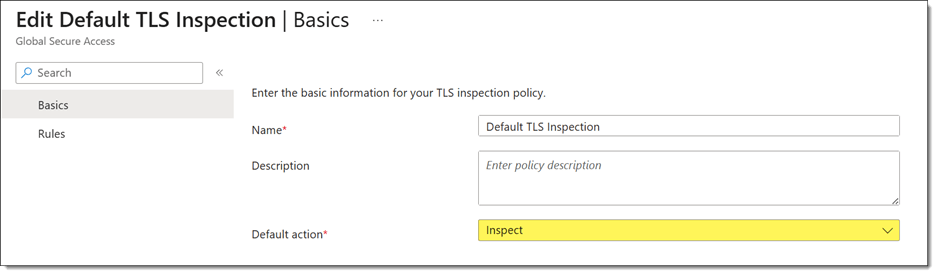
Recently, a customer asked me to help troubleshoot an Always On VPN user tunnel connectivity issue. The problem began shortly after deploying the Global Secure Access client with TLS inspection enabled. Administrators had configured the default TLS inspection policy to inspect traffic for all websites.

User Tunnel Failures

Attempts to manually start the Always On VPN user tunnel resulted in a failed connection attempt with the following error message.

Error 0x800704D4: The network connection was aborted by the local system.

Event Logs

Reviewing the client event logs revealed numerous Event ID 20227 entries from the RasClient source with the following error message.

The user DOMAIN\User dialed a connection named [connection name] which has failed. The error code returned on failure is -2147023660.

Note: Error code -2147023660 is the decimal equivalent of 0x800704D4.

Troubleshooting

Initial testing with Test-NetConnection confirmed that TCP port 443 on the VPN server was reachable. However, using Get-TlsCertificate revealed the real problem.

Although the certificate subject matched the VPN server, the issuer did not. Instead of the VPN server’s issuing CA, the certificate had been issued by Microsoft Entra Global Secure Access, confirming that TLS inspection was intercepting the connection.

SSTP and TLS Inspection

The Secure Socket Tunneling Protocol (SSTP) is a Microsoft proprietary VPN transport that uses HTTP for tunneling and TLS for security. Unlike a web browser, which can establish a new trusted TLS session with an inspection proxy, SSTP validates the VPN server’s certificate as part of establishing the VPN tunnel. Any certificate substitution, even by a trusted TLS inspection service, changes the server certificate thumbprint and causes SSTP validation to fail.

Workaround

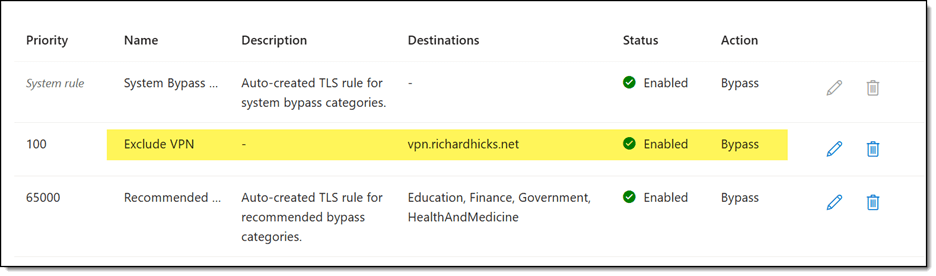
The solution is to create a TLS inspection exclusion policy to exempt inspection for the VPN server FQDN(s), as shown here.

Summary

Microsoft Entra Internet Access TLS inspection can unintentionally interfere with Always On VPN deployments that use SSTP. Because TLS inspection replaces the VPN server’s certificate with one issued by Microsoft Entra, SSTP detects the certificate mismatch and terminates the connection. If you use Always On VPN with Entra Internet Access, configure a TLS inspection exclusion for your VPN server FQDNs to prevent interception while preserving TLS inspection for general internet traffic.

Additional Information

Always On VPN vs. Entra Private Access: Choosing the Right Access Model for your Organization

What is Microsoft Entra Global Secure Access?

Microsoft Entra Internet Access

Microsoft Entra Private Access

Always On VPN SSTP and 47-Day TLS Certificates

Always On VPN SSTP and HSTS