






Windows CLAT (WinCLAT) is generally available on Windows 11 25H2, starting with build 26200.9550. WinCLAT is the Windows client-side translator for 464XLAT (RFC 6877). It translates IPv4 traffic from applications into IPv6 for delivery to a NAT64 gateway, allowing IPv4-only applications to continue working on IPv6-only and IPv6-mostly networks. Successful operation depends on both the Windows client configuration and the supporting network infrastructure. This post explains how to use the WinCLAT PowerShell module to verify these requirements, diagnose common problems, and test IPv4 connectivity through the translation path.
Why Use the WinCLAT PowerShell Module
WinCLAT is configured and inspected using the netsh.exe interface clat command context. However, its output requires careful interpretation when troubleshooting. A configuration command can complete without error even when Group Policy prevents the requested setting from taking effect. An instance can report that it is translating while IPv4 traffic fails, and disabling a global setting does not necessarily stop a manually enabled instance. The WinCLAT PowerShell module simplifies these tasks by checking the effective configuration after changes and providing health checks with explanations and recommended corrective actions. It supports troubleshooting on individual computers and across multiple remote computers.
How WinCLAT Activates
Understanding when WinCLAT activates automatically helps explain many troubleshooting scenarios. With AutoEnable enabled, Windows automatically activates WinCLAT on eligible non-cellular interfaces when the following conditions are met.
- WinCLAT is permitted. The Permit setting is enabled. Today, it is disabled by default in Windows.
- The interface has an IPv6 address assigned using Stateless Address Autoconfiguration (SLAAC) and an IPv6 default route.
- The interface has no native IPv4 connectivity. On an IPv6-mostly network, DHCPv4 option 108, called IPv6-Only Preferred (RFC 8925), tells a compatible client to operate without a native IPv4 address for the period specified by the DHCPv4 server. WinCLAT provides IPv4 application connectivity over IPv6 during that time.
- A NAT64 prefix has been discovered, either from the PREF64 option in router advertisements (RFC 8781) or by querying ipv4only.arpa for AAAA records through a DNS64 server (RFC 7050). DNS64 is required for the DNS-based discovery method but is not required when WinCLAT discovers the prefix through PREF64.
NAT64 Gateway Requirements
Successful IPv4 connectivity through WinCLAT also requires a reachable NAT64 gateway configured to translate traffic using the discovered prefix. Discovering a prefix and activating WinCLAT do not confirm that the gateway is reachable or that traffic can pass through it.
Automatic and Manual Activation
AutoEnable is enabled by default and allows Windows to activate WinCLAT automatically when an interface meets the required conditions. Manually enabled instances behave differently, as described later in this post. WinCLAT can be enabled manually on a specific interface after automatic activation is disabled. When WinCLAT is translating, Windows assigns the interface an IPv4 address from the 192.0.0.0/29 IPv4 Service Continuity Prefix (RFC 7335) and adds an IPv4 default route through WinCLAT.
Installing the Module
The WinCLAT module is available in the PowerShell Gallery and runs on Windows PowerShell 5.1 and PowerShell 7. Run the following command to install the module.
Install-Module -Name WinCLAT -Scope CurrentUser
The module is needed only on the computer running the commands. Remote computers require WinRM, and commands that read interface state or change configuration require an elevated session on the target.
Step 1: Run Test-WinCLAT
Test-WinClat is the starting point for any WinCLAT problem. Run it from an elevated session so the interface checks can run.
Test-WinClat

The summary shows the overall result (Pass, Warning, Fail, or NotApplicable), whether any interface is translating, and the checks that returned a warning or failure. Individual checks can also return Info for conditions that do not affect the overall result. To display every check and its explanation, use -Detailed with Format-List.
Test-WinClat -Detailed | Format-List -Property Check, InterfaceAlias, Result, Detail
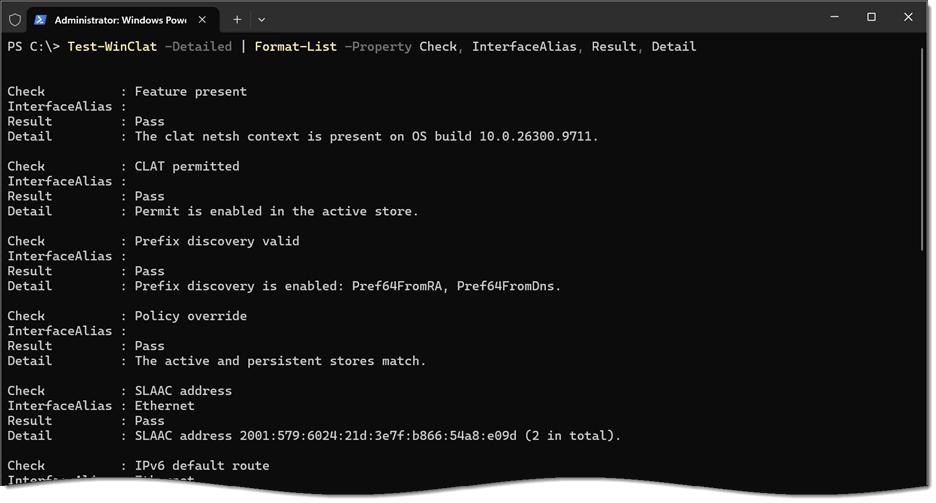
To show only the checks that need attention, including recommended corrective actions, run the following command.
Test-WinClat -Detailed | Where-Object -FilterScript { $_.Result -in 'Fail', 'Warning' } | Format-List -Property Check, InterfaceAlias, Detail, Remediation

Test-WinClat Tests
The following is a list of checks that Test-WinClat performs.
| Test | What it verifies |
| Feature present | The clat netsh.exe context exists on the computer |
| CLAT permitted | Permit is enabled in the active (effective) configuration |
| Prefix discovery valid | At least one of Pref64FromRA and Pref64FromDns is enabled |
| Policy override | Group Policy is not overriding the local configuration |
| SLAAC address | The interface has an IPv6 address from SLAAC |
| IPv6 default route | The interface has an IPv6 default route |
| Native IPv4 | The interface has no native IPv4 address |
| Instance active | WinCLAT is translating when its prerequisites are met |
| CLAT address | The WinCLAT IPv6 address is assigned to the interface and on its current prefix |
| Prefix consistency | The NAT64 prefix matches the prefix returned by DNS64, when DNS64 is available |
| Mode sanity | WinCLAT can activate: AutoEnable is enabled, or an instance has been enabled manually |
| Functional test | IPv4 traffic passes through WinCLAT (optional) |
Global checks do not require elevation. Interface checks are skipped, rather than failed, when the session is not elevated. Results of Info are informational and do not affect the overall result.
Step 2: Inspect the Configuration
Get-WinClatConfiguration returns the global settings. Use -Store Both to compare the active (effective) configuration with the persistent (local) configuration.
Get-WinClatConfiguration -Store Both

Compare the active configuration with the persistent configuration to identify differences between the effective settings and the locally stored settings. Use the PolicyControlled property to identify settings controlled by Group Policy. This property also identifies policy-controlled settings whose effective values match the local values, which a comparison of the two stores alone would not reveal.

Step 3: Inspect the Instances
Get-WinClatInstance returns the WinCLAT state of each IPv6-enabled interface. It requires elevation.
Get-WinClatInstance

Two properties are particularly useful when troubleshooting:
- Mode shows whether the instance was enabled Automatically by Windows or Manually by an administrator.
- TriggerSource shows why the instance was enabled: Pref64 RA (the network advertises PREF64), No IPv4 (the interface has no IPv4 connectivity), or Manual. It is read from event 1106 in the Microsoft-Windows-IPxlatCfg/Operational event log.
Common Problems
The following are common problems associated with WinCLAT configuration and operation.
Feature Not Present
Get-WinClatConfiguration returns Status FeatureNotAvailable, and Test-WinClatfails the Feature present check. WinCLAT is generally available on Windows 11 25H2 build 26200.9550 and later. The OSBuild property shows each computer’s build number, making it easy to identify computers that need the latest cumulative update.

WinCLAT is not available on Windows Server. Servers return Status NotSupported, and Test-WinClat reports an overall result of NotApplicable.

WinCLAT Not Permitted
Permit is disabled by default, so WinCLAT does not activate automatically on Wi-Fi or Ethernet interfaces until Permit is enabled, either locally or through Group Policy. Test-WinClat fails the CLAT permitted check only when an interface is IPv6-only and could use WinCLAT. On a dual-stack network, the check is informational because WinCLAT would not be used there anyway.

With AutoEnable enabled, WinCLAT activates on eligible interfaces as soon as Permit is enabled.
DHCPv4 Option 108
Permit also affects DHCPv4 option 108. Windows honors option 108 only while WinCLAT is permitted. With Permit disabled, a client on an IPv6-mostly network accepts a DHCPv4 lease and uses native IPv4, so WinCLAT is not needed, and the CLAT permitted check is informational.
WinCLAT Not Active on Dual-Stack Network
This is expected. WinCLAT does not activate on an interface with native IPv4. Test-WinClatreports Native IPv4 and Instance active as Info on dual-stack interfaces. If a dual-stack interface has no SLAAC address or no IPv6 default route, as on a network that assigns IPv6 addresses with DHCPv6 only, those checks are also Info rather than Fail, because they matter only if the network becomes IPv6-only.

SLAAC Addressing Not Present
WinCLAT requires an IPv6 address configured using SLAAC. An interface whose IPv6 addresses are assigned only through DHCPv6 does not meet this requirement. DHCPv6 can still provide other configuration information, such as DNS server addresses and a domain search list. Test-WinClat checks for a SLAAC address and reports when an interface that needs WinCLAT does not have one.

Group Policy Overrides Local Configuration
Netsh.exe reports success when a local change is made to a setting that Group Policy controls, but the effective value does not change. Set-WinClatConfiguration reads the configuration back after every change and reports the result with Status PolicyOverride when the policy keeps a different value.

In addition, Test-WinClat indicates when local settings conflict with Group Policy enforced settings.

Group Policy can control Permit, Pref64FromRA, and Pref64FromDns. There is no policy for AutoEnable. The policy values are stored in the following registry location.
HKLM\SOFTWARE\Policies\Microsoft\Windows\TCPIP\v6Transition\IPxlatCfgSvc
No NAT64 Prefix Discovered
An instance that is enabled but has no NAT64 prefix cannot translate. Test-WinClat fails the Instance active check and names the prefix discovery methods that are enabled. Common causes include:
- The network does not include the PREF64 option in router advertisements, and Pref64FromDns is disabled.
- No usable NAT64 prefix is available through router advertisements, and Pref64FromDns is enabled, but the DNS servers assigned to the client do not provide DNS64.
- Both Pref64FromRA and Pref64FromDns are disabled. Netsh.exe accepts this combination silently, but WinCLAT can never activate. Set-WinClatConfiguration refuses it.
When WinCLAT discovers a NAT64 prefix through the PREF64 option in router advertisements, DNS64 is not required for prefix discovery or for translating IPv4 application traffic. A reachable NAT64 gateway using that prefix is still required. If DNS64 is unavailable, the Prefix consistency check is informational because there is no DNS64-derived prefix to compare.
Delayed WinCLAT Activation
WinCLAT activates fastest when the network advertises the NAT64 prefix through PREF64. When DNS64 is the only available prefix discovery method, Windows first waits to determine that the interface has no native IPv4 connectivity, so activation takes several seconds longer. Allow time for this process before treating an inactive instance as a configuration problem.
Manually Enabled Instances Continue Translating
Disabling Permit or AutoEnable stops translation on instances that Windows enabled automatically. Manually enabled instances can continue translating after either setting is disabled. When troubleshooting continued translation, check the instance’s Mode property to determine whether it was enabled manually.
Use Get-WinClatInstance to identify manually enabled instances.
Get-WinClatInstance | Where-Object -FilterScript { $_.Enabled -and $_.Mode -eq 'Manual' }

Note that netsh.exe refuses to change an instance while AutoEnable is enabled. To return an interface from manual to automatic control, disable AutoEnable, disable the instance, and enable AutoEnable again:
Set-WinClatConfiguration -AutoEnable DisabledSet-WinClatInstance -InterfaceAlias 'Ethernet' -State DisabledSet-WinClatConfiguration -AutoEnable Enabled
WinCLAT Stops Working After Reboot
Manual instance state is runtime only. It survives an adapter restart and link loss, but it is lost on reboot. Enabling an instance manually requires disabling AutoEnable, and AutoEnable remains disabled after the reboot, so WinCLAT does not activate at all. Enable AutoEnable again to restore automatic operation:
Set-WinClatConfiguration -AutoEnable Enabled
The Mode sanity check in Test-WinClat reports this condition.

IPv4 Fails After Moving to a Different Network
When a translating client moves to a different IPv6 network without restarting its network adapter, WinCLAT keeps its IPv6 address on the previous network’s prefix. The instance still reports that it is translating, but IPv4 traffic through WinCLAT fails. Microsoft has acknowledged this known issue and is working to resolve it in a future release.
Test-WinClat detects this condition. The CLAT address check fails, naming the address in use and the current prefix, while the Instance active check passes.

Restarting the network adapter resolves the issue.
Restart-NetAdapter -Name 'Ethernet'
The IPv6 address reported by netsh.exe interface clat show instance cannot be used to detect this condition, because it may report a new address that is not actually assigned to the interface. The CLAT address check compares the addresses actually assigned to the adapter with its current prefix.
Netsh.exe Reports Addresses That Are Not Assigned
An instance that is enabled but no longer translating can retain stale information in netsh.exe output. For example, a manually enabled instance on an interface that now has native IPv4 connectivity might still report a WinCLAT IPv6 address and 192.0.0.1 even though those addresses are no longer assigned to the interface. It might also display a NAT64 prefix with a remaining lifetime of zero. Use Get-NetIPAddress to confirm the addresses assigned to the interface. Clear the manual instance using the three-command sequence shown earlier or restart the computer.
Testing the Translation Path
The checks above assess WinCLAT configuration and local instance state. The functional test verifies connectivity to a specific IPv4 destination through WinCLAT and the NAT64 gateway. Use Test-WinClat with an IPv4 target address that is reachable through the gateway and known to respond to the selected test.
Test-WinClat -IPv4Target 172.16.0.204 -Detailed | Format-Table -Property Check, InterfaceAlias, Result, Detail -Wrap

The test sends up to three ICMP echo requests. Add -IPv4Port to test a TCP connection instead, which is useful where ICMP is filtered.
Test-WinClat -IPv4Target 172.16.0.204 -IPv4Port 443

Keep the following in mind when interpreting the result.
- Use an IPv4 address as the target. A hostname can resolve to a synthesized AAAA record through DNS64, allowing the connection to use IPv6 through NAT64 without using WinCLAT. Testing with an IPv4 address ensures the test uses IPv4. Check the selected interface and source address to confirm that the traffic passes through WinCLAT.
- Native IPv4 can bypass WinCLAT. If another interface provides native IPv4 connectivity to the test destination, Windows might send the test traffic through that interface. The module reports Info when the selected path bypasses WinCLAT, even if the destination responds successfully. Review the Detail property to identify the selected interface and source address and confirm whether the test used WinCLAT.
- Unreachable destinations time out. ICMP destination unreachable messages that NAT64 returns for IPv4 destinations are not delivered to the IPv4 application, so a test to an unreachable or filtered address returns a Warning after timing out rather than an immediate failure. Choose a target that is known to respond, ideally on your own infrastructure.
- One test covers one path. When several interfaces translate, the test proves that IPv4 works through the interface Windows chose, not on each interface.
Troubleshooting at Scale
The WinCLAT commands accept computer names from the pipeline, including input from Get-Content and Get-ADComputer, and process remote computers in parallel over WinRM. Before connecting, the module checks TCP port 5985. If that connection fails, it reports the computer as Unreachable without waiting for a full WinRM timeout. This status indicates that the module could not reach the required endpoint. The computer might be offline, the port might be blocked, or WinRM might be configured to use a different TCP port.
Filtering and Exporting Results
The module returns a result for every target computer, including those that cannot be reached, do not support the feature, or cannot be fully checked because the session lacks elevation. The Status property identifies the outcome, and the Message property explains it.
# Test every computer in an OU and show only the computers with problemsGet-ADComputer -Filter * -SearchBase 'OU=Windows Clients,DC=corp,DC=example,DC=net' | Test-WinClat | Where-Object -FilterScript { $_.Overall -ne 'Pass' }# Export the detailed results of every check for later analysisGet-Content -Path .\clients.txt | Test-WinClat -Detailed | Export-Csv -Path .\winclat-results.csv -NoTypeInformation# Save the names of unreachable computers to test again laterGet-Content -Path .\clients.txt | Test-WinClat | Where-Object -FilterScript { $_.Status -eq 'Unreachable' } | Select-Object -ExpandProperty ComputerName | Set-Content -Path .\retry.txt
The output is flat, so it exports cleanly with Export-Csv for reporting and comparison over time.
Known Issues
The following Windows behaviors can affect WinCLAT operation and troubleshooting. The module can identify some of these conditions, but it does not correct the underlying Windows behavior. Available workarounds are listed below.
| Issue | Effect | Workaround |
| WinCLAT keeps its IPv6 address on the previous prefix after a network change | IPv4 traffic through WinCLAT fails; Test-WinClat reports CLAT address Fail | Restart the network adapter |
| WinCLAT IPv4 address is dynamically registered in DNS | Connections to the client may fail when DNS resolves its name to a WinCLAT IPv4 address | None |
| Translated ICMP errors are not delivered to IPv4 applications | Unreachable IPv4 destinations time out instead of failing immediately | None |
Summary
Troubleshooting WinCLAT starts with Test-WinClat, which checks every prerequisite, explains each failure, and suggests remediation. Get-WinClatConfiguration reveals Group Policy overrides, and Get-WinClatInstance shows whether each instance was enabled automatically or manually. Most problems come down to a few causes: Permit disabled by default, Group Policy overriding local settings, no NAT64 prefix discovered, a manual instance that does not follow the global settings, or a stale WinCLAT address after a network change. Because netsh.exe reports success even when a change does not take effect, always verify the result by reading the state back, which the WinCLAT module does automatically.


