






Accurate time is critical in an Active Directory environment. Kerberos authentication depends on it, and by default it tolerates no more than five minutes of clock skew between a client and a domain controller. Certificate validity periods, CRL publication, OCSP responses, and log correlation all depend on it too, which becomes even more important as organizations move to short-lived certificates. During a recent engagement to assess and remediate a customer’s Active Directory Certificate Services (AD CS) deployment, I noticed intermittent Kerberos authentication anomalies that didn’t line up with anything in the PKI itself. The root cause turned out to be time synchronization, which nobody had configured correctly across the domain. This post explains what I found and how I fixed it. I’ve reproduced the customer’s configuration in my lab, so the examples and output come from lab.richardhicks.net, but the process is the same one I used in the customer’s environment.
What I Found
When I reviewed time configuration across the customer’s domain, I found several problems, including the following.
- Inconsistent domain controller configuration. Some domain controllers had never been configured and were still running the defaults. Others had been pointed manually at different external time sources, presumably by different administrators at different times. This resulted in more than one time root in the domain, which is exactly what the Windows time hierarchy is designed to prevent.
- The PDC emulator was not authoritative. The domain controller holding the PDC emulator role had no external time source configured, so it wasn’t anchoring the domain to UTC.
- Hyper-V was quietly providing the time. Most of the domain controllers were virtual machines running on Hyper-V. The Hyper-V time synchronization integration service (VMICTimeProvider) was enabled on all of them, and W32Time on the domain controllers was taking time from the host instead of the domain hierarchy.
- The Hyper-V hosts had no time configuration at all. Most of the domain was running on Hyper-V hosts that were workgroup members. Workgroup machines don’t participate in the domain time hierarchy, and nobody had configured them. They were running on their own clocks, polling time.windows.com infrequently, if they could reach it at all.
The result was a loop with no anchor. The domain controllers took their time from the hosts, the hosts drifted on their own, and nothing in the environment was reliably tied to UTC. Different domain controllers on different hosts could disagree by a meaningful amount, which explained the inconsistent Kerberos behavior. In my lab, the PDC emulator showed the problem clearly.
PS C:\> w32tm.exe /query /statusLeap Indicator: 0(no warning)Stratum: 1 (primary reference - syncd by radio clock)...ReferenceId: 0x564D5450 (source name: "VMTP")...Source: VM IC Time Synchronization Provider
Don’t be fooled by Stratum 1. The VM IC provider always reports Stratum 1, but the real source is the Hyper-V host’s clock. A quick comparison against a public time server showed the PDC emulator was about 840 milliseconds off UTC.
PS C:\> w32tm.exe /stripchart /computer:time.cloudflare.com /samples:3 /dataonlyTracking time.cloudflare.com [162.159.200.1:123].Collecting 3 samples.17:36:52, +00.8405031s17:36:54, +00.8443389s17:36:56, +00.8415804s
That’s not enough to break Kerberos on its own, but it was drifting, and in the customer’s environment, with multiple hosts and multiple time roots, the differences were much larger.
How Time Sync Should Work
Before making changes, it’s worth reviewing how Windows time synchronization is designed to work in an Active Directory domain. The hierarchy is simple and consists of the following.
- The forest root PDC emulator is the authoritative time source. It is the only domain controller that should synchronize with an external source, and it advertises itself as a reliable time server (AnnounceFlags 5).
- All other domain controllers follow the domain hierarchy. They use the NT5DS type and synchronize with the PDC emulator (directly or through their domain’s PDC emulator in a multi-domain forest). They advertise as time servers, but not as reliable ones (AnnounceFlags 10, the default).
- Domain members synchronize with a domain controller. This is the default behavior for every domain-joined machine, although virtual machines need one adjustment, which I cover next.
Virtual Machines
Virtualization adds a wrinkle. On Hyper-V, the time synchronization integration service registers its own W32Time provider, VMICTimeProvider, which feeds the guest time from the host. It’s enabled by default on every virtual machine, and on a domain-joined VM it competes with the domain hierarchy and usually wins. Microsoft’s guidance is to disable VMICTimeProvider on virtual domain controllers so they get their time from the PDC emulator instead. I recommend disabling it on domain member VMs as well, so every domain-joined machine follows the same hierarchy.
Workgroup Hyper-V Hosts
The Hyper-V hosts matter too. If they’re domain members, they’ll follow the domain hierarchy automatically. If they’re workgroup members, as they were here, they need to be configured explicitly. Even with VMICTimeProvider disabled, the host’s clock still sets each VM’s time at startup and after a restore from a saved state, and the host needs accurate time for its own logs and certificates.
Target Configuration
The end state looks like this. The PDC emulator and the Hyper-V hosts both sync with the same public source, and every domain-joined machine, physical or virtual, follows the domain hierarchy.
| System | Time source | Configured by |
| PDC emulator | time.cloudflare.com | DC Time Sync GPO |
| Other domain controllers | PDC emulator | DC Time Settings GPO |
| Domain members (physical and virtual) | Domain controllers | Domain Member Time Settings GPO |
| Hyper-V hosts (workgroup) | time.cloudflare.com | Local configuration |
Resetting Domain Controllers to the Default Configuration
With domain controllers configured inconsistently, the cleanest approach is to return every one of them to the default configuration and then manage time centrally with Group Policy. Resetting first is important. Local settings remain in the registry underneath any policy, and if a domain controller ever stops receiving the policy (for example, after the PDC emulator role moves), it falls back to whatever was configured locally. Leftover manual peer settings would quietly create a second time root.
Restoring the Defaults
The following commands reset W32Time on every domain controller in the domain. They re-enable the Hyper-V time provider (the default), restore domain hierarchy synchronization, reset the peer list to the stock time.windows.com,0x9 value, and set AnnounceFlags back to 10 with /reliable:no.
$DomainControllers = (Get-ADDomainController -Filter *).HostNameInvoke-Command -ComputerName $DomainControllers -ScriptBlock { # Re-enable the Hyper-V time provider (default) $VmicKey = 'HKLM:\SYSTEM\CurrentControlSet\Services\W32Time\TimeProviders\VMICTimeProvider' If (Test-Path -Path $VmicKey) { Set-ItemProperty -Path $VmicKey -Name Enabled -Value 1 } # Restore domain hierarchy sync, default peer list, and default AnnounceFlags (10) w32tm.exe /config /manualpeerlist:"time.windows.com,0x9" /syncfromflags:domhier /reliable:no /update Restart-Service -Name W32Time w32tm.exe /resync /rediscover }
I recommend this targeted approach over w32tm.exe /unregister and w32tm.exe /register. Re-registering the service rebuilds the entire W32Time configuration, but it can also remove the VMICTimeProvider subkey. That key is created by the Hyper-V integration components, not by W32Time, and it’s the key we’ll target with Group Policy in the next step.
Verifying the Reset
Next, confirm each domain controller is running the defaults and that no existing Group Policy is configuring W32Time.
Invoke-Command -ComputerName $DomainControllers -ScriptBlock { Write-Output "=== $env:COMPUTERNAME ===" w32tm.exe /query /configuration | Select-String 'Type:|NtpServer:|AnnounceFlags:' | ForEach-Object { $_.Line.Trim() } w32tm.exe /query /source Write-Output "Time policy present: $(Test-Path -Path 'HKLM:\SOFTWARE\Policies\Microsoft\W32Time')" }
Each domain controller should report Type: NT5DS (Local) and AnnounceFlags: 10 (Local), and the time policy check should return False. If it returns True, another GPO is already configuring W32Time. Find it and remove those settings before continuing. Don’t be surprised if the source still shows VM IC Time Synchronization Provider on some domain controllers at this point. That’s the default behavior we’re about to fix.
Configuring Time Sync with Group Policy
With every domain controller back to a known state, the next step is to configure time centrally with three GPOs. Two are linked to the Domain Controllers OU, and the third is linked to the domain root for domain members. The design includes the following.
| GPO | Applies to | Settings |
| DC Time Settings | All domain controllers | Type NT5DS, AnnounceFlags 10, NTP client and server enabled, VMICTimeProvider disabled |
| DC Time Sync | PDC emulator only (WMI filter) | Type NTP, NtpServer time.cloudflare.com,0x8, AnnounceFlags 5 |
| Domain Member Time Settings | All domain members (linked to the domain root) | VMICTimeProvider disabled |
DC Time Sync is linked with a higher precedence (link order 1), so on the PDC emulator its values override the baseline from DC Time Settings. Every other domain controller receives only the baseline. A nice benefit of this design is that it follows the PDC emulator role automatically. If the role moves to another domain controller, the WMI filter matches the new role holder, and the old one falls back to the baseline with no administrator intervention. However, if the PDC emulator role moves to another DC, don’t forget to update the outbound access rules on the edge firewall to allow the new server to access the public time resource.
Choosing a Time Source
I used time.cloudflare.com for this customer, but you can use any reliable public time service, such as time.nist.gov, time.windows.com, or a regional pool.ntp.org address. You can also specify more than one by separating them with spaces in the NtpServer value.
Leap Second Considerations
Avoid mixing time services that handle leap seconds differently. A leap second is an occasional one-second adjustment to UTC that keeps it aligned with the Earth’s rotation. Most time services, including Cloudflare and NIST, apply it the standard way, by inserting the extra second all at once. Google (and AWS) instead “smear” it by slightly slowing their clocks over a 24-hour window, so during that period their time differs from other services by up to half a second. If a domain controller has both kinds of servers in its peer list, they disagree during a leap event, and the results are unpredictable. Pick one approach and use it consistently. You can read more about each approach in Google’s leap smear documentation and Cloudflare’s NTP documentation.
Allowing Outbound NTP
The PDC emulator must be able to reach the time service on UDP port 123. In the customer’s environment, as in my lab, outbound NTP was blocked at the edge firewall. I added a rule allowing outbound UDP 123 from the PDC emulator to Cloudflare’s IPv4 and IPv6 addresses. Be sure to include both if your domain controllers have IPv6 connectivity, because W32Time will often prefer IPv6 when the name resolves to both. Also, remember to update the rule if the PDC emulator role moves to a different server. You can validate reachability from the PDC emulator before configuring anything.
w32tm.exe /stripchart /computer:time.cloudflare.com /samples:3 /dataonly
If this returns offsets, you’re good to go. An error of 0x800705B4 indicates a timeout, which usually means UDP 123 is blocked or the IPv6 path isn’t working.
Creating the GPOs
The following script creates the WMI filter and all three GPOs. It links the two domain controller GPOs to the Domain Controllers OU and the member GPO to the domain root. It requires the GroupPolicy and ActiveDirectory modules (Install-WindowsFeature -Name GPMC, RSAT-AD-PowerShell on Windows Server) and Domain Admin rights. Run it in Windows PowerShell 5.1. You can also download the script from GitHub.
#Requires -Modules GroupPolicy, ActiveDirectory$ErrorActionPreference = 'Stop'# Variables$Domain = Get-ADDomain$DomainFqdn = $Domain.DNSRoot$DomainDn = $Domain.DistinguishedName$DcOu = $Domain.DomainControllersContainer$Pdc = $Domain.PDCEmulator$PolicyKey = 'HKLM\SOFTWARE\Policies\Microsoft\W32Time'$NtpServer = 'time.cloudflare.com,0x8'# Create the WMI filter (or reuse it if it already exists)$WmiFilterName = 'PDC Emulator'$WmiQuery = 'SELECT * FROM Win32_ComputerSystem WHERE DomainRole = 5'$SomPath = "CN=SOM,CN=WMIPolicy,CN=System,$DomainDn"$WmiFilter = Get-ADObject -Server $Pdc -SearchBase $SomPath -LDAPFilter "(&(objectClass=msWMI-Som)(msWMI-Name=$WmiFilterName))" -Properties 'msWMI-ID'If ($null -eq $WmiFilter) { $WmiId = "{$([Guid]::NewGuid().ToString().ToUpper())}" $Now = (Get-Date).ToUniversalTime().ToString('yyyyMMddHHmmss.ffffff-000') $FilterParams = @{ Server = $Pdc Name = $WmiId Type = 'msWMI-Som' Path = $SomPath OtherAttributes = @{ 'msWMI-Name' = $WmiFilterName 'msWMI-Parm1' = 'Domain controller holding the PDC emulator role' 'msWMI-Parm2' = "1;3;10;$($WmiQuery.Length);WQL;root\CIMv2;$WmiQuery;" 'msWMI-Author' = "$env:USERNAME@$DomainFqdn" 'msWMI-ID' = $WmiId 'msWMI-CreationDate' = $Now 'msWMI-ChangeDate' = $Now } } New-ADObject @FilterParams}Else { $WmiId = $WmiFilter.'msWMI-ID'}# DC Time Settings (all domain controllers)$AllDcGpo = New-GPO -Name 'DC Time Settings' -Comment 'Baseline W32Time settings for all domain controllers' -Server $Pdc$Gpo = @{ Name = $AllDcGpo.DisplayName; Server = $Pdc }Set-GPRegistryValue @Gpo -Key "$PolicyKey\Parameters" -ValueName 'Type' -Type String -Value 'NT5DS' | Out-NullSet-GPRegistryValue @Gpo -Key "$PolicyKey\Config" -ValueName 'AnnounceFlags' -Type DWord -Value 10 | Out-NullSet-GPRegistryValue @Gpo -Key "$PolicyKey\TimeProviders\NtpClient" -ValueName 'Enabled' -Type DWord -Value 1 | Out-NullSet-GPRegistryValue @Gpo -Key "$PolicyKey\TimeProviders\NtpServer" -ValueName 'Enabled' -Type DWord -Value 1 | Out-Null# Disable the Hyper-V time provider (Group Policy Preference, writes to the service key)$PrefParams = @{ Name = $AllDcGpo.DisplayName Server = $Pdc Context = 'Computer' Action = 'Update' Key = 'HKLM\SYSTEM\CurrentControlSet\Services\W32Time\TimeProviders\VMICTimeProvider' ValueName = 'Enabled' Type = 'DWord' Value = 0 }Set-GPPrefRegistryValue @PrefParams | Out-Null# DC Time Sync (PDC emulator only)$PdcGpo = New-GPO -Name 'DC Time Sync' -Comment 'External NTP source for the PDC emulator' -Server $Pdc$Gpo = @{ Name = $PdcGpo.DisplayName; Server = $Pdc }Set-GPRegistryValue @Gpo -Key "$PolicyKey\Parameters" -ValueName 'Type' -Type String -Value 'NTP' | Out-NullSet-GPRegistryValue @Gpo -Key "$PolicyKey\Parameters" -ValueName 'NtpServer' -Type String -Value $NtpServer | Out-NullSet-GPRegistryValue @Gpo -Key "$PolicyKey\Config" -ValueName 'AnnounceFlags' -Type DWord -Value 5 | Out-Null# Assign the WMI filter to DC Time Sync$PdcGpoDn = "CN={$($PdcGpo.Id.ToString().ToUpper())},CN=Policies,CN=System,$DomainDn"Set-ADObject -Server $Pdc -Identity $PdcGpoDn -Replace @{ gPCWQLFilter = "[$DomainFqdn;$WmiId;0]" }# Domain Member Time Settings (all domain members)$MemberGpo = New-GPO -Name 'Domain Member Time Settings' -Comment 'Disable the Hyper-V time provider so domain members follow the domain hierarchy' -Server $Pdc$PrefParams = @{ Name = $MemberGpo.DisplayName Server = $Pdc Context = 'Computer' Action = 'Update' Key = 'HKLM\SYSTEM\CurrentControlSet\Services\W32Time\TimeProviders\VMICTimeProvider' ValueName = 'Enabled' Type = 'DWord' Value = 0 }Set-GPPrefRegistryValue @PrefParams | Out-Null# Link both DC GPOs (DC Time Sync takes precedence)New-GPLink -Name 'DC Time Sync' -Target $DcOu -LinkEnabled Yes -Order 1 -Server $Pdc | Out-NullNew-GPLink -Name 'DC Time Settings' -Target $DcOu -LinkEnabled Yes -Order 2 -Server $Pdc | Out-Null# Link the member GPO to the domain rootNew-GPLink -Name 'Domain Member Time Settings' -Target $DomainDn -LinkEnabled Yes -Server $Pdc | Out-NullGet-GPInheritance -Target $DcOu -Server $Pdc | Select-Object -ExpandProperty GpoLinks | Format-Table DisplayName, Order, EnabledGet-GPInheritance -Target $DomainDn -Server $Pdc | Select-Object -ExpandProperty GpoLinks | Format-Table DisplayName, Order, Enabled
There are a few things worth noting about this script.
- Everything targets the PDC emulator. The GroupPolicy cmdlets talk to the PDC emulator by default, but the ActiveDirectory cmdlets can pick any domain controller. Without -Server, Set-ADObject may land on a domain controller where the new GPO hasn’t replicated yet, and the script fails partway through. I hit this in the field, so the script now pins every call to the PDC emulator.
- Only the required values are written. Enabling the Global Configuration Settings Administrative Template writes every value it contains, including some outdated clock discipline defaults. Setting individual registry values avoids that, and everything not set by policy keeps its default. The trade-off is that GPMC may show these under Extra Registry Settings instead of Windows Time Service. That’s cosmetic.
- VMICTimeProvider is disabled with a preference, not a policy. There is no Administrative Template setting for it. The Group Policy Preference writes directly to the service key, so it persists even if the GPO stops applying, which is what you want for a domain controller.
- The member GPO needs only the preference. Domain members already default to NT5DS, so VMICTimeProvider is the only thing keeping virtual machines off the domain hierarchy. Because it’s linked to the domain root, it also applies to domain controllers. That’s harmless, since DC Time Settings sets the same value and takes precedence.
- The WMI filter is assigned directly. The GroupPolicy module has no cmdlet for creating or assigning WMI filters, so the script writes the gPCWQLFilter attribute itself.
- Multi-domain forests. DomainRole = 5 matches the PDC emulator of any domain. Link DC Time Sync only in the forest root domain. Child domain PDC emulators should follow the domain hierarchy.
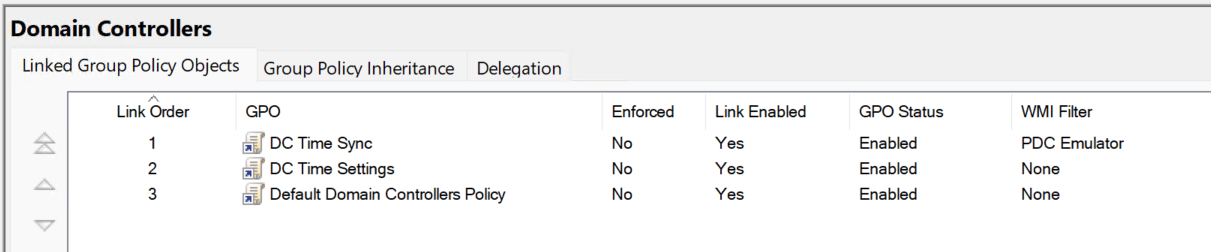
GPOs applied to domain controllers.
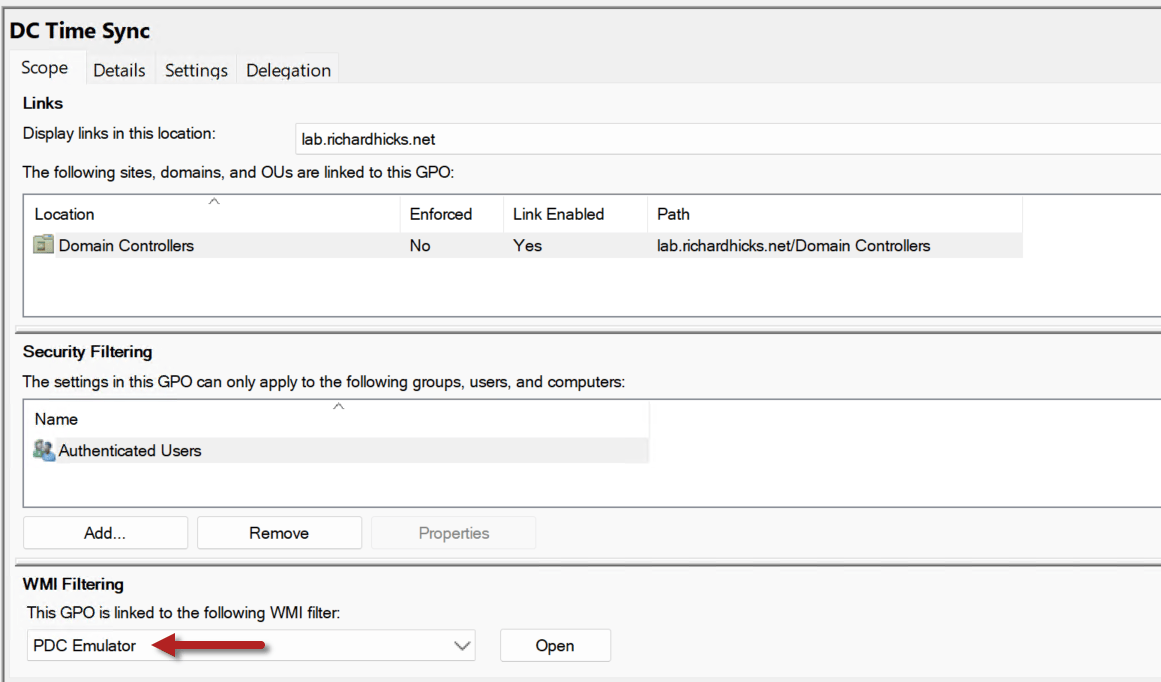
DC Time Sync GPO with WMI filtering applied to PDC emulator.
Applying the Policies
Force replication so every domain controller has the new GPOs, then apply them and restart the time service.
Invoke-Command -ComputerName $Pdc -ScriptBlock { repadmin.exe /syncall /AdeP | Out-Null }Start-Sleep -Seconds 60Invoke-Command -ComputerName $DomainControllers -ScriptBlock { gpupdate.exe /target:computer /force | Out-Null Restart-Service -Name W32Time w32tm.exe /resync /rediscover | Out-Null }
Domain members pick up the new GPO at their next policy refresh. However, W32Time reads which providers are enabled only when the service starts, so a member VM keeps using VMICTimeProvider until W32Time restarts or the machine reboots. To switch a member over immediately, run the following commands on it.
gpupdate.exe /target:computer /forceRestart-Service -Name W32Timew32tm.exe /resync /rediscover
Configuring the Workgroup Hyper-V Hosts
With the domain controllers fixed, the last piece is the Hyper-V hosts. In the customer’s environment, most of the domain ran on hosts that were workgroup members, and none had any time configuration. The VMs no longer take their time from the host continuously, but the host’s clock still sets each VM’s time at startup and after a restore from a saved state. Workgroup machines don’t participate in the domain hierarchy, so Group Policy can’t help here. Each host must be configured locally, and there are two reasonable options.
- Sync directly from the public time service. This is what I did for the customer. The hosts don’t depend on a VM they’re running, which avoids a chicken-and-egg problem at boot. It does require allowing outbound UDP 123 from each host.
- Sync from the PDC emulator. This keeps a single internal source of truth and needs no additional edge firewall rules, since domain controllers answer NTP requests by default. The downside is that the host boots before the PDC emulator VM and runs on its own clock until the domain controller is available.
Either way, everything traces back to the same UTC source. Run the following commands locally on each Hyper-V host.
# Sync from Cloudflare (0x1 = use SpecialPollInterval, 0x8 = client mode)w32tm.exe /config /manualpeerlist:"time.cloudflare.com,0x9" /syncfromflags:manual /update# Poll every 1024 seconds (workgroup machines default to once a week)Set-ItemProperty -Path 'HKLM:\SYSTEM\CurrentControlSet\Services\W32Time\TimeProviders\NtpClient' -Name SpecialPollInterval -Value 1024Restart-Service -Name W32Timew32tm.exe /resync /rediscover
Setting SpecialPollInterval is important. The workgroup default is 604,800 seconds, or one week, which is far too infrequent to keep a virtualization host accurate. To sync from the PDC emulator instead, replace time.cloudflare.com with the PDC emulator’s name or IP address. Use the IP address if the hosts don’t use the domain’s DNS servers.
Domain Member Virtual Machines
VMICTimeProvider is enabled by default on every Hyper-V VM, not just domain controllers, so domain-joined member VMs take their time from the host instead of the domain hierarchy. With accurate hosts, that works, but it creates a second time root. Domain controllers follow the PDC emulator, while member VMs follow whichever host they run on. In my lab, a member VM was about 77 milliseconds off the PDC emulator, even though both its host and the PDC emulator synced with Cloudflare. If a host loses access to its time source, its VMs drift away from the domain controllers, which is the original problem in a new place. The Domain Member Time Settings GPO prevents this. It disables only the W32Time provider, not the Hyper-V time synchronization integration service, so VMs still get their clock set at startup and after a restore from a saved state.
Validating the Configuration
Once everything is in place, confirm each tier of the hierarchy is getting time from the right place, including the domain controllers, domain members, the Hyper-V hosts, and the domain as a whole.
Validating Domain Controllers
Run the following commands to check the time configuration and status of every domain controller.
Invoke-Command -ComputerName $DomainControllers -ScriptBlock { Write-Output "=== $env:COMPUTERNAME ===" w32tm.exe /query /configuration | Select-String 'Type:|NtpServer:|AnnounceFlags:' | ForEach-Object { $_.Line.Trim() } w32tm.exe /query /status | Select-String 'Stratum:|Root Dispersion:|Source:' | ForEach-Object { $_.Line.Trim() } Write-Output "VMICTimeProvider Enabled: $(Get-ItemPropertyValue -Path 'HKLM:\SYSTEM\CurrentControlSet\Services\W32Time\TimeProviders\VMICTimeProvider' -Name Enabled)" }
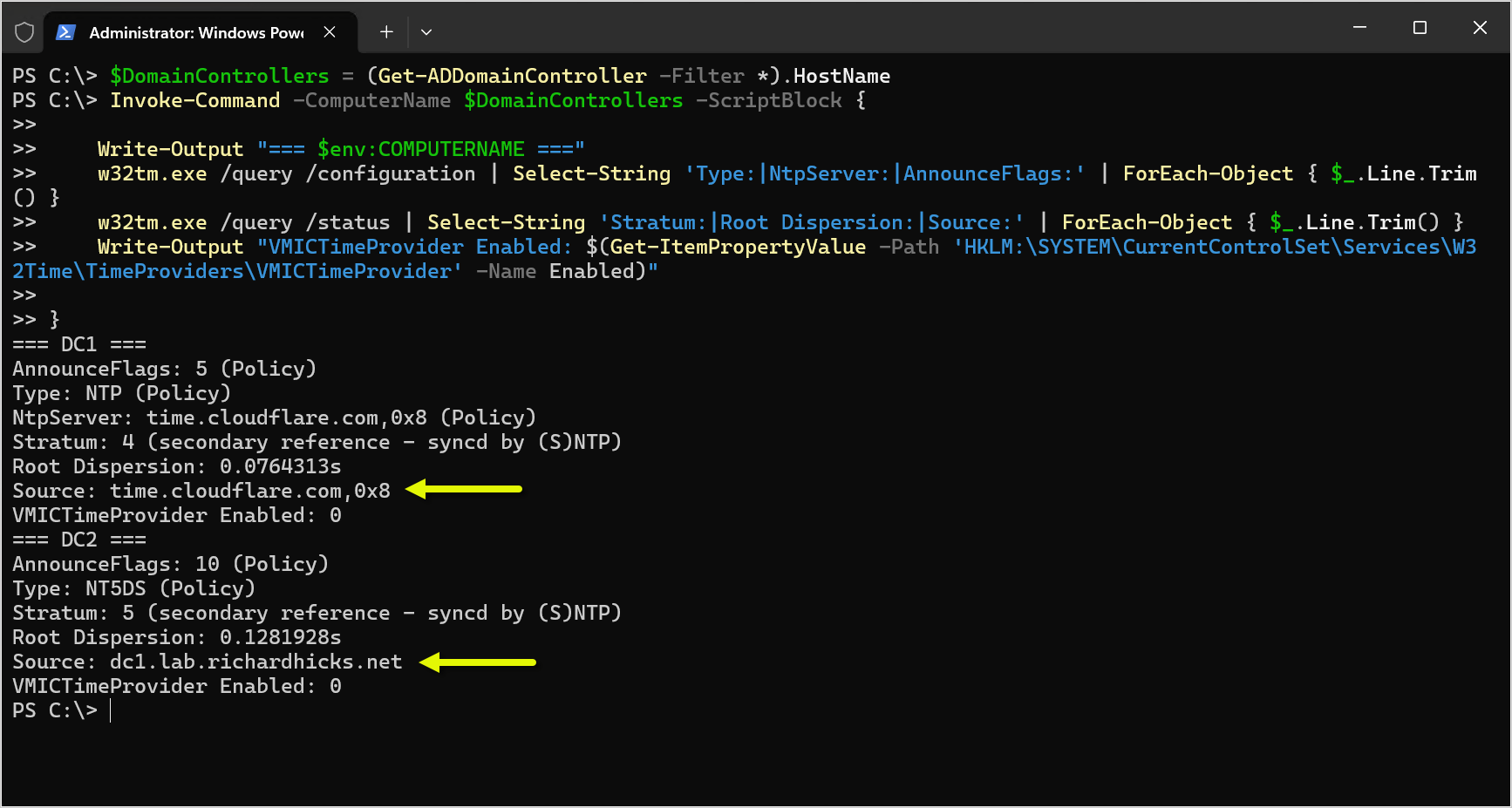
Validating domain controller time configuration settings.
The .Line.Trim() is there for a reason. Select-String results returned through Invoke-Command are deserialized objects that PowerShell can’t format, so without it you’ll see blank lines instead of the output. The following table shows what to look for on each type of server.
| Server | Type | AnnounceFlags | Source | Stratum | VMICTimeProvider |
| PDC emulator | NTP (Policy) | 5 (Policy) | time.cloudflare.com,0x8 | 4 | 0 |
| Other domain controllers | NT5DS (Policy) | 10 (Policy) | PDC emulator | 5 | 0 |
| Hyper-V hosts | NTP (Local) | n/a | time.cloudflare.com,0x9 | 4 | n/a |
The (Policy) label confirms Group Policy is in control rather than local settings. Root Dispersion will be high immediately after the service restarts and should settle under a second within about 30 minutes.
Validating Domain Members
On a domain member VM, run the following commands to confirm it follows the domain hierarchy and agrees with the PDC emulator.
w32tm.exe /query /sourcew32tm.exe /query /status | Select-String 'Stratum:|Source:|ReferenceId:'w32tm.exe /stripchart /computer:$Pdc /samples:5 /dataonly
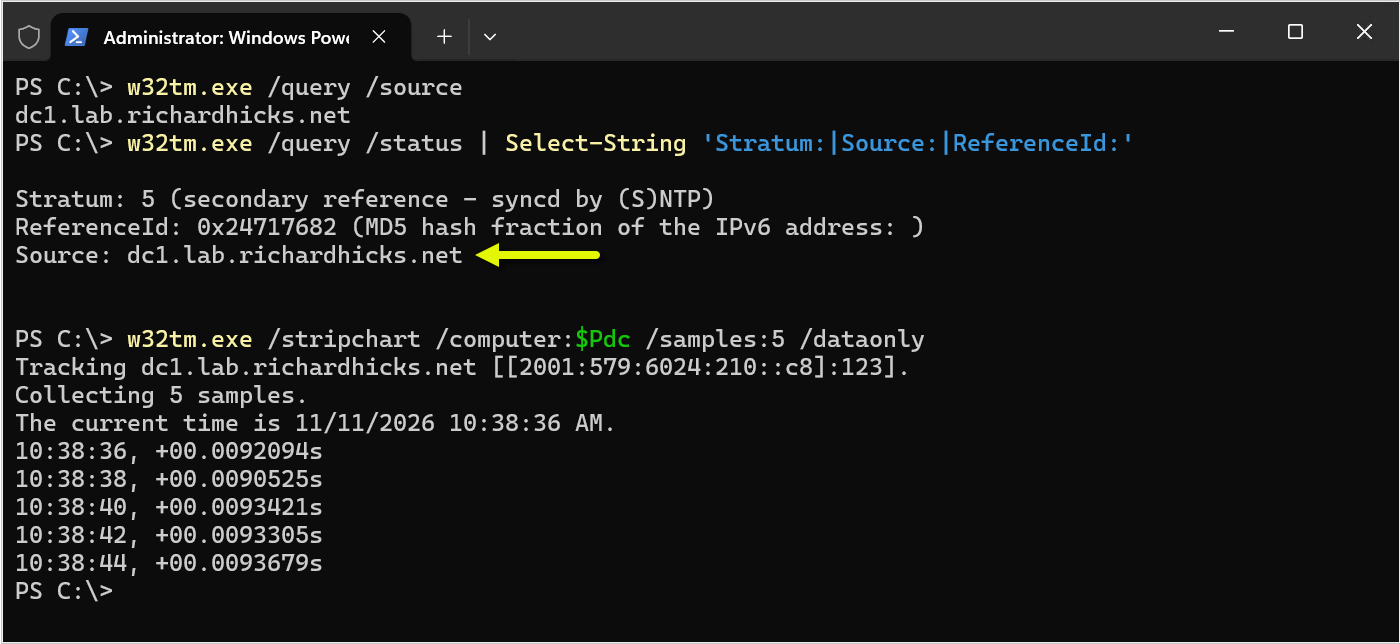
Domain member VM synchronizing with the PDC emulator.
The source should be a domain controller, not VM IC Time Synchronization Provider, and the stratum should be one or two levels below the PDC emulator. In my lab, a member VM went from about 77 milliseconds off the PDC emulator to under 10 milliseconds within minutes of switching to the domain hierarchy.
Validating Hyper-V Hosts
On the Hyper-V hosts, run the following commands locally.
w32tm.exe /query /sourcew32tm.exe /query /status | Select-String 'Stratum:|Root Dispersion:|Last Successful Sync Time:'w32tm.exe /query /peers
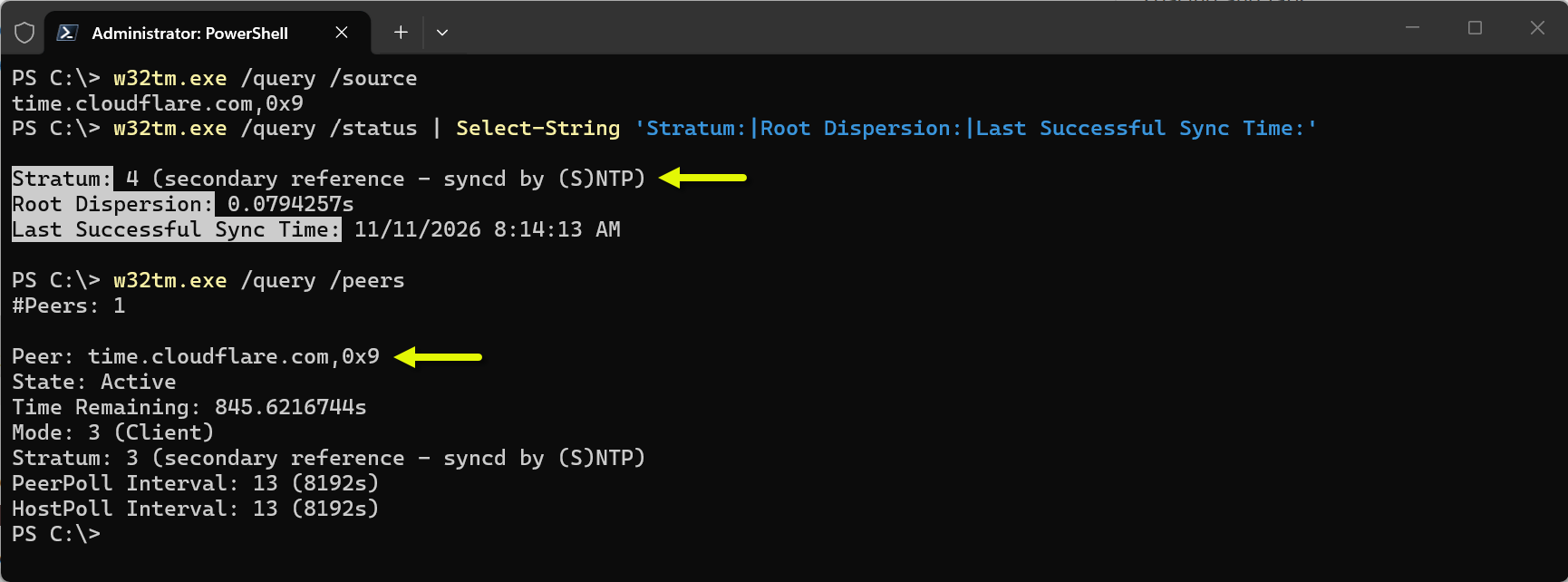
Time synchronization settings on the Hyper-V host server.
The peer’s State should be Active. A state of Pending usually means the host can’t reach the time server.
Validating the Domain
After things have had time to settle, check the entire domain at once. Every domain controller should show a small offset relative to the PDC emulator, with no errors.
w32tm.exe /monitor /domain:$DomainFqdn
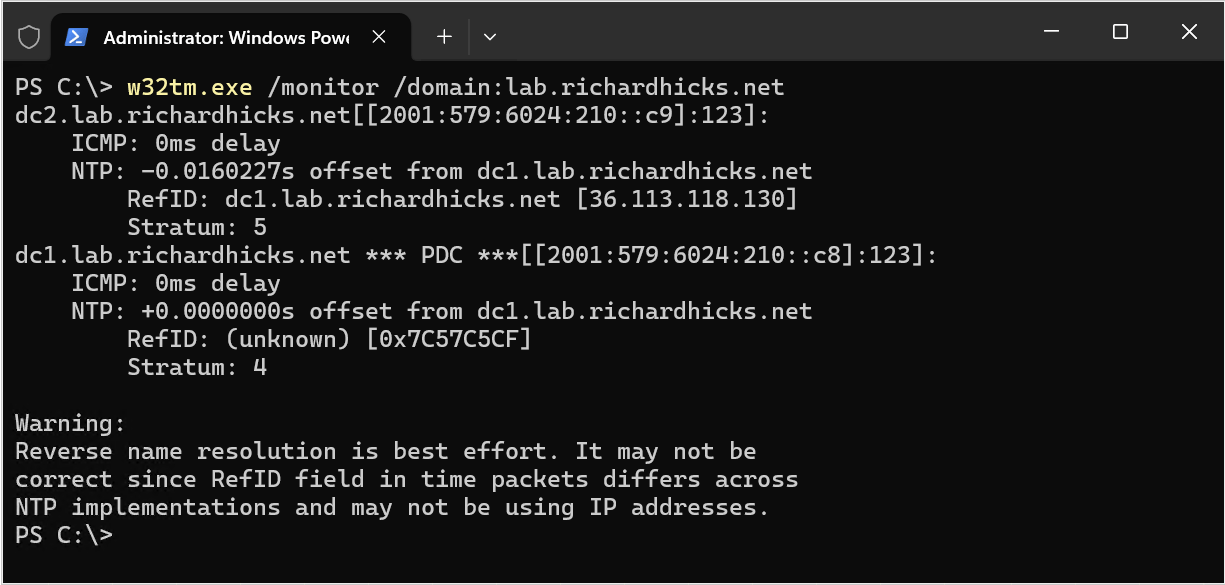
All domain controllers synchronizing with the PDC emulator.
You might notice an unusual IPv4 address listed for dc1, such as 36.113.118.130. That’s not dc1’s address, and it’s not a real IPv4 address at all. It’s the RefID, which identifies the server’s upstream time source. The NTP reference ID field is only 32 bits, so when the source is reached over IPv6, as time.cloudflare.com is here, the field contains the first 32 bits of the MD5 hash of the source’s IPv6 address, as defined in RFC 5905. It’s expected behavior and can safely be ignored. In my lab, the PDC emulator went from roughly 840 milliseconds off UTC to closely tracking UTC once it began syncing with Cloudflare. In the customer’s environment, the Kerberos anomalies stopped once all domain controllers and hosts converged on a single source.
Summary
Time synchronization is easy to overlook, especially in virtualized environments where Hyper-V quietly fills in the gaps. In this case, the symptoms showed up as Kerberos anomalies during an AD CS engagement, but the root cause was a domain with no single, authoritative time source. The fix came down to the following steps.
- Reset every domain controller to the default W32Time configuration.
- Configure the PDC emulator, and only the PDC emulator, to sync with a reliable public time service using a WMI-filtered GPO.
- Configure all other domain controllers to follow the domain hierarchy and disable VMICTimeProvider on every domain controller with a second GPO.
- Disable VMICTimeProvider on domain members with a third GPO linked to the domain root, so virtual machines follow the domain hierarchy too.
- Allow outbound UDP 123 for the systems that sync externally.
- Explicitly configure any workgroup Hyper-V hosts, since they don’t participate in the domain hierarchy.
With Group Policy managing the domain controllers and domain members, the configuration is consistent, self-documenting, and follows the PDC emulator role automatically if it ever moves.
Additional Information
Windows Time Service Technical Reference
Windows Time Service Tools and Settings
Synchronizing Time on Virtualized AD DS Environments: VMICTimeProvider vs AD
Configure the Root PDC with an Authoritative Time Source and Avoid a Widespread Time Skew



Zack
/ November 11, 2026Excellent article! I’ve been using NTP hierarchy GPOs with automatic (WMI) assignment for PDC emulators for a while, from other articles I’ve come across. One less thing to worry about permanently via automating for the org/domain.
My one suggestion would be having multiple (non-smearing) NTP sources, just in case of an issue with one (DNS, BGP, routing, etc.).
Richard M. Hicks
/ November 11, 2026Thanks! I hear you on the multiple time sources. I have high confidence that Cloudflare’s time service is highly available, but you’re right, other things could impact connectivity. Not a bad idea to have multiple sources defined.