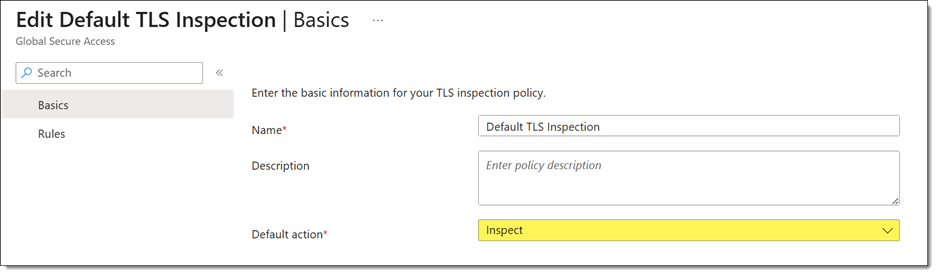
TLS inspection is a powerful feature of Entra Internet Access that allows inspection and policy enforcement for encrypted internet traffic. It enables more thorough inspection and is required for features such as AI prompt policies. When TLS inspection is enabled, the TLS connection from the target server (origin server) is terminated by the Entra service. A new session is created between the cloud and the endpoint using a dynamically generated TLS certificate issued by Entra. As Entra holds the private key for this certificate, it can decrypt and inspect traffic as necessary.
Always On VPN
Recently, a customer asked me to help troubleshoot an Always On VPN user tunnel connectivity issue. The problem began shortly after deploying the Global Secure Access client with TLS inspection enabled. Administrators had configured the default TLS inspection policy to inspect traffic for all websites.
User Tunnel Failures
Attempts to manually start the Always On VPN user tunnel resulted in a failed connection attempt with the following error message.
Error 0x800704D4: The network connection was aborted by the local system.
Event Logs
Reviewing the client event logs revealed numerous Event ID 20227 entries from the RasClient source with the following error message.
The user DOMAIN\User dialed a connection named [connection name] which has failed. The error code returned on failure is -2147023660.
Note: Error code -2147023660 is the decimal equivalent of 0x800704D4.
Troubleshooting
Initial testing with Test-NetConnection confirmed that TCP port 443 on the VPN server was reachable. However, using Get-TlsCertificate revealed the real problem.
Although the certificate subject matched the VPN server, the issuer did not. Instead of the VPN server’s issuing CA, the certificate had been issued by Microsoft Entra Global Secure Access, confirming that TLS inspection was intercepting the connection.
SSTP and TLS Inspection
The Secure Socket Tunneling Protocol (SSTP) is a Microsoft proprietary VPN transport that uses HTTP for tunneling and TLS for security. Unlike a web browser, which can establish a new trusted TLS session with an inspection proxy, SSTP validates the VPN server’s certificate as part of establishing the VPN tunnel. Any certificate substitution, even by a trusted TLS inspection service, changes the server certificate thumbprint and causes SSTP validation to fail.
Workaround
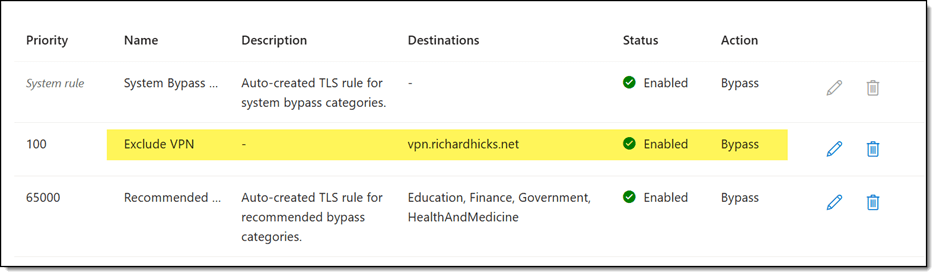
The solution is to create a TLS inspection exclusion policy to exempt inspection for the VPN server FQDN(s), as shown here.
Summary
Microsoft Entra Internet Access TLS inspection can unintentionally interfere with Always On VPN deployments that use SSTP. Because TLS inspection replaces the VPN server’s certificate with one issued by Microsoft Entra, SSTP detects the certificate mismatch and terminates the connection. If you use Always On VPN with Entra Internet Access, configure a TLS inspection exclusion for your VPN server FQDNs to prevent interception while preserving TLS inspection for general internet traffic.
Entra Internet Access includes an optional TLS Inspection feature that allows the GSA client to decrypt HTTPS traffic, inspect for threats, identify policy violations, and enforce Data Loss Prevention (DLP) policies. Importantly, enabling TLS inspection for GSA allows administrators to apply prompt injection protection policies to control the usage of generative AI applications.
TLS Inspection Certificate
Before enabling TLS inspection for Entra Internet Access, administrators must first create a TLS inspection certificate. This certificate must be signed by a trusted certification authority (CA). The process is simple and straightforward, and well-documented here.
Invalid Certificate Error
After enabling Entra Internet Access TLS inspection, administrators may find that all websites subject to TLS inspection are inaccessible. The browser displays the following error message:
Your connection isn’t private Attackers might be trying to steal your information from <website> (for example, passwords, messages, or credit cards.)
NET:ERR_CERT_INVALID
Clicking on the Advanced button shows the following additional information:
<website> uses encryption to protect your information. When Microsoft Edge tried to connect to <website> this time, the website sent back unusual and incorrect credentials. This may happen when an attacker is trying to pretend to be <website>, or a Wi-Fi sign-in screen has interrupted the connection. Your information is still secure because Microsoft Edge stopped the connection before any data was exchanged.
You can’t visit <website> right now because the website sent scrambled credentials that Microsoft Edge can’t process. Network errors and attacks are usually temporary, so this page will probably work later.
Root Cause (Pun Intended!)
This issue can be caused by restrictions placed on the root CA. Specifically, if the root CA certificate includes a policy that restricts the CA path length (the number of subordinate CAs allowed downstream), the Microsoft Global Secure Access Intermediate CA, which issues certificates for TLS-inspected websites, cannot be validated successfully.
In this example, the root CA certificate includes a basic constraint that defines a maximum of 1 intermediate CA in the chain. Crucially, the extension is marked as Critical, so it must be enforced.
Because the root CA enforces a path length constraint of 1, the TLS inspection subordinate CA can exist beneath it, but no additional subordinate CA certificates are permitted. As a result, the Microsoft Global Secure Access Intermediate CA exceeds the allowed chain depth, causing certificate validation to fail.
Resolution
The fix for this issue is simple, yet complex. The root CA certificate must be renewed, this time without enforcing the CA path length policy. To do this, open an elevated command window on the root CA and run the following command.
Important: If your CA hierarchy uses CAPolicy.inf to define the CAPathLength setting, update the file before renewing the CA certificate.
Next, restart the CA service for the change to take effect.
Restart-Service CertSvc -PassThru
Finally, renew the CA certificate.
certutil.exe -f -renewcert ReuseKeys
Restart the CA service once more for the change to take effect.
Restart-Service CertSvc -PassThru
Once complete, distribute the new root CA certificate to Active Directory and to Intune-managed endpoints using a Trusted Certificate device configuration policy.
Finally, configure a new Entra TLS inspection certificate in the Entra admin center to replace the old one, signed with the updated root CA certificate. Once the certificate has been uploaded, ensure it is enabled.
Important: Renewing a root CA certificate can be highly disruptive. Proceed with caution in production environments. Ensure that all enterprise assets receive the new root CA certificate in a timely manner. Alternatively, to reduce the chance of disruption, consider deploying a new root CA dedicated to Entra TLS inspection.
Result
Once these changes are made, the certificate chain will allow the Microsoft Global Secure Access Intermediate CA to exist beneath the TLS inspection CA, resulting in a valid certificate chain for TLS-inspected websites. Browsers will once again trust the dynamically generated certificates, eliminating the ERR_CERT_INVALID error.
The following certificate chain shows the corrected configuration after renewing the root CA certificate and recreating the TLS inspection certificate.
Summary
Entra Internet Access TLS inspection relies on a certificate chain that includes the Microsoft Global Secure Access Intermediate CA. If the root CA that signs the TLS inspection certificate enforces a restrictive path length constraint, certificate validation can fail, causing browsers to display ERR_CERT_INVALID errors for all TLS-inspected websites. Reviewing the certificate chain and understanding how basic constraints affect subordinate CAs can help quickly identify and resolve this issue. When deploying TLS inspection, ensure that CA hierarchy restrictions are compatible with this deployment scenario. Consider using a dedicated PKI hierarchy to minimize operational impact.
I’m excited to announce that I will be delivering another edition of the Mastering Certificates with Microsoft Intune course, hosted by ViaMonstra Online Academy. This is a three-day live online training course that takes place September 1-3, 2026. This course dives deep into issuing and managing certificates using Microsoft Intune, covering both on-premises and cloud-based solutions.
Course Overview
This interactive training equips IT professionals with the skills to provision and manage enterprise PKI certificates using Microsoft Intune. It explores Active Directory Certificate Services (AD CS), Microsoft Cloud PKI for Intune, and non-Microsoft solutions, with live demonstrations featuring real-world scenarios.
Key Learning Objectives
Those taking the online training course will learn the following.
Certificate Basics: Understand certificate roles and enterprise use cases.
Deployment Options: Master Intune certificate deployment (Intune policies, revocation, security) and Microsoft Cloud PKI (licensing, benefits, limitations, BYOCA).
Intune Deployment: Learn PKCS and SCEP deployment, security best practices, and troubleshooting.
High Availability: Explore strategies for reliable certificate management.
Course Highlights
Here are some key highlights for attendees of the training.
Expert-Led: Learn from a veteran IT professional, a Microsoft MVP, with deep PKI and Intune expertise.
Interactive Demonstrations: The course includes numerous practical exercises in real-world scenarios.
Resources: Access to security best practices and sample scripts for automated configuration.
Community: Join a private Facebook group for peer collaboration.
Live Q&A: Engage directly with the instructor for a clearer understanding.
Who Should Attend?
This training event is ideal for IT administrators, security professionals, and systems engineers working with Intune, AD CS, or Microsoft Cloud PKI for Intune.
Prerequisites
Those attending the online training course should be familiar with the following.
Basic networking knowledge (TCP/IP, DNS).
Familiarity with Active Directory, Windows OS, and Intune.
Access to an AD CS setup and an Azure subscription with Intune Suite licenses.
Why It Matters
Certificates are vital for secure authentication and communication. This course bridges theory and practice, equipping you to deploy and manage digital certificates effectively in cloud-native environments.
Details
Here is some additional information about the training event.
When: September 1-3, 2026 (sessions begin at 9:00 AM CDT).
On June 2, 2026, Microsoft released version 2.31.125 of the Entra Global Secure Access (GSA) client. This update introduces several enhancements designed to improve client resiliency, simplify troubleshooting, and provide administrators with better visibility into network connection status.
Changes in v2.31.125
GSA client v2.31.125 includes new features to streamline connectivity troubleshooting.
Network Status
The new GSA client can now distinguish between a complete network disconnection and a scenario where the device remains connected to a local network but lacks internet access. This distinction helps administrators and users more quickly identify the source of connectivity issues and reduce troubleshooting time.
Network Disconnected
No Internet Connectivity
Local Access
When Intelligent Local Access (ILA) is enabled, the client now clearly indicates when a device is connected to a trusted private network. This provides additional visibility into ILA decision-making and helps confirm that local access policies are functioning as expected.
Sign Out
The new GSA client includes an account picker when a user signs out on Entra-registered or Entra-joined devices. This enhancement simplifies account management on shared or multi-user devices by allowing users to switch identities without fully reinstalling or reconfiguring the client.
The sign out option is disabled by default. It must be enabled by setting the following registry key.
Because the GSA client supports only a single interactive Windows session, this new indicator helps quickly identify unsupported multi-session scenarios that may impact client functionality or troubleshooting efforts.
Other Changes
In addition to the new features and capabilities outlined above, these changes are also included.
Updated embedded .NET Runtime to version 8.0.26.
GSA Forwarding Profile Service now automatically restarts after a failure.
Improved detection and tunneling of agentic network connections.
Various bug fixes and performance improvements.
Summary
GSA Client v2.31.125 introduces several useful enhancements focused on troubleshooting, resiliency, and user experience. Improved network status visibility, Intelligent Local Access awareness, account sign-out support, and enhanced session detection provide administrators with better diagnostic capabilities while making the client easier for end users to understand and manage. Although this release remains in preview, administrators are encouraged to begin testing this latest release soon.
On April 27, 2026, Microsoft announced an update for the Entra Global Secure Access (GSA) client version 2.28.96. This new release includes improvements to the user experience for BYOD scenarios, to surface more information about endpoint status on the main screen, and to Intelligent Local Access (ILA).
Sign Out
Microsoft has changed how the Sign Out button is displayed depending on the device’s join type. With GSA client 2.28.96, the Sign Out button now appears by default only on Microsoft Entra-registered devices. This option is hidden on Microsoft Entra-joined devices but can optionally be displayed by setting a registry key.
Intelligent Local Access
This update also includes changes to the Intelligent Local Access (ILA) feature. Administrators can now assign a private application to multiple private networks. In addition, the GSA client now includes a new Private Access Definitions section on the Forwarding Profile tab of the Advanced Diagnostics tool. This new section includes the Private DNS definitions and a new Private network definitions section, which detail the current ILA configuration, including defined private networks, configured DNS server addresses, the FQDN to resolve for the private network, and the expected IP address for the ILA FQDN.
Additional Changes
GSA client v2.28.96 also includes additional changes to address known issues and bugs.
I’ve written extensively about how public TLS certificate lifetimes will drop to just 47 days by March 2029. Before then, we’ll see certificate lifetimes gradually drop from the current 398 days to 200 days on March 15, 2026, and then to 100 days on March 15, 2027. In preparation for this, I’ve been working with many customers to deploy automated certificate enrollment and renewal solutions to eliminate the need for manual intervention. Interestingly, Let’s Encrypt now offers extremely short-lived certificates that are good for just 6 days! While they work just fine for Always On VPN, I discovered they will not work for DirectAccess.
6-Day Certificate
After successfully enrolling for a 6-day TLS certificate from Let’s Encrypt (I used CertKit, BTW!), I encountered an error when trying to assign the short-lived certificate to the IP-HTTPS listener in the DirectAccess configuration. Specifically, when running the Set-RemoteAccess PowerShell command, I received the following error.
Set-RemoteAccess: The parameter is incorrect.
Further investigation showed that I could install other public TLS certificates just fine. For some reason, though, DirectAccess did not like this new 6-day certificate.
Missing Subject Name
After digging a bit deeper, I realized the Subject field of the new 6-day Let’s Encrypt certificate was empty.
Subject vs. SAN in Modern TLS
Modern TLS clients rely entirely on the Subject Alternative Name (SAN) field for identity validation, and the older practice of matching against the certificate’s Subject field has been phased out for many years. Many certificate authorities, including Let’s Encrypt, now leave the Subject field empty because it no longer serves a functional purpose in current TLS implementations. DirectAccess still expects this field to contain data and does not properly fall back to SAN‑only validation. As a result, any certificate with an empty Subject field, such as the new 6‑day certificates from Let’s Encrypt, will fail when applied to the DirectAccess IP‑HTTPS listener.
Workaround
Admittedly, using 6-Day public TLS certificates for DirectAccess is extreme and likely overkill for this workload. The good news is that DirectAccess still works perfectly with 90-day Let’s Encrypt certificates, so the lack of 6-day certificate support should not be impactful.
CertKit
Have you heard about CertKit? CertKit, an online service for automating Let’s Encrypt certificate enrollment and renewal, has added support for Always On VPN and DirectAccess. Find details on leveraging it for public TLS certificates for these solutions here.
With public TLS certificate lifetimes set to drop to 200 days soon (next week!), Always On VPN and DirectAccess administrators face an increased risk of service disruption if certificates aren’t renewed on time. These shorter certificate lifetimes require more frequent renewals, substantially increasing management overhead. Although 200 days equate to roughly a twice-a-year renewal, lifetimes will decrease further to 100 days next year and eventually to just 47 days in 2029. SSTP and IP-HTTPS are TLS-based tunneling protocols used by Always On VPN and DirectAccess, respectively, tying their certificate health directly to remote access availability. Now is the time to automate the enrollment and renewal of Always On VPN SSTP and DirectAccess IP-HTTPS/TLS certificates to ensure reliable operation in the future.
Always On VPN
Previously, I wrote about using CertKit.io to automate the enrollment and renewal of public TLS certificates for Always On VPN. CertKit is an online service that administrators can use to delegate the task of enrolling for short-lived certificates from Let’s Encrypt. In that post, I shared some sample code to retrieve the certificate from CertKit and assign it to the SSTP listener for the Routing and Remote Access Service (RRAS). However, CertKit added new features to its solution, eliminating the need for additional code.
CertKit Agents
Recently, CertKit introduced CertKit Agents. These lightweight software agents are installed on Windows Servers (other operating systems are supported as well) to automate the process of downloading CertKit certificates and installing them in the local computer certificate store. Importantly, they now specifically support both the Always On VPN (SSTP) and DirectAccess (IP-HTTPS) workloads natively.
Always On VPN
The CertKit agent automatically detects the Routing and Remote Access (RRAS) workload and updates the certificate binding for the SSTP listener accordingly. Since this process requires a service restart, which terminates all current VPN connections, CertKit allows you to select an outage window for certificate updates.
Here, administrators can define the day(s) and time window during which the agent is authorized to restart the RemoteAccess service when updating the TLS certificate for SSTP. The day and time are based on the server’s configured time zone settings.
DirectAccess
Beginning with CertKit agent v1.6.2, the agent automatically detects whether DirectAccess is configured, enabling IP-HTTPS TLS certificates to be automatically enrolled and renewed. However, additional configuration is required. The following changes must be made to support CertKit for DirectAccess.
Service Account – Administrators must configure a service account in Active Directory for the CertKit agent. A Group Managed Service Account (gMSA) is preferred, but a standard domain service account is also supported.
GPO Delegation – CertKit service account must be delegated the ‘Edit settings, delete, and modify security’ permission on the DirectAccess server and client settings GPOs.
Log On as a Service – When using a domain service account, administrators must grant the CertKit service the ‘Log on as a service’ right on the DirectAccess server. However, when using gMSA, the ‘Log on as a service’ right is not required.
Local Administrator – Administrators must also add the CertKit agent service account to the Local Administrators group on the server.
Configuration Script
I have published a PowerShell script to simplify configuring the CertKit agent on DirectAccess servers. The script automatically performs all required tasks for the CertKit agent to work with DirectAccess. You will find the Enable-DACertKit.ps1 PowerShell script on GitHub. Alternatively, you can install the script directly from the PowerShell Gallery.
After installing the CertKit agent, run the PowerShell script to complete the configuration. Next, authorize the agent in the CertKit management portal and assign a certificate. Once complete, CertKit can fully manage the IP-HTTPS TLS certificate for DirectAccess.
Note: Like Always On VPN, changes to the DirectAccess IP-HTTPS certificate require a service restart, which is disruptive. Be sure to define a maintenance window (as shown previously) to ensure the change is made during non-peak times.
Summary
As TLS certificate lifecycles continue to shrink, automating certificate enrollment and renewal has become essential for both Always On VPN and DirectAccess environments. CertKit agents streamline this process by automatically retrieving, installing, and binding certificates for SSTP and IP-HTTPS, all while supporting scheduled outage windows to minimize disruption. With these new capabilities, administrators can significantly reduce operational overhead and ensure consistent, reliable remote access services without manual intervention. Visit CertKit.io to get started today.
More Information
If you would like to learn more about CertKit or see a demonstration with Always On VPN or DirectAccess, fill out the form below, and I’ll provide you with more details.
Microsoft Entra Private Access is a Zero Trust Network Access (ZTNA) solution that provides secure access to private enterprise resources. With the release of Global Secure Access (GSA) client version 2.26.108, Microsoft has addressed a crucial functionality gap by adding support for Bring Your Own Device (BYOD), enabling secure access from non-managed endpoints.
BYOD Support in Global Secure Access
Microsoft introduced BYOD support for Entra Private Access with the release of the GSA client version 2.26.108. This update allows the GSA client to be installed on Microsoft Entra-registered devices that are not domain-joined or managed by the organization, enabling secure access to private resources from personal or unmanaged endpoints.
Use Cases
BYOD support in GSA and Entra Private Access enables several common scenarios where network access from managed devices is impractical or unavailable, including:
Vendor or contractor access
IT incident response from unmanaged endpoints
Temporary or seasonal staffing
Collaboration with external partners
Replacing Legacy VPN for Ad Hoc Access
Historically, legacy VPN solutions were the primary option for providing ad hoc access to private resources from unmanaged devices. With the introduction of BYOD support in the GSA client, organizations can now extend Entra Private Access to these scenarios without deploying or maintaining a separate VPN infrastructure.
Additional Changes
In addition to adding BYOD support, GSA client v2.26.108 includes the following new enhancements.
GSA traceroute enhancements, including a 50M MB speed test between the client and edge service.
Summary
BYOD support removes a key barrier to adopting Microsoft Entra Private Access. Organizations can now securely provide access to private resources using Zero Trust policies, even when users connect from unmanaged or personal devices, and without relying on legacy VPN solutions.
With public TLS certificates moving to significantly shorter certificate lifetimes, eventually just 47 days, Always On VPN administrators supporting Secure Socket Tunneling Protocol (SSTP) connections must prepare to address this eventuality. The first milestone for shortened public TLS certificate lifetimes is a few months, on March 15, 2026, when public TLS certificate lifetimes will be reduced from a maximum of 398 days to 200 days. One year later, on March 15, 2027, they will be reduced to just 100 days. Now is the time to begin planning an automated certificate enrollment solution to reduce administrative overhead and ensure uninterrupted connectivity for remote users.
Previous Approaches: PowerShell and Posh-ACME
In the past, I’ve written about using Let’s Encrypt Certificates for Always On VPN using the Posh-ACME PowerShell module. I’ve also posted some sample code to demonstrate how to integrate with a DNS provider to automate publishing the ACME challenge to public DNS for certificate enrollment verification. However, this assumes your DNS provider supports this option. Some do not. In addition, granting write permissions to public DNS via an API key introduces significant security risks. So, if direct ACME DNS automation isn’t viable in your environment, CertKit is an excellent alternative.
CertKit: Automated Certificate Issuance, Monitoring, and Alerting
To address these limitations, administrators can use the CertKit service. With CertKit, you delegate the Let’s Encrypt certificate enrollment process to them by simply creating a CNAME record in your public DNS. Once complete, CertKit handles the entire process transparently.
Issuance
Today, CertKit supports issuing certificates using Let’s Encrypt. In the future, support for additional certificate providers such as Google Trust and ZeroSSL will be added. CertKit supports Let’s Encrypt certificates using RSA (2048-bit) and Elliptic Curve (recommended). Certificates can be issued for an individual resource, a group of resources (multi-SAN), and a domain wildcard (e.g., *.example.net).
Monitoring
In addition to certificate issuance and management, CertKit offers domain TLS certificate monitoring to track your public assets. You can monitor your CertKit-managed certificates easily, but you can also add other services using TLS and track them on the same console. In this example, I’m using CertKit to manage certificates for two VPN servers (indicated by solid green dots) and to monitor my public websites, for which certificate management is handled by their respective hosting providers.
Alerts and Notifications
CertKit will automatically send emails to let you know when a certificate is expiring and if a CertKit-managed certificate has been renewed.
Pending certificate expiration.
Successful certificate renewal.
Certificate Retrieval
Once CertKit completes the enrollment process on your behalf, it stores all certificate files (.PFX, .PEM, and .KEY) in a secure S3-compatible storage bucket. While an administrator could easily retrieve and install them manually, automation will help reduce administrative overhead, especially as public TLS certificate lifetimes are further reduced. You can download certificate files programmatically in several ways.
PowerShell
The first way to download the certificate files from CertKit is to use the AWSPowerShell module. However, the AWSPowerShell is relatively heavy and is overkill for this specific use case. A better alternative is to use the MinIO client.
MinIO
The MinIO client (mc.exe) is an open-source command-line tool developed by MinIO. It provides access to any S3-compatible storage, which CertKit uses in its environment. MinIO is a single, portable executable installer that’s easy to use and well-documented.
Sample Code
I’ve published some sample code to demonstrate how to use the MinIO client to retrieve certificates from CertKit and install them on a Windows Server Routing and Remote Access (RRAS) server. You can find the sample code on GitHub here.
Note: This sample code demonstrates how to download a .PFX file from CertKit and install it on the RRAS server. It is designed to run as a scheduled task in Windows during non-peak times. The code includes robust checks for service viability and will reboot the server if they fail. As such, this sample code could cause service disruptions, so use it with caution.
Cost
Today, CertKit is in beta and is free for everyone to use. In the future, there will be both free and paid tiers. You can learn more about their pricing models and sign up for the service at CertKit.io.
Learn More
If you’d like to learn more about CertKit and how you can leverage it for Always On VPN and other workloads in your environment, or you’d like to see a demonstration of CertKit, fill out the form below, and I’ll provide you with more information.
The predominant solution for secure remote access today in the Microsoft ecosystem is Always On VPN. Always On VPN is based on traditional Virtual Private Network (VPN) technology originally developed in the mid-1990s. However, Microsoft recently introduced Entra Private Access, which is part of the Global Secure Access (GSA) Security Service Edge (SSE). Entra Private Access is an identity-centric Zero Trust Network Access (ZTNA) solution designed to replace traditional VPN solutions. It offers significantly improved security with granular resource access without dependency on on-premises infrastructure. This article outlines where each solution fits best and how organizations can transition safely between them.
Always On VPN
First introduced in Windows 8, Microsoft Always On VPN provides seamless, transparent, secure remote access using client-based VPN protocols such as Internet Key Exchange version 2 (IKEv2) and Secure Socket Tunneling Protocol (SSTP). When establishing a VPN connection, a virtual network adapter is created, and an IP address is assigned to the interface to facilitate tunneled network communication with the internal network.
Architecture
Always On VPN requires substantial on-premises supporting infrastructure. In addition to the VPN servers themselves, administrators must also deploy authentication servers (RADIUS or NPS) and certificate services (AD CS). Administrators must manage public TLS certificates for SSTP connections. Also, larger deployments may require on-premises load balancers and/or cloud-based Global Server Load Balancing (GSLB) solutions. Further, additional configuration is needed to integrate Entra ID Conditional Access. Because this infrastructure must be publicly accessible by design, it becomes an attractive target for attackers. In addition, the complex infrastructure has many interdependencies, resulting in significant administrative overhead for network and security administrators.
Access Model
Most commonly, Always On VPN provides full network access to the internal network. Full network access is accomplished by configuring IP routing on the client to ensure internal client network subnets are routed over the VPN tunnel. In this model, clients are often implicitly trusted once connected. Once authenticated and authorized, users receive full, unfettered access to the internal network across all protocols and ports. This level of access introduces a significant security risk and does not adhere to modern zero-trust network access models. To address this, administrators must implement additional security controls internally (perimeter or DMZ firewalls) to restrict network access for Always On VPN clients.
Zero Trust Always On VPN?
Always On VPN includes support for traffic filters that can restrict network access and provide zero-trust-like access. However, these controls exist only on the client side, so an attacker with administrative access to the endpoint can easily bypass them. They should not be considered a reliable way to enforce zero trust for Always On VPN connections.
Entra Private Access
Entra Private Access is part of Microsoft’s Global Secure Access (GSA) Security Service Edge (SSE). It is a robust, cloud-based zero-trust network access (ZTNA) service that provides granular access to on-premises resources. It requires installing a client-side agent and one or more Private Network connectors on-premises to facilitate remote network access. Entra Private Access deeply integrates with Entra ID, so you can easily configure Conditional Access policies for any published resource, including multifactor authentication for legacy protocols such as SSH.
Limited Network Access
Unlike legacy VPNs, GSA does not create a virtual network interface when establishing a connection. Instead, GSA operates as a filter driver deep in the Windows networking stack, intercepting and rerouting network traffic bound for the internal network. The GSA client eliminates the complexities of IP address management, network routing, and firewalling. In addition, authentication and authorization are handled natively by Entra ID and Conditional Access.
Minimal Infrastructure
Entra Private Access is a cloud-based service with minimal on-premises supporting infrastructure requirements. Administrators must only deploy the Entra Private Network connector on one or more on-premises servers to facilitate remote access for Global Secure Access clients. The Entra Private Network is a lightweight software agent that requires little to no post-deployment support. The administrative burden is much lighter compared to Always On VPN.
Key Differences at a Glance
The table below highlights the most important architectural, security, and operational differences to help determine which solution best fits your environment.
Aspect
Always On VPN
Entra Private Access
Architecture
On-premises VPN gateway(s)
Cloud-based service
Access Model
Full network access via a routable IP address assigned to the endpoint
Per-resource zero-trust network access (ZTNA); no full network access
Authentication
On-premises AD or Entra ID (AD-synced accounts only)
Entra Private Network connector (minimum one server, two recommended for redundancy)
Device Support
Windows only
Cross-platform (Windows, macOS, iOS, Android)
Licensing
Included in OS license
Additional per-user costs with Entra Suite or standalone Entra Private Access license
Advantages of Always On VPN for Domain-Joined Endpoints
Always On VPN integrates more naturally with classic Active Directory domain-joined Windows devices. Always On VPN includes features that Entra Private Access does not currently provide, which administrators may require to provide full support for their mobile devices.
Device Tunnel Support
The Always On VPN device tunnel provides machine-based pre-logon connectivity. The device tunnel ensures access to on-premises authentication services (domain controllers) before the user logs on to the endpoint. The device tunnel allows for logging in without cached credentials (e.g., for new users) and streamlines password changes. In addition, it ensures network access to support complete group policy processing for remote users. Entra Private Access is user-based only and does not include device-based connectivity. The device tunnel is one of the most significant functional gaps between Always On VPN and Entra Private Access.
Note: Although device-based connections are not currently available in Entra Private Access at the time of this writing, Microsoft may add the feature in the future.
Windows Native Integration
Always On VPN leverages the built-in Windows VPN client, which integrates deeply with the operating system. The Windows VPN client is mature and robust, supporting secure authentication protocols with certificates or smart cards. Always On VPN requires no additional client software. For Entra Private Access, administrators must deploy and manage a separate software component, the Global Secure Access client.
Full Network Access
The domain is a trust boundary, and domain-joined endpoints require broad network access to function. For example, domain-joined endpoints must have access to domain controllers, and most access those resources using several protocols and numerous different ports. In addition, these endpoints must be able to connect to a variety of other internal resources, such as DNS servers, certification authorities (CAs), revocation servers (HTTP, OCSP, LDAP), systems management servers, file shares, printers, and more. Furthermore, much of this access occurs via Remote Procedure Call (RPC) and Distributed COM (DCOM), which use ephemeral (dynamic) port ranges (49152-65535). Enforcing firewall policy to restrict access for remote domain-joined clients is challenging because these endpoints require significant resources.
So, if your managed endpoints are primarily domain-joined and depend on pre-logon network connectivity, Always On VPN remains the more mature and feature-complete choice today.
Why Entra Private Access is Ideal for Native Entra ID Joined Devices
Entra Private Access is designed around a cloud-first, identity-centric Zero Trust model and has explicit client and device requirements that align best with Entra ID joined devices.
Client Requirements
The Global Secure Access client required for Entra Private Access requires Windows devices to be Microsoft Entra-joined or Microsoft Entra hybrid-joined. Domain-joined only (non-hybrid) devices are not supported. Unlike the native VPN client built into Windows, the Global Secure Access client is a separate piece of software that administrators must install independently.
Per-App Zero Trust
Entra Private Access controls access using FQDNs or IPs (individual, ranges, or networks) and specific protocol/port combinations instead of full network routing. Per-app access aligns with the modern cloud-native device model by avoiding broad network exposure and evaluating every access request through Conditional Access (including device compliance, MFA for legacy protocols, and more). Unlike Always On VPN, the principle of least privilege is enforced at all times.
Simplified Management
Entra Private Access requires minimal on-premises supporting infrastructure. There’s no need for VPN servers, RADIUS servers, or complicated certificate services for VPN authentication. Entra Private Access natively uses Entra ID and Conditional Access, eliminating the need for certificate authentication.
Cross Platform
Entra Private Access provides cross-platform support. Not only does it support Windows clients (Enterprise or Professional editions), but it also supports macOS, iOS, and Android. Broad client support makes Entra Private Access a comprehensive, secure remote access solution for all your managed endpoints.
In summary, Entra Private Access provides a cleaner, more secure, and lower-management experience for organizations moving toward Entra ID joined device fleets, especially when combined with Microsoft Intune for management and Conditional Access policies for enhanced security.
Licensing
Always On VPN and Entra Private Access use different licensing models.
Always On VPN
No per-user or per-device licensing required for Always On VPN. Always On VPN licensing is included with the Windows operating system license you already own.
Entra Private Access
Entra Private Access requires a separate license and incurs an additional per-user cost. It is included with the Microsoft Entra Suite license (~$12.00/user/month), or as a separate, standalone Entra Private Access license (~$5.00/user/month). You can learn more about Microsoft Entra licensing here.
Migration Path
Migrating from Always On VPN to Entra Private Access is low-risk. Using a phased approach, administrators can move from Always On VPN to Entra Private Access with minimal disruption. Start by planning for Entra Private Access (client agent deployment, connector placement, conditional access policies, etc.), then gradually deploy the solution, initially coexisting with Always On VPN but moving toward full deployment. Once complete, decommission the legacy VPN. Key steps include:
Assess your resources, devices, and Entra ID licensing.
Enable Entra Private Access, deploy one or two Private Network Connectors on-premises, and install the Global Secure Access client on devices.
Configure access rules. Begin with Quick Access to replicate VPN-like behavior.
Run both solutions side-by-side. Pilot with a small group, migrate apps/users incrementally, and enforce Conditional Access (including MFA for sensitive applications).
Phase out and decommission Always On VPN once stable.
This approach reduces infrastructure overhead, delivers granular zero trust security, and aligns with a cloud-first identity strategy.
Summary
Microsoft Always On VPN provides reliable on-premises remote access for Windows devices using protocols such as IKEv2 and SSTP. Today, it remains the best choice for environments that use traditional Active Directory domain-joined devices, where pre-logon connectivity and broad network access are required. However, Always On VPN requires heavy infrastructure and typically grants risky full network access.
Entra Private Access is the preferred solution for organizations adopting a cloud-first, Zero Trust strategy with Entra ID joined endpoints. Its per-application access model, native Conditional Access enforcement, reduced infrastructure footprint, and cross-platform support make it ideal for modern managed endpoints where least-privilege access and simplified operations are priorities.
In practice, many organizations will benefit from running both solutions in parallel during a transition period, using Always On VPN to support domain-joined endpoints and Entra Private Access for modern, Entra-joined devices. Over time, as device fleets and applications modernize, Entra Private Access can progressively replace legacy VPN infrastructure while improving security posture and reducing operational complexity.
Ready to Modernize Your Remote Access Strategy?
Schedule a free one-hour consultation to review your current Always On VPN deployment, assess readiness for Entra Private Access, and identify a secure, practical migration path tailored to your environment. We’ll cover architecture considerations, device requirements, licensing implications, and common pitfalls—no obligation required. Fill out the form below to request more information and schedule your free consultation.