



Microsoft Windows has included IPv6 transition technologies since Windows XP. These protocols were designed to provide IPv6 connectivity across IPv4-only networks by encapsulating IPv6 traffic in IPv4, UDP, or HTTPS. They served a purpose during the early days of IPv6 adoption, but today they are legacy technologies that offer little value and introduce operational and security risks. Microsoft has disabled most of them by default in Windows for years now, but that doesn’t mean administrators should rely on default settings. Explicitly disabling these protocols ensures consistent, predictable behavior across all endpoints, regardless of how they were deployed or what configuration changes may have been made along the way.
IPv6 Transition Technologies
Windows supports four IPv6 transition technologies, each designed for a different scenario, including the following.
- 6to4: Automatically tunnels IPv6 traffic over the public IPv4 internet using 6to4 relay routers. Hosts with a public IPv4 address derive a 2002::/16 IPv6 address from their IPv4 address [RFC 3056].
- Teredo: Tunnels IPv6 traffic in UDP (port 3544) to traverse IPv4 NAT devices. Teredo addresses use the 2001::/32 prefix [RFC 4380].
- ISATAP: Intra-Site Automatic Tunnel Addressing Protocol (ISATAP) tunnels IPv6 traffic over an IPv4 intranet. Clients locate the ISATAP router by resolving the name “isatap” in DNS. ISATAP does not use a dedicated prefix. Instead, ISATAP addresses combine any IPv6 prefix with an interface identifier of ::0:5efe: followed by the host’s IPv4 address [RFC 5214].
- IP-HTTPS: Tunnels IPv6 traffic in HTTPS (TCP port 443). IP-HTTPS was developed by Microsoft for DirectAccess and is defined in a Microsoft protocol specification rather than an RFC [MS-IPHTTPS]. It has no reserved prefix. Clients receive their IPv6 prefix from the DirectAccess server. IP-HTTPS is used only when a server URL has been configured, typically by DirectAccess Group Policy.
Disabled by Default
Microsoft began disabling IPv6 transition technologies by default early in the Windows 10 lifecycle. According to Microsoft’s deprecated features documentation, 6to4 has been disabled by default since Windows 10 1607 (Anniversary Update), ISATAP has been disabled by default since Windows 10 1703 (Creators Update), and Teredo has been disabled by default since Windows 10 1803. Microsoft formally deprecated these technologies in Windows 10 1803 and recommends using native IPv6 instead. All supported versions of Windows 10 and Windows 11 inherit these defaults. IP-HTTPS isn’t included in Microsoft’s deprecation notice. However, the IP-HTTPS client interface is dormant by default and becomes active only when a server URL is configured, which happens almost exclusively in DirectAccess deployments.
Why Disable Them Proactively
If these technologies are already disabled by default, it is fair to ask why administrators should bother disabling them explicitly. The answer is that “default” is not the same as “enforced”. Devices upgraded in place from older releases, images built years ago, third-party software, leftover DirectAccess Group Policy settings, or a local administrator running a single command can all change the state of these protocols. Explicitly disabling them through policy ensures they remain off and provides the following benefits.
Reliable Connectivity
Transition technologies depend on infrastructure that is increasingly unavailable or unreliable. Public 6to4 relays are operated by unknown third parties and have long been a source of connectivity failures, which led the IETF to deprecate the 6to4 anycast relay mechanism and recommend that 6to4 be disabled by default. Public Teredo servers are largely gone. When a transition interface is active but the path behind it is broken, applications may attempt IPv6 connections that time out before falling back to IPv4, resulting in slow application launches, intermittent failures, and difficult troubleshooting. Tunneling also reduces the effective MTU, which can cause fragmentation and path MTU discovery issues. Disabling these interfaces removes these variables entirely and ensures that endpoints use either native IPv6 or IPv4.
Reduced Attack Surface
IPv6 transition technologies can also be abused by attackers. Because they encapsulate IPv6 inside IPv4, UDP, or HTTPS, the inner traffic may not be visible to firewalls, intrusion detection systems, and other security controls that inspect only IPv4 traffic. Teredo is especially concerning because it is designed to traverse NAT, which can expose a host directly to unsolicited inbound IPv6 traffic from the internet and bypass perimeter security controls entirely. ISATAP clients locate their router by resolving the name “isatap” in DNS, which an attacker can hijack to insert themselves into the traffic path (this is why “isatap” is included in the Windows DNS Server global query block list by default). Attackers who gain a foothold on an endpoint can also enable these protocols to establish covert command-and-control or data exfiltration channels. Enforcing a disabled state through Group Policy or Intune ensures that any local change is reverted at the next policy refresh.
Important Considerations
Before disabling these technologies, administrators should confirm that nothing in the environment depends on them. DirectAccess clients rely on IP-HTTPS (and, in some deployments, Teredo and 6to4) for remote connectivity. Do NOT apply these settings to devices still using DirectAccess, or they will lose connectivity to the corporate network. Always On VPN does not use any of these technologies and is not affected. For organizations moving to IPv6, native IPv6 or IPv6-only networks with 464XLAT are the recommended path forward. On Windows, Windows CLAT (WinCLAT) provides the client-side component of 464XLAT, allowing IPv4 applications to continue working on IPv6-only networks.
Local Configuration with netsh.exe and PowerShell
The netsh.exe command and the PowerShell NetworkTransition module can be used to view and change the state of each transition technology locally. This is useful for ad-hoc configuration, testing, and validation before deploying settings at scale. All commands must be run from an elevated command prompt or PowerShell session. Note that settings configured using Group Policy or Intune take precedence over local settings.
View Current State
The current configuration of each transition technology can be viewed using the Get-Net6to4Configuration, Get-NetTeredoConfiguration, Get-NetIsatapConfiguration, and Get-NetIPHttpsConfiguration PowerShell commands.
Get-Net6to4ConfigurationGet-NetTeredoConfigurationGet-NetIsatapConfigurationGet-NetIPHttpsConfiguration

IPv6 Transition Technology Configuration
In the output above, 6to4, Teredo, and ISATAP each report a state of Default rather than Disabled. Default means the protocol follows the operating system’s built-in behavior, which on all supported versions of Windows 10 and Windows 11 is disabled. Explicitly setting the state to Disabled ensures the protocol stays off regardless of future changes to the default.
Note: By default, Get-NetIPHttpsConfiguration returns no output. IP-HTTPS has no configuration on a Windows client unless one has been applied, typically by DirectAccess.
The equivalent netsh.exe commands are as follows.
netsh.exe interface 6to4 show statenetsh.exe interface teredo show statenetsh.exe interface isatap show statenetsh.exe interface httpstunnel show interfaces
Disable 6to4
To disable 6to4, run the following netsh.exe command or the Set-Net6to4Configuration PowerShell command.
netsh.exe interface 6to4 set state state=disabled
Set-Net6to4Configuration -State Disabled
Disable Teredo
To disable Teredo, run the following netsh.exe command or the Set-NetTeredoConfiguration PowerShell command.
netsh.exe interface teredo set state type=disabled
Set-NetTeredoConfiguration -Type Disabled
Disable ISATAP
To disable ISATAP, run the following netsh.exe command or the Set-NetIsatapConfiguration PowerShell command.
netsh.exe interface isatap set state state=disabled
Set-NetIsatapConfiguration -State Disabled
Disable IP-HTTPS
To disable the IP-HTTPS client interface, run the Set-NetIPHttpsConfiguration PowerShell command.
Set-NetIPHttpsConfiguration -State Disabled
Validate Configuration
After disabling these technologies, administrators can confirm that no transition interfaces are active. The Get-NetTeredoState and Get-NetIPHttpsState PowerShell commands display the operational state of Teredo and IP-HTTPS, and the Get-NetIPInterface command lists any remaining tunnel interfaces.
Get-NetTeredoStateGet-NetIPHttpsStateGet-NetIPInterface -AddressFamily IPv6 | Where-Object InterfaceAlias -Match 'Teredo|isatap|6TO4|IPHTTPS'
If no transition technologies are active, these commands return no output. To confirm that each protocol is disabled, run the Get-Net6to4Configuration, Get-NetTeredoConfiguration, and Get-NetIsatapConfiguration commands again. The State (or Type, for Teredo) for each should now report Disabled.

IPv6 Transition Technologies Disabled
DisabledComponents Registry Value
Administrators may encounter guidance recommending the DisabledComponents registry value (HKLM\SYSTEM\CurrentControlSet\Services\Tcpip6\Parameters) to disable IPv6 tunnel interfaces. Setting bit 0 (0x01) disables all IPv6 tunnel interfaces, and bits 1 (0x02), 2 (0x04), and 3 (0x08) disable 6to4, ISATAP, and Teredo, respectively. However, changes to this value require a restart, and Microsoft does not recommend disabling IPv6 components this way. The per-technology netsh.exe, PowerShell, Group Policy, and Intune settings are the preferred approach.
Active Directory Group Policy
For domain-joined devices, administrators can enforce these settings using Active Directory Group Policy. The settings are located in the tcpip.admx administrative template and write to HKLM\SOFTWARE\Policies\Microsoft\Windows\TCPIP\v6Transition on the client. To configure them, open the Group Policy Management Console (GPMC), create or edit a GPO linked to the appropriate OU, and navigate to Computer Configuration > Policies > Administrative Templates > Network > TCPIP Settings > IPv6 Transition Technologies.
Next, configure the following settings.
| Setting | Configuration |
|---|---|
| Set 6to4 State | Enabled, Disabled State |
| Set ISATAP State | Enabled, Disabled State |
| Set Teredo State | Enabled, Disabled State |
| Set IP-HTTPS State | Enabled, Disabled State |
Group Policy Settings to Disable IPv6 Transition Technologies

Group Policy IPv6 Transition Technologies Settings
Teredo, 6to4, and ISATAP
To disable Teredo, 6to4, and ISATAP, set each policy to Enabled and select Disabled State from the drop-down list. The Set Teredo State setting is shown below. Set 6to4 State and Set ISATAP State are configured the same way.

Set Teredo State Group Policy Setting
Note: The help text for the Set Teredo State setting says the default state is Client. This description dates back to Windows 7 and is outdated. Teredo has been disabled by default since Windows 10 1803.
IP-HTTPS
The Set IP-HTTPS State policy requires a value in the IPHTTPS URL field, even when the state is set to Disabled. Enter about:blank in this field.
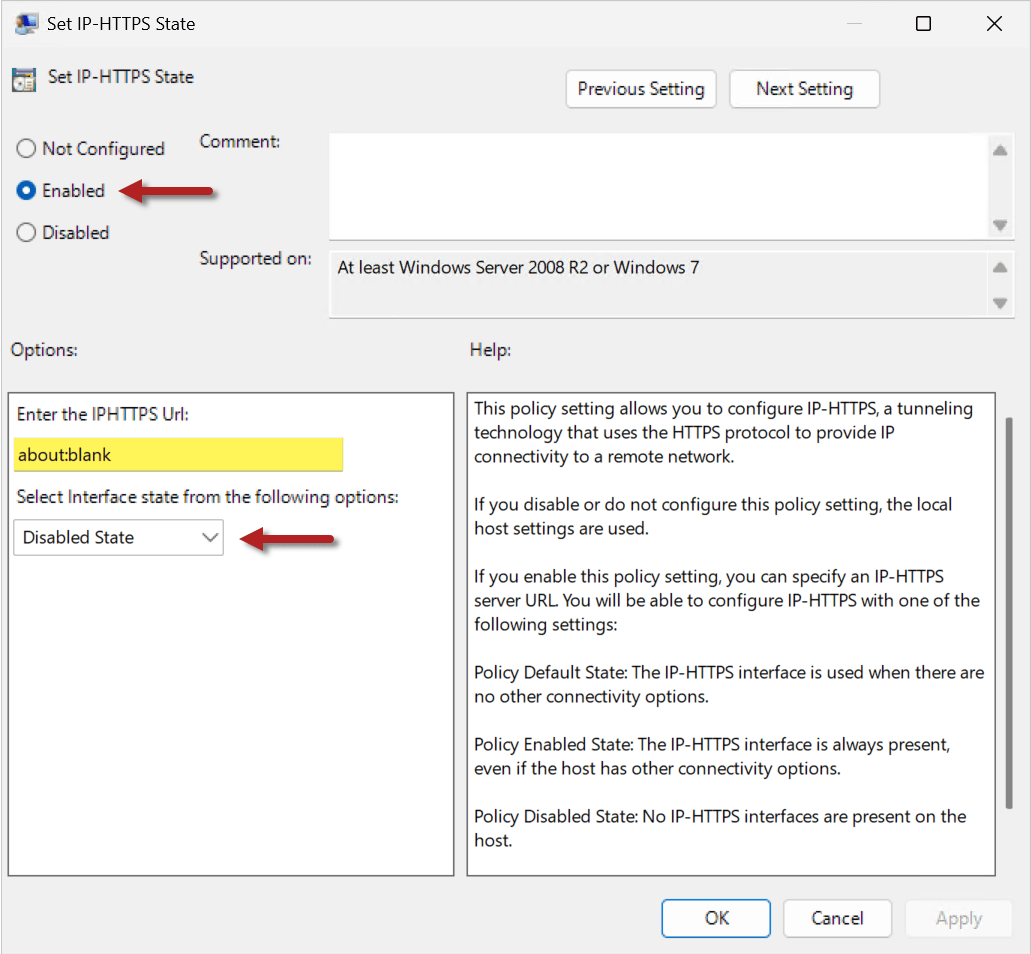
Set IP-HTTPS State Group Policy Setting
Intune Settings Catalog
For devices managed by Microsoft Intune, these settings are available in the Settings Catalog as ADMX-backed policies using the Policy CSP (ADMX_tcpip). To configure them, open the Microsoft Intune admin center, navigate to Devices > Configuration > Create > New Policy, select Windows 10 and later for the platform and Settings catalog for the profile type, and then click Create. Provide a name and description for the policy and click Next.

Intune Settings Catalog Profile
On the Configuration settings page, click Add settings and search for “IPv6 Transition Technologies”. Select the Administrative Templates Network TCPIP Settings | IPv6 Transition Technologies category and then select Set 6to4 State, Set IP-HTTPS State, Set ISATAP State, and Set Teredo State.

Intune Settings Picker
Enable each setting and select Disabled State from the drop-down list. As with Group Policy, the Set IP-HTTPS State setting requires a value in the IPHTTPS URL field. Enter about:blank in this field. Click Next, assign the profile to the appropriate device groups, and then click Create.

Intune IPv6 Transition Technologies Configuration Settings
Summary
The IPv6 transition technologies 6to4, Teredo, ISATAP, and IP-HTTPS have outlived their usefulness. Microsoft has disabled most of them by default since early Windows 10 releases, but relying on defaults leaves room for drift, misconfiguration, and abuse. Explicitly disabling them using Group Policy or Intune ensures reliable connectivity and removes a potential avenue for attackers, while netsh.exe and PowerShell provide a quick way to test and validate the configuration locally. Just be sure to exclude any devices that still rely on DirectAccess.
Additional Information
- Deprecated features in the Windows client
- Guidance for configuring IPv6 in Windows for advanced users
- Policy CSP – ADMX_tcpip
- NetworkTransition PowerShell Module
- Connection of IPv6 Domains via IPv4 Clouds (RFC 3056)
- Teredo: Tunneling IPv6 over UDP through Network Address Translations (NATs) (RFC 4380)
- Intra-Site Automatic Tunnel Addressing Protocol (ISATAP) (RFC 5214)
- Security Concerns with IP Tunneling (RFC 6169)
- Deprecating the Anycast Prefix for 6to4 Relay Routers (RFC 7526)
- [MS-IPHTTPS]: IP over HTTPS (IP-HTTPS) Tunneling Protocol
- DirectAccess IPv6 Transition Protocols Explained
- Disabling Unused IPv6 Transition Technologies for DirectAccess Clients
- IPv6: Benefits, Adoption, and Enterprise Deployment
- What is 464XLAT? CLAT and PLAT Explained
- Windows CLAT (WinCLAT): IPv4 Application Support on IPv6 Networks