



Windows CLAT (WinCLAT) allows IPv4-only applications to continue working on IPv6-only and IPv6-mostly networks by translating their IPv4 traffic to IPv6 for delivery to a NAT64 gateway. When troubleshooting WinCLAT, checking its current state provides only part of the picture. Windows also records events that help administrators understand when WinCLAT was enabled, how it discovered the NAT64 prefix, and when translation started or stopped. This post explains where to find these events, what they mean, and how they can assist with troubleshooting.
Contents
- Locating WinCLAT Event Logs
- Creating a WinCLAT Custom View
- WinCLAT Event ID Reference
- Event ID 1106: Instance Enabled
- Event ID 1107: Instance Disabled
- Event ID 1108: Remote Prefix Discovered
- Event ID 1109: Translation Started
- Event ID 1110: Translation Stopped
- Event ID 1111: CLAT IPv6 Address DAD Failure
- WinCLAT Event Logging Limitations
Locating WinCLAT Event Logs
WinCLAT records events in the Microsoft-Windows-IPxlatCfg/Operational event log. In Event Viewer, the log is located under Applications and Services Logs > Microsoft > Windows > IPxlatCfg > Operational Channel. The log is enabled by default.

IPxlatCfg operational event log.
You can also use PowerShell to display the most recent events.
Get-WinEvent -LogName 'Microsoft-Windows-IPxlatCfg/Operational' -MaxEvents 10 | Format-Table -Property TimeCreated, Id, Message -Wrap
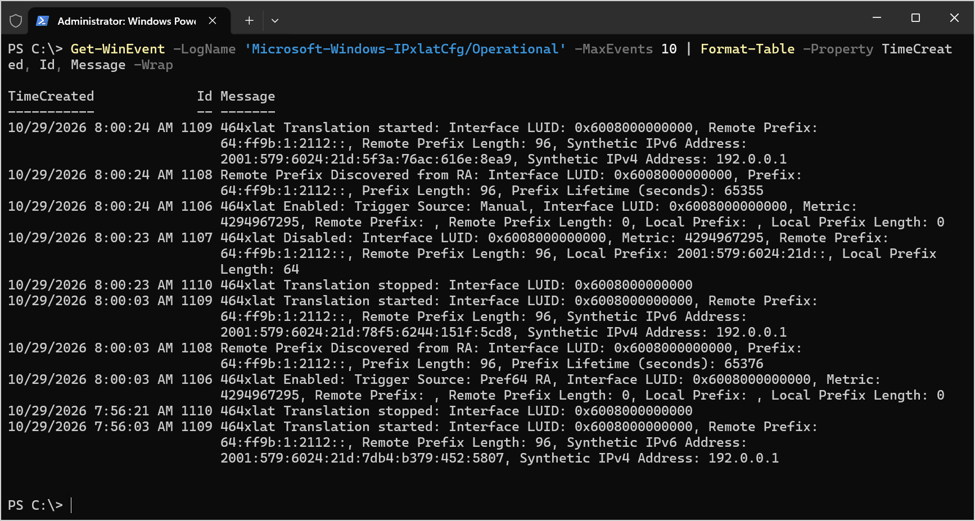
Recent WinCLAT events displayed using PowerShell.
Creating a WinCLAT Custom View
To make viewing WinCLAT event log entries easier, I recommend creating a custom view in Event Viewer. To do this, download the WinCLAT Event Viewer XML configuration file here. Next, open Event Viewer (eventvwr.msc) and perform the following steps.
- Right-click Custom Views and choose Import Custom View.
- Select the winclat-event.xml file downloaded previously and click Open.
- Review the Name and Description of the Custom View and click OK.
- Click OK.

WinCLAT events displayed in an Event Viewer custom view.
WinCLAT Event ID Reference
The following table shows the WinCLAT event IDs.
| Event ID | Description | When it is recorded |
| 1106 | Instance enabled | CLAT is enabled on an interface, automatically or manually |
| 1107 | Instance disabled | CLAT is disabled on an interface |
| 1108 | Remote prefix discovered | CLAT discovers the NAT64 prefix for an interface |
| 1109 | Translation started | CLAT begins translating on an interface |
| 1110 | Translation stopped | CLAT stops translating on an interface |
| 1111 | CLAT IPv6 address DAD failure | The CLAT IPv6 address fails duplicate address detection |
Event ID 1106: Instance Enabled

Description: WinCLAT has been enabled on an interface. The event includes the trigger source, which identifies why WinCLAT was enabled, and the interface LUID.
When it is recorded: When WinCLAT is enabled on an interface, either automatically by Windows or manually by an administrator. The trigger source is one of the following.
| Code | Trigger source | Meaning |
| 1 | Pref64 RA | Enabled automatically because the network’s router advertisements include the PREF64 option |
| 3 | No IPv4 | Enabled automatically because the interface has no IPv4 connectivity |
| 5 | Manual | Enabled manually with netsh.exe interface clat set instance interface=<ifIndex> state=enabled |
Identifying the Trigger Source and Network Adapter
The event includes the trigger source, which identifies why WinCLAT was enabled, and the interface’s locally unique identifier (LUID). The interface LUID matches the NetLuid property returned by Get-NetAdapter. The following PowerShell commands list each event 1106 with its trigger source and adapter name.
$Adapters = @{}Get-NetAdapter | ForEach-Object -Process { $Adapters[[uint64]$_.NetLuid] = $_.Name }Get-WinEvent -FilterHashtable @{ LogName = 'Microsoft-Windows-IPxlatCfg/Operational'; Id = 1106 } | Select-Object -Property TimeCreated, @{ Name = 'TriggerSource'; Expression = { Switch ($_.Properties[0].Value) { 1 { 'Pref64 RA' } 3 { 'No IPv4' } 5 { 'Manual' } Default { "Unknown ($_)" } } } }, @{ Name = 'Interface'; Expression = { $Adapters[[uint64]$_.Properties[1].Value] } }
Event ID 1107: Instance Disabled

Description: WinCLAT has been disabled on an interface.
When it is recorded: When WinCLAT is disabled on an interface. This can happen in any of the following cases.
- AutoEnable is disabled (netsh.exe interface clat set global autoenable=disabled) or Permit is disabled (netsh.exe interface clat set global permit=disabled). Both settings disable any automatically enabled instances.
- A manually enabled instance is disabled with netsh.exe interface clat set instance interface=<ifIndex> state=disabled.
- The network adapter of an automatically enabled instance is restarted.
Event ID 1108: Remote Prefix Discovered

Description: WinCLAT has discovered the NAT64 prefix used for translation. The event includes the discovery source, prefix, prefix length, and prefix lifetime (seconds). The source is one of the following:
- RA – The prefix was obtained from the PREF64 option in IPv6 router advertisements (RFC 8781).
- DNS – The prefix was obtained by querying ipv4only.arpa against a DNS64 server (RFC 7050).
When it is recorded: When WinCLAT discovers the NAT64 prefix for an interface (normally following event 1106) and when a prefix discovered through DNS is refreshed at the end of its lifetime.
Event ID 1109: Translation Started

Description: WinCLAT has started translating IPv4 traffic on an interface. The event includes the remote prefix (NAT64 prefix), the CLAT (synthetic) IPv6 address, and the CLAT (synthetic) IPv4 address, which is assigned from the IPv4 Service Continuity Prefix 192.0.0.0/29 (RFC 7335), typically 192.0.0.1.
When it is recorded: When translation begins on an interface, which normally follows events 1106 and 1108, and when Windows restarts translation on an interface that remains enabled, such as after a network adapter restart.
Event ID 1110: Translation Stopped

Description: WinCLAT has stopped translating IPv4 traffic on an interface.
When it is recorded: When translation ends on an interface. It precedes event 1107 when an instance is disabled, and it is also recorded when Windows restarts translation on an interface that remains enabled. In that case, it is followed by event 1109.
Event ID 1111: WinCLAT IPv6 Address DAD Failure
Description: The WinCLAT IPv6 address failed duplicate address detection (DAD), meaning another node on the network is already using the address.
When it is recorded: When Windows generates a CLAT IPv6 address for an interface and duplicate address detection reports a conflict.
WinCLAT Event Logging Limitations
WinCLAT events describe changes to an instance’s state, but they do not identify the applications using WinCLAT or the destination IPv4 addresses those applications access. Administrators can use Sysmon to collect this additional information. See How to Identify Applications That Use Windows CLAT (WinCLAT) with Sysmon for more details.
Summary
WinCLAT event logging helps administrators understand how WinCLAT operates on individual network interfaces. The events record instance enablement and disablement, NAT64 prefix discovery, translation activity, and address conflicts. Reviewing this history alongside the current WinCLAT configuration and interface state provides a clearer picture when troubleshooting. For visibility into the applications and destination addresses associated with WinCLAT traffic, administrators can supplement these events with Sysmon.
Additional Information
Windows CLAT (WinCLAT) PowerShell Module on GitHub.com
Troubleshooting Windows CLAT (WinCLAT) with the WinCLAT PowerShell Module