

What’s New in Entra Global Secure Access Client for Windows v2.35.136

Microsoft Entra Global Secure Access

On November 16, 2026, Microsoft released a preview update for the Entra Global Secure Access (GSA) client. This latest release, v2.35.136, introduces Device Access, a long-awaited feature that provides Private Access connectivity before the user signs in to Windows. It also adds a new user interface indicator for agent traffic and fixes the GSA traceroute tool, along with memory and telemetry improvements.

Changes in v2.35.136

GSA client v2.35.136 includes the following new features and enhancements.

Device Access (Preview)

Until now, the GSA client established tunnels only in the user context. With Device Access, the GSA client can now authenticate the device itself and tunnel selected Entra Private Access traffic before a user signs in. Administrators familiar with Always On VPN will recognize this as functionally similar to the Always On VPN device tunnel. Device Access supports common pre-logon scenarios, including the following.

  • First-time sign-in and sign-in without cached credentials
  • Password change and reset workflows that require domain controller connectivity
  • Domain controller access during sign-in for authentication, time synchronization, and Group Policy processing
  • Connectivity to on-premises management services such as Configuration Manager and WSUS

Device Access is one of the most requested capabilities for Entra Private Access. It closes an important gap for organizations migrating from traditional VPN, especially those using hybrid-Entra-joined endpoints. There is a lot to cover with this feature, including requirements, configuration, and operational considerations. I will cover Device Access in detail in a separate post soon, so stay tuned!

Agent Traffic Indicator

The GSA client user interface now indicates when the client is configured, via the traffic forwarding profile, to acquire only agent traffic. This makes it easier for administrators and users to understand why other traffic is not being tunneled through GSA.

GSA Traceroute Fixed

In my previous post about GSA client v2.34.222, I noted that the new GUI version of the GSA traceroute tool (GsaTracert.exe) was broken. Launching the tool returned an error indicating it could not retrieve the forwarding profile from the registry. I’m happy to report that this issue is resolved in GSA client v2.35.136, and GsaTracert.exe now works as expected. The tool, which now opens as the Private Access Diagnostic Tool, includes the following two tabs.

  • RTT: Monitors round-trip latency through the GSA Private Access tunnel in real time. Administrators enter a destination as an application ID or host:port, and the tool displays latency for each segment of the path, from the client to the GSA point of presence (PoP), the Private Access gateway, and the Private Network Connector, along with the total. It also reports current, average, and 95th percentile (P95) RTT using a configurable sample rate.
  • Throughput: Measures download and upload throughput through the GSA Private Access tunnel using a configurable payload size. Results include average and P95 values, along with a history of each test and the PoP location used.

Results from both tests can be exported to a CSV file for further analysis or to share with Microsoft support when troubleshooting performance issues.

GSA Private Access Diagnostic Tool showing round-trip latency from the client through the PoP, Private Access Gateway, and connector

GSA Traceroute Round-Trip Time (RTT)

GSA Private Access Diagnostic Tool Throughput tab showing download and upload speeds through the Private Access tunnel

GSA Traceroute Throughput

Additional Changes

In addition to the changes highlighted above, the new GSA client includes the following additional enhancements.

  • Memory improvements
  • Telemetry changes
  • Bug fixes and other miscellaneous improvements

Summary

GSA client v2.35.136 delivers one of the most requested capabilities for Entra Private Access. Device Access enables pre-logon scenarios such as first-time sign-in, password resets, and Group Policy processing, making it much easier for organizations to move away from traditional VPN. This release also restores a working GSA traceroute tool for troubleshooting. Since this release and the Device Access feature are both in preview, organizations should test thoroughly with a pilot group before broad deployment.

Additional Information

Microsoft Entra Global Secure Access Client v2.35.136

Create a Global Secure Access Device Access Profile

What’s New in Entra Global Secure Access Client for Windows v2.34.222

Microsoft Entra Global Secure Access (GSA)

Microsoft Entra Private Access

Entra Private Access and VPN Migration Strategies on Entra.News
What’s New in Entra Global Secure Access Client for Windows v2.34.222

On October 19, 2026, Microsoft announced an update for the Entra Global Secure Access (GSA) client. This latest release, v2.34.222, adds support for a new sign-in option, updates Conditional Access sign-in frequency, improves diagnostics, and enhances local network bypass. It also improves Windows Firewall behavior off network, along with telemetry and accessibility improvements.

Changes in v2.34.222

GSA client v2.34.222 includes the following new features and enhancements.

Web Sign-In

The GSA client now supports Web sign-in for Windows. This credential provider enables browser-based Windows sign-in using methods such as Microsoft Authenticator, Temporary Access Pass (TAP), or a SAML-P federated identity. Web sign-in requires a Microsoft Entra-joined device running Windows 11 version 22H2 with KB5030310 or later, plus internet connectivity.

Windows Firewall Profile

This release improves Windows Firewall profile selection when Private Access is enabled. When the device is not directly connected to the corporate network, Windows Firewall does not activate the Domain profile.

Traffic Forwarding Profile Details

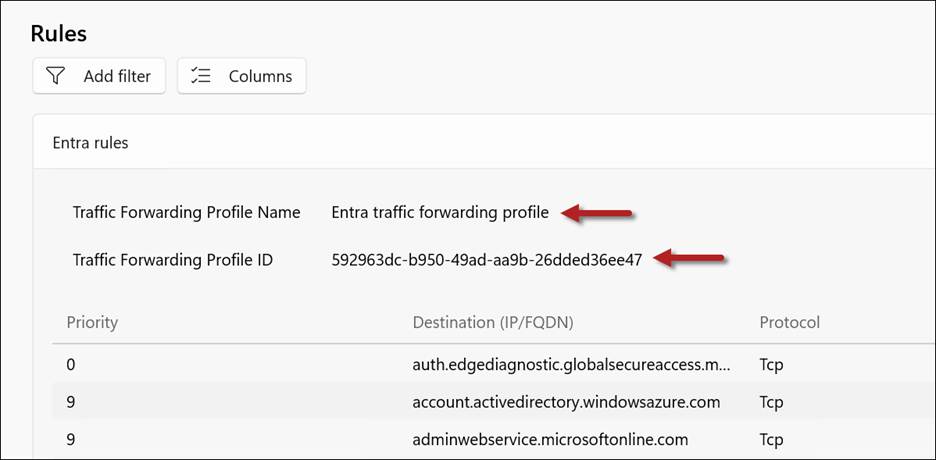
The new GSA client features improved diagnostics. With this update, the Forwarding profile tab in the Advanced diagnostics section now displays the Traffic Forwarding Profile Name as it appears in the Entra admin center, along with the Traffic Forwarding Profile ID.

Traffic Forwarding Profile Name and ID

Conditional Access

GSA client v2.34.222 now includes support for Conditional Access sign-in frequency for Private Access applications. This feature is part of a phased rollout and might not be available in all tenants immediately.

Prefer Local Network Bypass

With this update, the Prefer local network option limits bypass to connections destined for IP addresses in common private network ranges. Microsoft documentation doesn’t elaborate on specifically which ‘common private network ranges’, but I suspect this means private IPv4 address ranges as defined in RFC 1918.

GSA Traceroute Changes

In GSA client v2.34.222, Microsoft has replaced the command-line version of the GSA traceroute tool (GsaTracert.exe) with a new GUI version. However, during my initial testing (and confirmed by others testing this feature), it appears to be broken at this time. When I launch GsaTracert.exe, the UI returns the following error message.

“Could not retrieve the forwarding profile from the registry. Ensure the Global Secure Access Client is installed and running.”

I will post an update as soon as Microsoft resolves this issue.

Additional Changes

In addition to the changes highlighted above, the new GSA client includes the following additional enhancements.

  • UDP tunneling improvements
  • Memory utilization improvements
  • New telemetry capabilities
  • Accessibility improvements
  • Bug fixes and other miscellaneous improvements

Summary

GSA client v2.34.222 introduces several useful enhancements for administrators and users. Organizations should validate the update against their existing configuration before broad deployment. My initial testing also identified an issue with the updated diagnostic tool, as described above.

Additional Information

Microsoft Entra Global Secure Access Client v2.34.222

Microsoft Entra Global Secure Access (GSA)

Microsoft Entra Private Access

Microsoft Entra Internet Access

Entra Private Access and VPN Migration Strategies on Entra.News

Microsoft Global Secure Access (GSA) Traffic Forwarding Profiles v2

Microsoft recently introduced custom Entra Private Access traffic forwarding profiles in public preview. Administrators can now provide different sets of private applications to selected users, groups, devices, and device platforms. This post explains how the profiles are assigned and prioritized, how to configure one, and how the new local network option handles overlapping address space.

Forwarding Profiles v1

Previously, organizations could assign the default Private Access traffic forwarding profile to selected users and groups, but they could not create separate Private Access profiles with different acquisition rules for different target groups. That made it difficult to give Windows devices one set of private application destinations and mobile devices another. Administrators could still control access through application assignments and Conditional Access, but the traffic the client acquired was less tailored to the user or device.

Forwarding Profiles v2

Global Secure Access (GSA) provides default traffic forwarding profiles for Microsoft traffic, Private Access, and Internet Access. Administrators can also create custom Private Access profiles and scope them to users, groups, devices, and device platforms. During the preview, a tenant can have up to 10 custom Private Access profiles.

Policy Processing

GSA evaluates traffic against the Microsoft, Private Access, and Internet Access profile types in that order. Traffic that matches none of them is not forwarded to the service. This order is separate from the priority used to choose between multiple applicable Private Access profiles.

Multiple Profiles

Each custom Private Access profile has its own acquisition rules, assignments, status, and priority. Assign a priority from 101 through 199. A lower number represents a higher priority. When more than one enabled Private Access profile applies to the same user and device, the client uses only the highest-priority applicable profile. The application rules from the other profiles are not combined with it.

Configure a Custom Private Access Profile

In the Microsoft Entra admin center, go to Global Secure Access > Connect > Traffic forwarding. Select Create new traffic forwarding profile, then Private access profile. Enter a descriptive name and, optionally, a description. Set a priority from 101 through 199 and choose whether the profile is enabled. Select Next, review the settings, and select Create. Note that the new profile has no acquisition rules or assignments until you configure them.

New custom traffic forwarding profile without acquisition rules or assignments

Acquisition Rules

Open the new profile and select Acquisition rules. Choose whether to include Quick Access destinations, then select the Private Access applications whose destinations the profile should acquire. Adding an application to a forwarding profile determines which traffic the client captures. Users must also be authorized to connect to the application’s resources.

Acquisition rules for a custom Private Access traffic forwarding profile

Including Quick Access Destinations

Including Quick Access adds its configured destinations to the acquisition rules of this profile alongside the selected Private Access applications. This can provide a common set of destinations across custom profiles, but it does not change the Quick Access application’s configuration or grant users access to its resources. Confirm that the intended users are assigned to Quick Access as well as to the forwarding profile.

Assignments

Under Assignments, select View next to User and device assignments. Choose All users and devices or Selected users and devices, then save your selection.

User and group assignments for the traffic forwarding profile

Next, select View next to Device platform assignments and choose the supported platforms that should receive the profile. A device must match both assignment conditions. For example, selecting a user group and Windows limits the profile to Windows devices used by members of that group.

Device platform assignments for the traffic forwarding profile

The new profile appears in the traffic forwarding list by priority, as shown here.

Traffic forwarding profiles listed by priority

On an assigned client, open Advanced diagnostics > Forwarding profile to confirm that the expected Private Access application segments are present, as shown here.

GSA client Advanced diagnostics forwarding profile showing Private Access application segments

Prefer Local Network

The Windows GSA client includes a Prefer local network option for cases where a local subnet overlaps with a configured private application destination. When an administrator enables the option, it appears in the client settings. A user can select it to keep applicable local subnet traffic on the local network, such as traffic to a printer or screen casting device, instead of having the client acquire that destination for Private Access. Microsoft introduced the option in Windows GSA client version 2.32.294.

The Problem It Solves

Overlapping private address space can make a local destination look like a destination defined in a Private Access application segment. For example, a user’s home printer and a corporate resource might both use 192.168.1.50. Prefer local network lets the user favor the directly connected local destination in this situation, such as when printing or screen casting.

Intelligent Local Access

Intelligent Local Access (ILA) serves a different purpose. It uses configured DNS probes to identify a corporate private network and can then send traffic directly to specified Private Access applications available on that network. Prefer local network addresses when there is an overlap between the device’s local subnet and a Private Access destination, such as a printer on a home network. ILA depends on a matching configured private network and application. An address overlap alone does not trigger it.

Summary

Custom Private Access traffic forwarding profiles give administrators more control over which private application destinations the Global Secure Access (GSA) client acquires for different users and devices. Assignments determine who receives a profile, while priority determines which profile applies when assignments overlap. The Prefer local network option also helps Windows users reach local devices when their subnet overlaps a Private Access destination.

Additional Information

Entra Private Access

Global Secure Access traffic forwarding profiles

Create a Private Access traffic forwarding profile

Entra Private Access Intelligent Local Access

What’s New in Entra Global Secure Access Client v2.32.294.0

On August 26, 2026, Microsoft released version 2.32.294 of the Entra Global Secure Access (GSA) client. This release addresses challenges caused by overlapping local and private network address spaces, improves tunnel creation performance, and prepares the client to receive future upgrades through Windows Update.

Changes in v2.32.294

GSA client v2.32.294 includes the following new features and capabilities.

Prefer Local Network

The Prefer Local Network option allows users to access resources on their current local network when its address space overlaps with a private application’s subnet. Common scenarios include accessing a local printer or casting to a nearby device.

Support for Prefer Local Network is included in this client release. However, the administrative setting required to expose the option to users is not yet available in the traffic forwarding profile. Once Microsoft makes this setting available, administrators can enable the feature and allow users to turn it on when needed.

Windows Update

Beginning in November 2026, the GSA client will automatically receive upgrades through Windows Update. Endpoints must be running GSA client 2.31.125 or later (2.32.294 or later for Windows on Arm).

Administrators can opt out of automatic updates when installing or upgrading the GSA client using the following command.

GlobalSecureAccessInstaller.exe /quiet /norestart EnableWindowsUpdates=0

Additional Enhancements

GSA client v2.32.294 accelerates the creation of new tunnels, improving connection performance. The installer also includes .NET Runtime 10.0.9. Additional changes include telemetry and accessibility enhancements, the removal of LastMile for Office 365 telemetry, and miscellaneous bug fixes.

Summary

Global Secure Access client v2.32.294 introduces useful improvements for users working on networks with overlapping address spaces and lays the groundwork for automatic client upgrades through Windows Update. The release also improves tunnel creation performance and includes several updates to telemetry, accessibility, runtime, and reliability. Administrators should evaluate Windows Update behavior and determine whether automatic upgrades are appropriate for their deployment and change management requirements.

Additional Information

Microsoft Entra Global Secure Access (GSA) Client v2.32.294.0

Microsoft Entra Global Secure Access (GSA)

Microsoft Entra Private Access

Microsoft Entra Internet Access

Entra Private Access and VPN Migration Strategies on Entra.News