
Microsoft Global Secure Access (GSA) Traffic Forwarding Profiles v2

Microsoft recently introduced custom Entra Private Access traffic forwarding profiles in public preview. Administrators can now provide different sets of private applications to selected users, groups, devices, and device platforms. This post explains how the profiles are assigned and prioritized, how to configure one, and how the new local network option handles overlapping address space.

Forwarding Profiles v1

Previously, organizations could assign the default Private Access traffic forwarding profile to selected users and groups, but they could not create separate Private Access profiles with different acquisition rules for different target groups. That made it difficult to give Windows devices one set of private application destinations and mobile devices another. Administrators could still control access through application assignments and Conditional Access, but the traffic the client acquired was less tailored to the user or device.

Forwarding Profiles v2

Global Secure Access (GSA) provides default traffic forwarding profiles for Microsoft traffic, Private Access, and Internet Access. Administrators can also create custom Private Access profiles and scope them to users, groups, devices, and device platforms. During the preview, a tenant can have up to 10 custom Private Access profiles.

Policy Processing

GSA evaluates traffic against the Microsoft, Private Access, and Internet Access profile types in that order. Traffic that matches none of them is not forwarded to the service. This order is separate from the priority used to choose between multiple applicable Private Access profiles.

Multiple Profiles

Each custom Private Access profile has its own acquisition rules, assignments, status, and priority. Assign a priority from 101 through 199. A lower number represents a higher priority. When more than one enabled Private Access profile applies to the same user and device, the client uses only the highest-priority applicable profile. The application rules from the other profiles are not combined with it.

Configure a Custom Private Access Profile

In the Microsoft Entra admin center, go to Global Secure Access > Connect > Traffic forwarding. Select Create new traffic forwarding profile, then Private access profile. Enter a descriptive name and, optionally, a description. Set a priority from 101 through 199 and choose whether the profile is enabled. Select Next, review the settings, and select Create. Note that the new profile has no acquisition rules or assignments until you configure them.

New custom traffic forwarding profile without acquisition rules or assignments

Acquisition Rules

Open the new profile and select Acquisition rules. Choose whether to include Quick Access destinations, then select the Private Access applications whose destinations the profile should acquire. Adding an application to a forwarding profile determines which traffic the client captures. Users must also be authorized to connect to the application’s resources.

Acquisition rules for a custom Private Access traffic forwarding profile

Including Quick Access Destinations

Including Quick Access adds its configured destinations to the acquisition rules of this profile alongside the selected Private Access applications. This can provide a common set of destinations across custom profiles, but it does not change the Quick Access application’s configuration or grant users access to its resources. Confirm that the intended users are assigned to Quick Access as well as to the forwarding profile.

Assignments

Under Assignments, select View next to User and device assignments. Choose All users and devices or Selected users and devices, then save your selection.

User and group assignments for the traffic forwarding profile

Next, select View next to Device platform assignments and choose the supported platforms that should receive the profile. A device must match both assignment conditions. For example, selecting a user group and Windows limits the profile to Windows devices used by members of that group.

Device platform assignments for the traffic forwarding profile

The new profile appears in the traffic forwarding list by priority, as shown here.

Traffic forwarding profiles listed by priority

On an assigned client, open Advanced diagnostics > Forwarding profile to confirm that the expected Private Access application segments are present, as shown here.

GSA client Advanced diagnostics forwarding profile showing Private Access application segments

Prefer Local Network

The Windows GSA client includes a Prefer local network option for cases where a local subnet overlaps with a configured private application destination. When an administrator enables the option, it appears in the client settings. A user can select it to keep applicable local subnet traffic on the local network, such as traffic to a printer or screen casting device, instead of having the client acquire that destination for Private Access. Microsoft introduced the option in Windows GSA client version 2.32.294.

The Problem It Solves

Overlapping private address space can make a local destination look like a destination defined in a Private Access application segment. For example, a user’s home printer and a corporate resource might both use 192.168.1.50. Prefer local network lets the user favor the directly connected local destination in this situation, such as when printing or screen casting.

Intelligent Local Access

Intelligent Local Access (ILA) serves a different purpose. It uses configured DNS probes to identify a corporate private network and can then send traffic directly to specified Private Access applications available on that network. Prefer local network addresses when there is an overlap between the device’s local subnet and a Private Access destination, such as a printer on a home network. ILA depends on a matching configured private network and application. An address overlap alone does not trigger it.

Summary

Custom Private Access traffic forwarding profiles give administrators more control over which private application destinations the Global Secure Access (GSA) client acquires for different users and devices. Assignments determine who receives a profile, while priority determines which profile applies when assignments overlap. The Prefer local network option also helps Windows users reach local devices when their subnet overlaps a Private Access destination.

Additional Information

Entra Private Access

Global Secure Access traffic forwarding profiles

Create a Private Access traffic forwarding profile

Entra Private Access Intelligent Local Access

Entra Private Network Connector Session Persistence

The Microsoft Entra Private Network Connector is a lightweight on-premises software agent that enables Microsoft Entra Private Access to forward Global Secure Access (GSA) client traffic to internal resources. In environments with multiple connectors, traffic is normally distributed across available connectors in a connector group. While this improves resiliency and load distribution, it can create challenges for applications that rely on a consistent connector source IP address.

Stateless Connectors

By default, requests are distributed randomly among the available connectors in a connector group. Traffic forwarded to the internal resource uses the connector server’s IP address as its source. Consequently, separate connections from the same user and device can reach the application through different connectors. Importantly, session state is not shared among connectors in a connector group. As such, applications that associate session state with the source IP address may reject or interrupt these connections.

Why Session Persistence Matters

In some scenarios, an internal application might allow access only from specific connector IP addresses or associate an authenticated session with the source IP address. Random connector selection can cause subsequent connections to arrive from a different address, potentially interrupting the session. Session persistence reduces this risk by consistently using the same connector for the user and device.

Session Persistence

Microsoft recently introduced session persistence for Entra Private Access applications. When enabled, requests from the same user and device are consistently routed to the same connector for the duration of the session. This helps maintain a consistent connector egress IP address for applications that depend on source IP addresses for authentication, authorization, or session management.

Traffic Routing

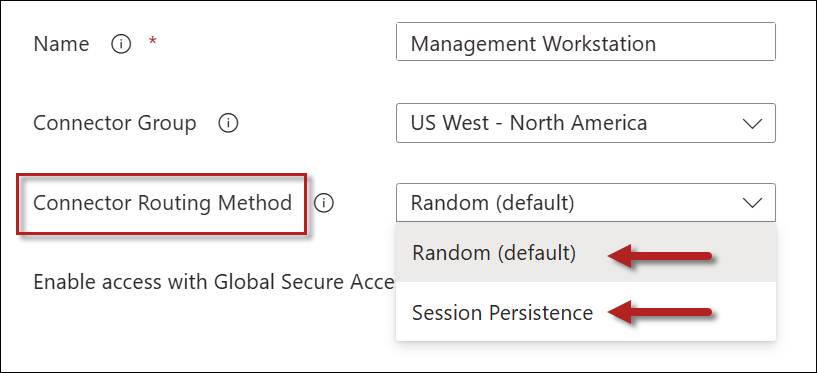
The connector traffic routing method is configured on a per-application basis. Traffic routing methods can be defined on Quick Access or Enterprise applications, and the setting can be configured on the Network access properties tab. Administrators have two options: Random or Session Persistence.

Random

This is the default behavior for the Private Network connector. All new connections are distributed randomly among connectors in the connector group.

Session Persistence

Selecting the Session Persistence option consistently routes requests from the same user and device to the connector on which the session was established.

Connector Routing Method Comparison

The following table summarizes these configuration options.

Routing MethodBenefitsConsiderations
RandomBetter distribution across connectors in a connector groupSource IP address may change between connections
Session PersistenceConsistent connector egress IP addressMay not distribute sessions as evenly as the Random method

Failover

If the preferred connector becomes unavailable, subsequent traffic may be routed through another available connector. Applications that depend on the connector’s source IP address might require the user to establish a new session.

GSA Applications Only

Session persistence applies only to Global Secure Access applications. It is not supported for applications published using Microsoft Entra Application Proxy.

Summary

By default, Microsoft Entra Private Access distributes requests randomly among available connectors. Although this provides load distribution, it can create problems for applications that depend on a consistent connector source IP address. Session persistence addresses this issue by consistently routing traffic from the same user and device through the same connector for the duration of the session. This feature applies only to Global Secure Access applications and is not supported for Microsoft Entra Application Proxy applications.

Additional Information

Entra Private Network Connector Overview and Deployment Strategies

Preventing Port Exhaustion on Entra Private Network Connector Servers

Microsoft Entra Private Network Connector Groups

Entra Global Secure Access (GSA) Client Intune Deployment PowerShell Script

The Microsoft Entra Global Secure Access (GSA) client is commonly deployed using Microsoft Intune. To deploy the client as an Intune Win32 app, administrators package the installer and a PowerShell installation script into an .intunewin file. Microsoft provides a sample PowerShell script that creates a log, configures Windows to prefer IPv4 over IPv6, and launches the installer. However, the sample has several limitations that can make it unreliable in production environments. To address these shortcomings, I’ve refactored the code to make it more robust and better aligned with enterprise deployment best practices.

Script Improvements

Microsoft’s PowerShell script for installing the GSA client has several significant limitations. My refactored version includes the following improvements.

  1. Preserved the existing DisabledComponents setting. Microsoft’s example overwrites the entire registry value, potentially removing previously configured settings. My version sets the 0x20 bit to prefer IPv4 while preserving any other flags already present.
  2. Validates the installer’s Authenticode signature. My revised script verifies that the installer has a valid Authenticode signature and that the signing certificate identifies Microsoft Corporation as the publisher.
  3. Preserves the pending reboot state. My script records when the registry setting was changed and compares that timestamp with the device’s last boot time. If the device has not restarted, subsequent runs continue to return exit code 3010, even if an earlier installation attempt failed.
  4. Expanded exit-code handling. The script writes a timestamped PowerShell transcript to the Intune Management Extension log directory, allowing it to be included with collected Intune diagnostics. Logging failures do not prevent the installation from continuing.
  5. Intune-integrated logging. I’ve updated the script’s logging to use the Intune Management Extensions logs folder, so logs are captured by Intune’s diagnostics collection. Each run of the script generates its own timestamped log file, making troubleshooting easier. Also, logging failures never block installation.
  6. Best practice alignment. I’ve added comment-based help, culture-invariant timestamps, and a $PSScriptRoot guard with a clean error to handle script execution issues. In addition, the script is digitally signed to support environments that enforce signed-script execution policies.

GitHub

I’ve published my refactored GSA client installation script on GitHub. You can download the script here:

https://github.com/richardhicks/gsa/blob/main/Install-GSAClient.ps1

Note: The script expects the installer to be named GlobalSecureAccessInstaller.exe. However, downloaded installers typically include the version number in the filename, such as GlobalSecureAccessInstaller_<version>.exe. Before creating the .intunewin package, either rename the installer or update the $InstallerName variable in the script.

Contribute

Suggestions and contributions are welcome. If you have ideas for making the GSA client deployment more robust or reliable, please submit a pull request on GitHub.

Summary

Microsoft provides a PowerShell script to deploy the Entra GSA client via Intune, but it has several limitations. This refactored version preserves existing registry settings, validates the installer, improves reboot and exit-code handling, integrates logging with Intune diagnostics, and better aligns with enterprise deployment best practices.

Additional Information

Install-GSAClient.ps1 PowerShell Script on GitHub

Prepare Win32 App Content for Upload to Microsoft Intune

Install the Global Secure Access Client for Microsoft Windows

What’s New in Entra Global Secure Access Client v2.32.294.0

On August 26, 2026, Microsoft released version 2.32.294 of the Entra Global Secure Access (GSA) client. This release addresses challenges caused by overlapping local and private network address spaces, improves tunnel creation performance, and prepares the client to receive future upgrades through Windows Update.

Changes in v2.32.294

GSA client v2.32.294 includes the following new features and capabilities.

Prefer Local Network

The Prefer Local Network option allows users to access resources on their current local network when its address space overlaps with a private application’s subnet. Common scenarios include accessing a local printer or casting to a nearby device.

Support for Prefer Local Network is included in this client release. However, the administrative setting required to expose the option to users is not yet available in the traffic forwarding profile. Once Microsoft makes this setting available, administrators can enable the feature and allow users to turn it on when needed.

Windows Update

Beginning in November 2026, the GSA client will automatically receive upgrades through Windows Update. Endpoints must be running GSA client 2.31.125 or later (2.32.294 or later for Windows on Arm).

Administrators can opt out of automatic updates when installing or upgrading the GSA client using the following command.

GlobalSecureAccessInstaller.exe /quiet /norestart EnableWindowsUpdates=0

Additional Enhancements

GSA client v2.32.294 accelerates the creation of new tunnels, improving connection performance. The installer also includes .NET Runtime 10.0.9. Additional changes include telemetry and accessibility enhancements, the removal of LastMile for Office 365 telemetry, and miscellaneous bug fixes.

Summary

Global Secure Access client v2.32.294 introduces useful improvements for users working on networks with overlapping address spaces and lays the groundwork for automatic client upgrades through Windows Update. The release also improves tunnel creation performance and includes several updates to telemetry, accessibility, runtime, and reliability. Administrators should evaluate Windows Update behavior and determine whether automatic upgrades are appropriate for their deployment and change management requirements.

Additional Information

Microsoft Entra Global Secure Access (GSA) Client v2.32.294.0

Microsoft Entra Global Secure Access (GSA)

Microsoft Entra Private Access

Microsoft Entra Internet Access

Entra Private Access and VPN Migration Strategies on Entra.News

Entra Internet Access TLS Inspection Fails with ERR_CERT_INVALID

Microsoft Entra Internet Access is a powerful cloud-based Secure Web Gateway (SWG) feature within the Entra Global Secure Access (GSA) Security Service Edge (SSE) solution. Entra Internet Access provides Zero Trust, identity-aware access to internet resources, private web-based applications, and Microsoft 365, with full integration with Entra Conditional Access.

TLS Inspection

Entra Internet Access includes an optional TLS Inspection feature that allows the GSA client to decrypt HTTPS traffic, inspect for threats, identify policy violations, and enforce Data Loss Prevention (DLP) policies. Importantly, enabling TLS inspection for GSA allows administrators to apply prompt injection protection policies to control the usage of generative AI applications.

TLS Inspection Certificate

Before enabling TLS inspection for Entra Internet Access, administrators must first create a TLS inspection certificate. This certificate must be signed by a trusted certification authority (CA). The process is simple and straightforward, and well-documented here.

Invalid Certificate Error

After enabling Entra Internet Access TLS inspection, administrators may find that all websites subject to TLS inspection are inaccessible. The browser displays the following error message:

Your connection isn’t private
Attackers might be trying to steal your information from <website> (for example, passwords, messages, or credit cards.)

NET:ERR_CERT_INVALID

Clicking on the Advanced button shows the following additional information:

<website> uses encryption to protect your information. When Microsoft Edge tried to connect to <website> this time, the website sent back unusual and incorrect credentials. This may happen when an attacker is trying to pretend to be <website>, or a Wi-Fi sign-in screen has interrupted the connection. Your information is still secure because Microsoft Edge stopped the connection before any data was exchanged.

You can’t visit <website> right now because the website sent scrambled credentials that Microsoft Edge can’t process. Network errors and attacks are usually temporary, so this page will probably work later.

Root Cause (Pun Intended!)

This issue can be caused by restrictions placed on the root CA. Specifically, if the root CA certificate includes a policy that restricts the CA path length (the number of subordinate CAs allowed downstream), the Microsoft Global Secure Access Intermediate CA, which issues certificates for TLS-inspected websites, cannot be validated successfully.

In this example, the root CA certificate includes a basic constraint that defines a maximum of 1 intermediate CA in the chain. Crucially, the extension is marked as Critical, so it must be enforced.

Because the root CA enforces a path length constraint of 1, the TLS inspection subordinate CA can exist beneath it, but no additional subordinate CA certificates are permitted. As a result, the Microsoft Global Secure Access Intermediate CA exceeds the allowed chain depth, causing certificate validation to fail.

Resolution

The fix for this issue is simple, yet complex. The root CA certificate must be renewed, this time without enforcing the CA path length policy. To do this, open an elevated command window on the root CA and run the following command.

certutil.exe -setreg policy\capathlength 0xffffffff

Important: If your CA hierarchy uses CAPolicy.inf to define the CAPathLength setting, update the file before renewing the CA certificate.

Next, restart the CA service for the change to take effect.

Restart-Service CertSvc -PassThru

Finally, renew the CA certificate.

certutil.exe -f -renewcert ReuseKeys

Restart the CA service once more for the change to take effect.

Restart-Service CertSvc -PassThru

Once complete, distribute the new root CA certificate to Active Directory and to Intune-managed endpoints using a Trusted Certificate device configuration policy.

Finally, configure a new Entra TLS inspection certificate in the Entra admin center to replace the old one, signed with the updated root CA certificate. Once the certificate has been uploaded, ensure it is enabled.

Important: Renewing a root CA certificate can be highly disruptive. Proceed with caution in production environments. Ensure that all enterprise assets receive the new root CA certificate in a timely manner. Alternatively, to reduce the chance of disruption, consider deploying a new root CA dedicated to Entra TLS inspection.

Result

Once these changes are made, the certificate chain will allow the Microsoft Global Secure Access Intermediate CA to exist beneath the TLS inspection CA, resulting in a valid certificate chain for TLS-inspected websites. Browsers will once again trust the dynamically generated certificates, eliminating the ERR_CERT_INVALID error.

The following certificate chain shows the corrected configuration after renewing the root CA certificate and recreating the TLS inspection certificate.

Summary

Entra Internet Access TLS inspection relies on a certificate chain that includes the Microsoft Global Secure Access Intermediate CA. If the root CA that signs the TLS inspection certificate enforces a restrictive path length constraint, certificate validation can fail, causing browsers to display ERR_CERT_INVALID errors for all TLS-inspected websites. Reviewing the certificate chain and understanding how basic constraints affect subordinate CAs can help quickly identify and resolve this issue. When deploying TLS inspection, ensure that CA hierarchy restrictions are compatible with this deployment scenario. Consider using a dedicated PKI hierarchy to minimize operational impact.

Additional Information

Tutorial: Enable Entra Internet Access TLS Inspection

Protect Enterprise Generative AI Applications with Prompt Injection Protection

What’s New in Entra Global Secure Access Client v2.31.125

On June 2, 2026, Microsoft released version 2.31.125 of the Entra Global Secure Access (GSA) client. This update introduces several enhancements designed to improve client resiliency, simplify troubleshooting, and provide administrators with better visibility into network connection status.

Changes in v2.31.125

GSA client v2.31.125 includes new features to streamline connectivity troubleshooting.

Network Status

The new GSA client can now distinguish between a complete network disconnection and a scenario where the device remains connected to a local network but lacks internet access. This distinction helps administrators and users more quickly identify the source of connectivity issues and reduce troubleshooting time.

Network Disconnected

No Internet Connectivity

Local Access

When Intelligent Local Access (ILA) is enabled, the client now clearly indicates when a device is connected to a trusted private network. This provides additional visibility into ILA decision-making and helps confirm that local access policies are functioning as expected.

Sign Out

The new GSA client includes an account picker when a user signs out on Entra-registered or Entra-joined devices. This enhancement simplifies account management on shared or multi-user devices by allowing users to switch identities without fully reinstalling or reconfiguring the client.

The sign out option is disabled by default. It must be enabled by setting the following registry key.

HKLM\Software\Microsoft\Global Secure Access Client\HideSignOutButton DWORD = 0

User Session Detection

Because the GSA client supports only a single interactive Windows session, this new indicator helps quickly identify unsupported multi-session scenarios that may impact client functionality or troubleshooting efforts.

Other Changes

In addition to the new features and capabilities outlined above, these changes are also included.

  • Updated embedded .NET Runtime to version 8.0.26.
  • GSA Forwarding Profile Service now automatically restarts after a failure.
  • Improved detection and tunneling of agentic network connections.
  • Various bug fixes and performance improvements.

Summary

GSA Client v2.31.125 introduces several useful enhancements focused on troubleshooting, resiliency, and user experience. Improved network status visibility, Intelligent Local Access awareness, account sign-out support, and enhanced session detection provide administrators with better diagnostic capabilities while making the client easier for end users to understand and manage. Although this release remains in preview, administrators are encouraged to begin testing this latest release soon.

Additional Information

Microsoft Entra Global Secure Access (GSA) Client v2.31.125

Microsoft Entra Private Access Intelligent Local Access

Entra Private Access and VPN Migration Strategies on Entra.News

I recently had the opportunity to connect with Merill Fernando from Microsoft as a guest on his popular Entra.News podcast to discuss Microsoft Entra Private Access, which is part of the Entra Global Secure Access Security Service Edge (SSE) service. We spent the hour talking about the similarities and differences between classic VPN technologies and zero-trust network access (ZTNA). In addition, we discussed some technical aspects of Entra Private Access, and I shared migration and coexistence strategies to help ease the transition to zero trust. Also, we discussed the importance of integrating Entra Conditional Access and the shift from network to application access. You’ll find the interview at Entra.News and also on YouTube. Enjoy!

Additional Information

How to Migrate from Legacy VPN to Entra Private Access – Entra.News

Microsoft Entra Private Access

Always On VPN vs. Entra Private Access

Microsoft Entra Private Access Network Connector Overview and Deployment Strategies

Microsoft Entra Private Access Intelligent Local Access

Entra Private Access and Bring Your Own Device (BYOD)

Microsoft Entra Private Access is a Zero Trust Network Access (ZTNA) solution that provides secure access to private enterprise resources. With the release of Global Secure Access (GSA) client version 2.26.108, Microsoft has addressed a crucial functionality gap by adding support for Bring Your Own Device (BYOD), enabling secure access from non-managed endpoints.

BYOD Support in Global Secure Access

Microsoft introduced BYOD support for Entra Private Access with the release of the GSA client version 2.26.108. This update allows the GSA client to be installed on Microsoft Entra-registered devices that are not domain-joined or managed by the organization, enabling secure access to private resources from personal or unmanaged endpoints.

Use Cases

BYOD support in GSA and Entra Private Access enables several common scenarios where network access from managed devices is impractical or unavailable, including:

  • Vendor or contractor access
  • IT incident response from unmanaged endpoints
  • Temporary or seasonal staffing
  • Collaboration with external partners

Replacing Legacy VPN for Ad Hoc Access

Historically, legacy VPN solutions were the primary option for providing ad hoc access to private resources from unmanaged devices. With the introduction of BYOD support in the GSA client, organizations can now extend Entra Private Access to these scenarios without deploying or maintaining a separate VPN infrastructure.

Additional Changes

In addition to adding BYOD support, GSA client v2.26.108 includes the following new enhancements.

  • Improved Intelligent Local Access (ILA) detection
  • Join Type displayed in the client interface
  • GSA traceroute enhancements, including a 50M MB speed test between the client and edge service.

Summary

BYOD support removes a key barrier to adopting Microsoft Entra Private Access. Organizations can now securely provide access to private resources using Zero Trust policies, even when users connect from unmanaged or personal devices, and without relying on legacy VPN solutions.

Additional Information

Microsoft Entra Private Access Bring Your Own Device (BYOD)

Microsoft Global Secure Access Client for Windows v2.26.108

Microsoft Entra Private Access Intelligent Local Access

Always On VPN vs. Entra Private Access

What’s New in Entra Global Secure Access Client v2.24.117

In early December 2025, Microsoft announced an update for the Entra Global Secure Access client. This latest release, v2.24.117, includes important changes that administrators will find helpful for efficient connectivity and enhanced troubleshooting.

Intelligent Local Access

The latest release of the Microsoft Entra Global Secure Access client adds support for Intelligent Local Access (ILA). ILA ensures optimal network connectivity when accessing published resources. ILA can detect when it is on a trusted network and send traffic directly to the resource, bypassing the cloud gateway to improve performance. Authentication and authorization are still required for application access regardless of location.

B2B Guest Access

B2B Guest Access, now in public preview, enables external partners to securely access an organization’s private resources using their own devices and home Microsoft Entra ID credentials, without credential duplication. Partners install the Global Secure Access client, sign in, and switch to the resource tenant, routing traffic via Private Access profiles for Conditional Access, MFA, and continuous evaluation. It supports BYOD and multitenant switching, requires guest user setup and specific client configurations in the resource tenant, and needs licensing only in the resource tenant. However, B2B Guest Access does not support Kerberos-based on-premises resources. More details here.

Traceroute

This latest release of the Entra Global Secure Access client also includes a new traceroute tool. GsaTracert.exe, located in the C:\Program Files\Global Secure Access Client\GSATracert\ folder, allows administrators to test connectivity to published resources and evaluate network response time and performance.

FQDN

Administrators can use GsaTracert.exe to validate connectivity to a resource using its fully qualified domain name (FQDN). When running the command, GsaTracert.exe reports the round-trip time (RTT) in milliseconds for each hop along the path, including the target resource. It will also indicate which point of presence (PoP) the client is currently connected to. The syntax to perform this test is:

.\GsaTracert.exe --host <fqdn:port>

For example:

.\GsaTracert.exe --host app1.lab.richardhicks.net:443

IP:Host

In addition to testing an FQDN, administrators can test individual resources using a combination of IP address and port number. The syntax to perform this test is:

.\GsaTracert.exe --host <ip:port>

For example:

.\GsaTracert.exe --host 172.16.0.254:22

Application ID

In addition to FQDN and IP:Port, administrators can also supply the application ID to test. However, since an application can include multiple IP addresses and/or ports, the measurement for backend resources is omitted when using this option. The syntax to perform this test is:

.\GsaTracert.exe --app-id <app ID>

For example:

.\GsaTracert.exe --app-id a8b914b-4143-4901-9fbb-09b61319d5a6

Note: You can find the application ID for a published application by opening the Entra admin center and navigating to Global Secure Access > Applications > Enterprise Applications. The application ID will be displayed on the Overview page of the published Enterprise application.

Speedtest

Administrators can use the –speedtest switch with any of the combinations above to test the endpoint’s Internet performance. The results are for the connection to the public Internet, not to the published resource.

Additional Features

The following new features are designed to improve the user experience for Global Secure Access users.

Disable Private Access

Administrators can now use a registry setting to show the Disable button, allowing users to disable Entra Private Access. Disabling Private Access is helpful when a device is on the internal network, and the user prefers to access resources directly rather than through Global Secure Access.

View Account

The new Global Secure Access client now includes a View Account link to the user’s Microsoft Entra My Account website.

Summary

The Microsoft Entra Global Secure Access Client v2.24.117 introduces several valuable enhancements for administrators and users alike. Key highlights include Intelligent Local Access for optimized performance on trusted networks, public preview support for B2B Guest Access enabling secure external collaboration without credential duplication, and the new GsaTracert.exe traceroute tool for detailed network diagnostics. Additional improvements, such as the ability to disable Private Access via registry settings and quick access to the My Account portal, further streamline management and troubleshooting. These updates reinforce Microsoft Entra Global Secure Access as a robust solution for secure, efficient resource connectivity.

Additional Information

Microsoft Entra Global Secure Access client v.2.24.117

Install the Entra Global Secure Access client for Microsoft Windows

Microsoft Entra Private Access Intelligent Local Access (ILA)

Preventing Port Exhaustion on Entra Private Network Connector Servers

Always On VPN vs. Entra Private Access: Choosing the Right Access Model for Your Organization

Preventing Port Exhaustion on Entra Private Network Connector Servers

Microsoft Entra Private Access is a powerful zero-trust network access solution that is remarkably simple to install and configure. Administrators can quickly install the Global Secure Access (GSA) agent on their endpoints, then install the Entra Private Network Connector to enable secure remote access to private, internal resources. However, the ease with which Entra Private Access can be configured can potentially lead to connectivity issues in some scenarios. This post demonstrates how to diagnose port exhaustion issues and expand the available port range to address them.

Entra Private Network Connector

The Entra Private Network Connector is a key component of the Entra Private Access solution. The Private Network Connector is essentially the old Azure Application Proxy, enhanced to support TCP and UDP applications in addition to HTTP-based web applications. It is installed on an on-premises Windows server to provide GSA clients with access to internal data and applications.

Network Connectivity

The GSA client is not a virtual network adapter like most traditional VPN clients. Instead, the GSA client installed on the client operates as a filter driver in the network stack, selectively intercepting traffic and tunneling it over the GSA tunnel based on configured policy. As such, it does not appear as a network adapter in the operating system and does not have its own IP address.

Translation

When traffic from the GSA client is routed over the Entra Private Network Connector, the traffic egressing from the connector server to the internal network is effectively translated. That is, the source IP address of traffic destined for an internal resource is the connector server’s IP address, not the client’s original source IP address.

Port Exhaustion

The ephemeral port range on Windows servers spans from 49152 to 65535, leaving only 16,384 ports available. This can easily be exhausted when many clients are connected to a single Entra Private Network Connector server. This pool can also be depleted by poorly written or badly behaving applications that needlessly open many socket connections to internal resources.

Troubleshooting

Administrators can view the ephemeral port configuration for both TCP and UDP by running the following commands.

netsh.exe interface ipv4 show dynamicportrange protocol=tcp

netsh.exe interface ipv4 show dynamicportrange protocol=udp

To determine if port exhaustion is an issue, open an elevated PowerShell command window and run the following command.

Get-NetTcpConnection | Where-Object State -match ‘established’ | Measure-Object

Next, run the following PowerShell command to identify the number of ports consumed exclusively by the Entra Private Network Connector.

$ProcessId = Get-CimInstance -ClassName win32_service | Where-Object Name -eq ‘WAPCSvc’ | Select-Object -ExpandProperty ProcessID

Get-NetTCPConnection | Where-Object { $_.State -match ‘established’ -and $_.OwningProcess -eq $ProcessId } | Measure-Object

If the number of ports consumed by the Entra Private Network Connector approaches the upper limit of available ports, administrators should increase the ephemeral port range to ensure the connector server operates reliably.

Note: Use the Get-NetUdpEndpoint PowerShell command to monitor UDP port consumption on Entra Private Network Connector servers.

Resolution

To increase the ephemeral port range on the Entra Private Network Connector server, open an elevated command window and run the following commands.

netsh.exe interface ipv4 set dynamicportrange protocol=tcp startport=10000 numberofports=55535
netsh.exe interface ipv4 set dynamicportrange protocol=udp startport=10000 numberofports=55535
netsh.exe interface ipv6 set dynamicportrange protocol=tcp startport=10000 numberofports=55535
netsh.exe interface ipv6 set dynamicportrange protocol=udp startport=10000 numberofports=55535

Running these commands will increase the number of available ephemeral ports on the server to more than 50,000, well above the default. In most cases, this should be sufficient to handle many GSA client connections. However, administrators are cautioned to monitor port usage on the Entra Private Network Connector servers to ensure continued reliable operation. It may be necessary to deploy additional connector servers to process the existing workload.

Summary

Entra Private Network Connectors can exhaust the default 16,384-port ephemeral range when many GSA clients access internal TCP/UDP resources. Administrators can diagnose the issue by filtering Get-NetTCPConnection results by the WAPCSvc process, then expanding the range to over 50,000 ports using netsh.exe, as shown above. Monitor usage continuously in high-load environments to ensure consistent and stable access. And if you find you need more than 50,000 ports per server, it’s probably time to deploy additional connector servers. 😊

Additional Information

Microsoft Entra Private Access

Entra Private Access Channels are Unreachable

Microsoft Entra private network connectors