
Microsoft NDES Information Disclosure: Detection and Remediation

The Active Directory Certificate Services (AD CS) Network Device Enrollment Service (NDES) is a common building block for certificate deployment with Microsoft Intune. When NDES is used with the Intune Certificate Connector, the NDES server is published to the Internet so that managed devices can enroll for certificates using the Simple Certificate Enrollment Protocol (SCEP). Anything accessible via the Internet warrants careful attention, and a default NDES installation can expose more information than administrators might expect. Specifically, the NDES administration page can disclose sensitive information and should be removed. However, removing access to the page isn’t enough. Even after the NDES administration page is removed, IIS can continue to expose Windows authentication on that path through orphaned configuration entries, enabling NTLM-based information disclosure to unauthenticated Internet clients.

NDES Administration Page

NDES exposes its web-based functionality through applications hosted in Internet Information Services (IIS). A default NDES installation creates two IIS applications under the CertSrv virtual directory. The first is mscep, which is the SCEP endpoint itself. The second is mscep_admin, which is the NDES administration page used to generate one-time challenge passwords.
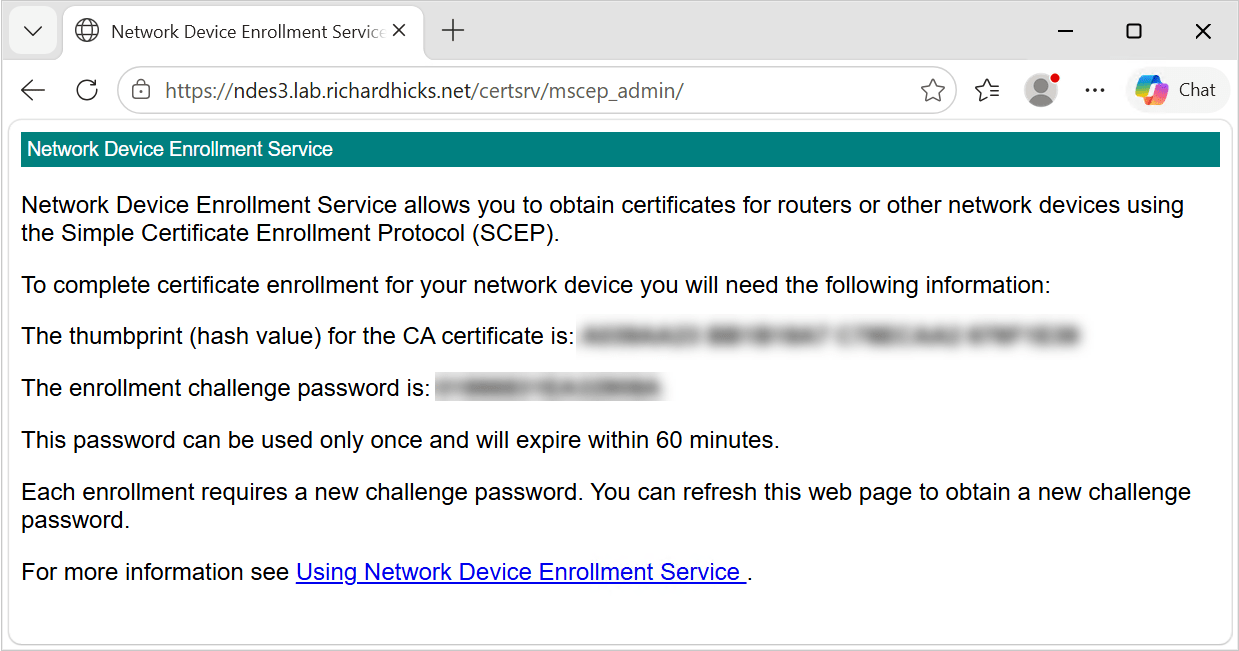
NDES IIS virtual directories mscep and mscep_admin

Standalone Configuration

In a standalone NDES deployment, an administrator browses to the administration page, authenticates, and receives a one-time password that is embedded in the certificate request. NDES validates the password against its local cache before forwarding the request to the certification authority (CA).

Intune Certificate Connector

The Intune Certificate Connector does not use this mechanism. Intune generates its own challenge, and the NDES policy module installed by the connector validates the certificate request against the authorizations Intune has granted for that specific device. The connector also disables the standard NDES challenge-password mechanism. As a result, the administration page is not used for Intune certificate enrollment and serves no operational purpose in this configuration.

Preauthentication Limitations

Reverse-proxy preauthentication normally provides an additional security boundary by requiring a client to authenticate before its request is forwarded to the published application. With Microsoft Entra Application Proxy, Microsoft Entra ID preauthentication can block unauthenticated Internet clients from reaching the internal web application, reducing its exposure to scanning, password-spraying attacks, and other malicious requests.

However, SCEP clients cannot complete the Microsoft Entra ID authentication process or present the authentication token required by Application Proxy. Enabling preauthentication would therefore prevent managed endpoints from reaching NDES and enrolling for certificates. When publishing NDES through Microsoft Entra Application Proxy, the Pre Authentication setting must be configured as Passthrough. Other reverse proxies must similarly allow unauthenticated requests to reach the NDES SCEP endpoint. The Intune SCEP policy module, not the reverse proxy, validates and authorizes certificate requests before NDES submits them to the certification authority.

NDES published through a reverse proxy with the Intune Certificate Connector

Information Disclosure

Because the NDES administration page is configured to use Windows authentication, IIS can negotiate NTLM with an unauthenticated client that requests the mscep_admin path. When the client sends an NTLM Type 1 negotiation message, IIS can respond with a Type 2 challenge containing a target information block. No credentials are required to receive this challenge or the information it contains.

Depending on the server configuration and negotiated NTLM options, the Type 2 message can disclose some or all of the following information:

  • NetBIOS domain name
  • NetBIOS computer name
  • DNS domain name
  • DNS computer name (server FQDN)
  • DNS forest name
  • Operating system version and build number

This is significant because the internal Active Directory namespace often differs from the public namespace used to publish NDES. For example, the published external name might be ndes1.example.com, but the NTLM challenge might disclose an internal domain of corp.example.net and a server FQDN of ndes1.corp.example.net. None of that information is available from public DNS.

Testing

To view disclosed information, use curl.exe to send a static NTLM type 1 negotiation message and inspect the response headers. Run the following command on the NDES server.

curl.exe -skI -H 'Authorization: NTLM TlRMTVNTUAABAAAAB4IIAAAAAAAAAAAAAAAAAAAAAAA=' https://localhost/certsrv/mscep_admin
curl output showing the NTLM challenge returned by the NDES administration page

A response containing a WWW-Authenticate header with an NTLM value indicates the endpoint is offering a challenge. When the header includes a base64 payload beginning with TlRMTVNTUAAC, the server has returned a type 2 message, leading to information disclosure on the target host. A response with no WWW-Authenticate header at all is the desired result.

Here are the PowerShell commands to decode and view the base64 payload and the disclosed information.

$Response = curl.exe -skI -H 'Authorization: NTLM TlRMTVNTUAABAAAAB4IIAAAAAAAAAAAAAAAAAAAAAAA=' https://localhost/certsrv/mscep_admin
$Challenge = ($Response | Select-String -Pattern '^WWW-Authenticate:\s*NTLM\s+(\S+)').Matches.Groups[1].Value
$Bytes = [Convert]::FromBase64String($Challenge)
[Text.Encoding]::Unicode.GetString($Bytes) -Replace '[^\x20-\x7E]', ' '

Decoded NTLM challenge revealing server and domain information

PowerShell Script

I have created and published a PowerShell script to simplify testing NDES servers for information leakage. The script is published on GitHub here. In addition, you can install the script from the PowerShell Gallery by running the following command.

Install-Script -Name Get-NdesNtlmDisclosure

The output of the command on a vulnerable server is as follows.

Get-NdesNtlmDisclosure output on a vulnerable NDES server

A Note on External Testing

When NDES is published using Microsoft Entra Application Proxy, external test results can be inconsistent. In my repeated testing across three separate servers, the first request sometimes returned a bare NTLM challenge with no payload, and a second request, seconds later, returned the full type 2 message. Therefore, do not treat a single clean external result as confirmation. Test locally on the server itself, then repeat external tests at least twice to confirm the results.

Additional Security Concerns

Beyond the namespace disclosure, an Internet-accessible NDES administration page introduces some additional security concerns.

Password Spray Attacks

An internet-facing endpoint that accepts domain credentials is a target for password spraying attacks. Failed authentication attempts can count toward the configured account-lockout threshold, introducing a potential denial-of-service risk to user accounts.

Service Disclosure

The presence of an NTLM challenge on the well-known mscep_admin path also identifies the server as an NDES host, providing attackers with useful reconnaissance information for targeted attacks.

Remediation

If the reverse proxy configuration exposes the NDES administration page, it becomes an Internet-accessible authenticated endpoint that no part of the Intune enrollment workflow uses. Removing it is a simple and effective attack-surface reduction measure.

Remove the NDES Administration Page

Administrators can remove the NDES administration page IIS application by opening an elevated PowerShell command window and running the following command.

Remove-WebApplication -Site 'Default Web Site' -Name 'CertSrv/mscep_admin'

After running this command, browsing to the administration page returns HTTP 404. The application is gone, and SCEP enrollment continues to work normally. At this point, most administrators would consider the task complete.

The Problem

If you attempt to browse the administration page after removing it, you will still be prompted to authenticate. If you supply valid credentials, you will receive the expected 404. The authentication prompt itself is the real problem.

IIS Authentication Settings

The NDES role configuration writes IIS authentication settings for the administration page into a separate location element in applicationHost.config. Remove-WebApplication deletes the application definition under the sites element, but it does not touch the location element. IIS continues to match the path and applies the authentication settings it finds there, even though no application exists at that location.

The orphaned configuration is visible only in the raw configuration file. It does not appear in IIS Manager, and Get-WebApplication reports nothing at that path. You can run the following command to view this configuration.

Select-String -Path "$env:SystemRoot\System32\inetsrv\config\applicationHost.config" -Pattern '<location path=|windowsAuthentication enabled='

On a server where the administration page has been removed, the output still includes an entry like the following.

991: <location path=”Default Web Site/CertSrv/mscep_admin”>
997: <windowsAuthentication enabled=”true”>

IIS configuration entries enabling Windows authentication for mscep_admin

Orphaned Configuration

To fully remediate this information disclosure and prevent potential disruption caused by password-spraying attacks, administrators must also remove the orphaned configuration location. This eliminates Windows authentication on the administration path entirely.

Remove-WebConfigurationLocation -Name 'Default Web Site/CertSrv/mscep_admin'

The NDES role configuration also enables Windows authentication on the SCEP application. Because anonymous authentication is also enabled, requests to the SCEP endpoint are ordinarily processed without an authentication challenge. However, Windows authentication is not required on an NDES server supporting the Intune Certificate Connector, and leaving it enabled on an Internet-facing endpoint serves no operational purpose. I recommend disabling it explicitly.

Set-WebConfigurationProperty -PSPath 'MACHINE/WEBROOT/APPHOST' -Location 'Default Web Site/CertSrv/mscep' -Filter 'system.webServer/security/authentication/windowsAuthentication' -Name 'enabled' -Value $False

By default, Windows authentication is handled in kernel mode, so stale state information in HTTP.SYS can continue serving challenges after a configuration change. Be sure to run iisreset.exe after making these changes.

iisreset.exe /restart

Validation

Repeat the NTLM probes demonstrated earlier against the administration page. The absence of a WWW-Authenticate header confirms the challenge has been eliminated.

curl.exe -skI -H 'Authorization: NTLM TlRMTVNTUAABAAAAB4IIAAAAAAAAAAAAAAAAAAAAAAA=' https://localhost/certsrv/mscep_admin
curl output confirming mscep_admin no longer offers an NTLM challenge

Confirm that SCEP still responds anonymously. A status code of 200 with a plain-text capability list is expected.

curl.exe -skI 'https://localhost/certsrv/mscep/mscep.dll?operation=GetCACaps'
curl output showing the SCEP GetCACaps response with status code 200

Repeat the first test against the internal FQDN and the published external FQDN, then perform a device enrollment to confirm the deployment is unaffected.

PowerShell

After making these changes, Get-NdesNtlmDisclosure.ps1 will indicate that the NTLM challenge is not offered.

Get-NdesNtlmDisclosure output showing the NTLM challenge is not offered

Summary

The NDES administration page is not required when the Intune Certificate Connector is installed on an NDES server and should be removed as part of attack surface reduction. However, removing the IIS application leaves behind an orphaned configuration location that continues to apply Windows authentication settings to the path. The result can be an Internet-facing endpoint that discloses the internal domain name, server name, forest name, operating system build, and other information to an unauthenticated remote client that initiates NTLM negotiation.

Removing the admin application alone is not enough. You must also remove the configuration location, disable Windows authentication where it is not required, restart IIS, and validate the result with an NTLM probe to ensure full mitigation.

Additional Information

Entra Internet Access TLS Inspection and Always On VPN: Troubleshooting SSTP Connection Failures

Microsoft Entra Global Secure Access (GSA) is a cloud-based Security Service Edge (SSE) solution that includes Entra Private Access to provide zero-trust network access to private data and applications, and Entra Internet Access to provide security controls for general internet access. Entra Internet Access includes features such as web content filtering, AI prompt controls, TLS inspection, and more. Entra Private Access and Entra Internet Access share a common client: the Global Secure Access Client.

TLS Inspection

TLS inspection is a powerful feature of Entra Internet Access that allows inspection and policy enforcement for encrypted internet traffic. It enables more thorough inspection and is required for features such as AI prompt policies. When TLS inspection is enabled, the TLS connection from the target server (origin server) is terminated by the Entra service. A new session is created between the cloud and the endpoint using a dynamically generated TLS certificate issued by Entra. As Entra holds the private key for this certificate, it can decrypt and inspect traffic as necessary.

Always On VPN

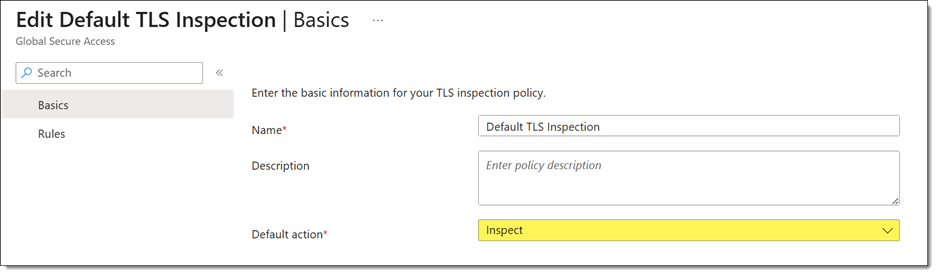
Recently, a customer asked me to help troubleshoot an Always On VPN user tunnel connectivity issue. The problem began shortly after deploying the Global Secure Access client with TLS inspection enabled. Administrators had configured the default TLS inspection policy to inspect traffic for all websites.

User Tunnel Failures

Attempts to manually start the Always On VPN user tunnel resulted in a failed connection attempt with the following error message.

Error 0x800704D4: The network connection was aborted by the local system.

Event Logs

Reviewing the client event logs revealed numerous Event ID 20227 entries from the RasClient source with the following error message.

The user DOMAIN\User dialed a connection named [connection name] which has failed. The error code returned on failure is -2147023660.

Note: Error code -2147023660 is the decimal equivalent of 0x800704D4.

Troubleshooting

Initial testing with Test-NetConnection confirmed that TCP port 443 on the VPN server was reachable. However, using Get-TlsCertificate revealed the real problem.

Although the certificate subject matched the VPN server, the issuer did not. Instead of the VPN server’s issuing CA, the certificate had been issued by Microsoft Entra Global Secure Access, confirming that TLS inspection was intercepting the connection.

SSTP and TLS Inspection

The Secure Socket Tunneling Protocol (SSTP) is a Microsoft proprietary VPN transport that uses HTTP for tunneling and TLS for security. Unlike a web browser, which can establish a new trusted TLS session with an inspection proxy, SSTP validates the VPN server’s certificate as part of establishing the VPN tunnel. Any certificate substitution, even by a trusted TLS inspection service, changes the server certificate thumbprint and causes SSTP validation to fail.

Workaround

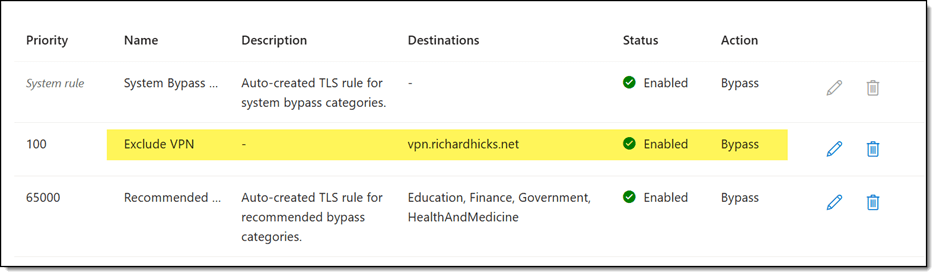
The solution is to create a TLS inspection exclusion policy to exempt inspection for the VPN server FQDN(s), as shown here.

Summary

Microsoft Entra Internet Access TLS inspection can unintentionally interfere with Always On VPN deployments that use SSTP. Because TLS inspection replaces the VPN server’s certificate with one issued by Microsoft Entra, SSTP detects the certificate mismatch and terminates the connection. If you use Always On VPN with Entra Internet Access, configure a TLS inspection exclusion for your VPN server FQDNs to prevent interception while preserving TLS inspection for general internet traffic.

Additional Information

Entra Internet Access TLS Inspection Fails with ERR_CERT_INVALID

Microsoft Entra Internet Access is a powerful cloud-based Secure Web Gateway (SWG) feature within the Entra Global Secure Access (GSA) Security Service Edge (SSE) solution. Entra Internet Access provides Zero Trust, identity-aware access to internet resources, private web-based applications, and Microsoft 365, with full integration with Entra Conditional Access.

TLS Inspection

Entra Internet Access includes an optional TLS Inspection feature that allows the GSA client to decrypt HTTPS traffic, inspect for threats, identify policy violations, and enforce Data Loss Prevention (DLP) policies. Importantly, enabling TLS inspection for GSA allows administrators to apply prompt injection protection policies to control the usage of generative AI applications.

TLS Inspection Certificate

Before enabling TLS inspection for Entra Internet Access, administrators must first create a TLS inspection certificate. This certificate must be signed by a trusted certification authority (CA). The process is simple and straightforward, and well-documented here.

Invalid Certificate Error

After enabling Entra Internet Access TLS inspection, administrators may find that all websites subject to TLS inspection are inaccessible. The browser displays the following error message:

Your connection isn’t private
Attackers might be trying to steal your information from <website> (for example, passwords, messages, or credit cards.)

NET:ERR_CERT_INVALID

Clicking on the Advanced button shows the following additional information:

<website> uses encryption to protect your information. When Microsoft Edge tried to connect to <website> this time, the website sent back unusual and incorrect credentials. This may happen when an attacker is trying to pretend to be <website>, or a Wi-Fi sign-in screen has interrupted the connection. Your information is still secure because Microsoft Edge stopped the connection before any data was exchanged.

You can’t visit <website> right now because the website sent scrambled credentials that Microsoft Edge can’t process. Network errors and attacks are usually temporary, so this page will probably work later.

Root Cause (Pun Intended!)

This issue can be caused by restrictions placed on the root CA. Specifically, if the root CA certificate includes a policy that restricts the CA path length (the number of subordinate CAs allowed downstream), the Microsoft Global Secure Access Intermediate CA, which issues certificates for TLS-inspected websites, cannot be validated successfully.

In this example, the root CA certificate includes a basic constraint that defines a maximum of 1 intermediate CA in the chain. Crucially, the extension is marked as Critical, so it must be enforced.

Because the root CA enforces a path length constraint of 1, the TLS inspection subordinate CA can exist beneath it, but no additional subordinate CA certificates are permitted. As a result, the Microsoft Global Secure Access Intermediate CA exceeds the allowed chain depth, causing certificate validation to fail.

Resolution

The fix for this issue is simple, yet complex. The root CA certificate must be renewed, this time without enforcing the CA path length policy. To do this, open an elevated command window on the root CA and run the following command.

certutil.exe -setreg policy\capathlength 0xffffffff

Important: If your CA hierarchy uses CAPolicy.inf to define the CAPathLength setting, update the file before renewing the CA certificate.

Next, restart the CA service for the change to take effect.

Restart-Service CertSvc -PassThru

Finally, renew the CA certificate.

certutil.exe -f -renewcert ReuseKeys

Restart the CA service once more for the change to take effect.

Restart-Service CertSvc -PassThru

Once complete, distribute the new root CA certificate to Active Directory and to Intune-managed endpoints using a Trusted Certificate device configuration policy.

Finally, configure a new Entra TLS inspection certificate in the Entra admin center to replace the old one, signed with the updated root CA certificate. Once the certificate has been uploaded, ensure it is enabled.

Important: Renewing a root CA certificate can be highly disruptive. Proceed with caution in production environments. Ensure that all enterprise assets receive the new root CA certificate in a timely manner. Alternatively, to reduce the chance of disruption, consider deploying a new root CA dedicated to Entra TLS inspection.

Result

Once these changes are made, the certificate chain will allow the Microsoft Global Secure Access Intermediate CA to exist beneath the TLS inspection CA, resulting in a valid certificate chain for TLS-inspected websites. Browsers will once again trust the dynamically generated certificates, eliminating the ERR_CERT_INVALID error.

The following certificate chain shows the corrected configuration after renewing the root CA certificate and recreating the TLS inspection certificate.

Summary

Entra Internet Access TLS inspection relies on a certificate chain that includes the Microsoft Global Secure Access Intermediate CA. If the root CA that signs the TLS inspection certificate enforces a restrictive path length constraint, certificate validation can fail, causing browsers to display ERR_CERT_INVALID errors for all TLS-inspected websites. Reviewing the certificate chain and understanding how basic constraints affect subordinate CAs can help quickly identify and resolve this issue. When deploying TLS inspection, ensure that CA hierarchy restrictions are compatible with this deployment scenario. Consider using a dedicated PKI hierarchy to minimize operational impact.

Additional Information

What’s New in Entra Private Network Connector v1.5.4892.0

An important update is available for the Microsoft Entra Private Network Connector. The Entra Private Network Connector is used to publish on-premises web applications to the internet. It is also used for Global Secure Access (GSA) with Entra Private Access, allowing GSA clients to access on-premises resources. Entra Private Network Connector v1.5.4892.0 includes important new functionality to streamline troubleshooting and improve stability and performance.

New Features

The Entra Private Network Connector v1.5.4892.0 now includes a diagnostic tool on the system tray. This gives administrators a visual indicator of connector status and provides quick access to diagnostics and log files.

Diagnostics

Right-clicking the connector and choosing ‘Connector diagnostics’ launches the Connector Diagnostics window. Here you’ll find three tabs: Overview, Health Check, and Advanced Logs.

Overview

The Overview tab provides details about the connector, such as the Tenant ID, Connector ID, version, supported TLS versions, the connector server’s IPv4 address (IPv6 information is not displayed), the server’s hostname, and the operating system version.

Health Check

Clicking on the Health Check tab will perform a comprehensive system health check. Status information for each check is provided, indicating whether it is Passed or Failed. Optionally, administrators can export the report in text, HTML, or JSON format for further analysis. Each health check can be expanded to reveal additional information about the individual check.

Advanced Logs

Clicking the Advanced Logs tab allows administrators to retrieve detailed log information. Session channel logging is enabled by default but can optionally be disabled if needed. You can choose specific start and end dates and times to collect logs, then click Retrieve Logs to collect them.

Once complete, it’s not immediately obvious where to find these logs. Clicking the Logs Retrieved button prompts the administrator to select a location in which to save the log files.

Improvements

This update improves the reliability of name resolution by filtering invalid DNS responses. In addition, the update improves connector logging to the Windows Event Log and fixes various issues and bugs.

Updating to v1.5.4892.0

Existing Entra Private Network Connector installations will not automatically receive this update. Administrators must manually download the connector from the Microsoft Entra admin center and apply the update themselves to take advantage of these new features and capabilities.

Additional Information

Mastering Certificates with Microsoft Intune September 2026

I’m excited to announce that I will be delivering another edition of the Mastering Certificates with Microsoft Intune course, hosted by ViaMonstra Online Academy. This is a three-day live online training course that takes place September 1-3, 2026. This course dives deep into issuing and managing certificates using Microsoft Intune, covering both on-premises and cloud-based solutions.

Course Overview

This interactive training equips IT professionals with the skills to provision and manage enterprise PKI certificates using Microsoft Intune. It explores Active Directory Certificate Services (AD CS), Microsoft Cloud PKI for Intune, and non-Microsoft solutions, with live demonstrations featuring real-world scenarios.

Key Learning Objectives

Those taking the online training course will learn the following.

  • Certificate Basics: Understand certificate roles and enterprise use cases.
  • Deployment Options: Master Intune certificate deployment (Intune policies, revocation, security) and Microsoft Cloud PKI (licensing, benefits, limitations, BYOCA).
  • Intune Deployment: Learn PKCS and SCEP deployment, security best practices, and troubleshooting.
  • High Availability: Explore strategies for reliable certificate management.

Course Highlights

Here are some key highlights for attendees of the training.

  • Expert-Led: Learn from a veteran IT professional, a Microsoft MVP, with deep PKI and Intune expertise.
  • Interactive Demonstrations: The course includes numerous practical exercises in real-world scenarios.
  • Resources: Access to security best practices and sample scripts for automated configuration.
  • Community: Join a private Facebook group for peer collaboration.
  • Live Q&A: Engage directly with the instructor for a clearer understanding.

Who Should Attend?

This training event is ideal for IT administrators, security professionals, and systems engineers working with Intune, AD CS, or Microsoft Cloud PKI for Intune.

Prerequisites

Those attending the online training course should be familiar with the following.

  • Basic networking knowledge (TCP/IP, DNS).
  • Familiarity with Active Directory, Windows OS, and Intune.
  • Access to an AD CS setup and an Azure subscription with Intune Suite licenses.

Why It Matters

Certificates are vital for secure authentication and communication. This course bridges theory and practice, equipping you to deploy and manage digital certificates effectively in cloud-native environments.

Details

Here is some additional information about the training event.

  • When: September 1-3, 2026 (sessions begin at 9:00 AM CDT).
  • Where: Live online via ViaMonstra Online Academy.
  • Cost: $2,395.00 (Sold separately – not included in All-Access Pass).

Why ViaMonstra?

ViaMonstra delivers top-tier IT training from Microsoft MVPs, focusing on practical, up-to-date skills and fostering a collaborative community.

Take the Next Step

Ready to master certificate management with Microsoft Intune? Register at ViaMonstra Online Academy for the August 2025 Mastering Certificates with Microsoft Intune training course today!

What’s New in Entra Global Secure Access Client v2.31.125

On June 2, 2026, Microsoft released version 2.31.125 of the Entra Global Secure Access (GSA) client. This update introduces several enhancements designed to improve client resiliency, simplify troubleshooting, and provide administrators with better visibility into network connection status.

Changes in v2.31.125

GSA client v2.31.125 includes new features to streamline connectivity troubleshooting.

Network Status

The new GSA client can now distinguish between a complete network disconnection and a scenario where the device remains connected to a local network but lacks internet access. This distinction helps administrators and users more quickly identify the source of connectivity issues and reduce troubleshooting time.

Network Disconnected

No Internet Connectivity

Local Access

When Intelligent Local Access (ILA) is enabled, the client now clearly indicates when a device is connected to a trusted private network. This provides additional visibility into ILA decision-making and helps confirm that local access policies are functioning as expected.

Sign Out

The new GSA client includes an account picker when a user signs out on Entra-registered or Entra-joined devices. This enhancement simplifies account management on shared or multi-user devices by allowing users to switch identities without fully reinstalling or reconfiguring the client.

The sign out option is disabled by default. It must be enabled by setting the following registry key.

HKLM\Software\Microsoft\Global Secure Access Client\HideSignOutButton DWORD = 0

User Session Detection

Because the GSA client supports only a single interactive Windows session, this new indicator helps quickly identify unsupported multi-session scenarios that may impact client functionality or troubleshooting efforts.

Other Changes

In addition to the new features and capabilities outlined above, these changes are also included.

  • Updated embedded .NET Runtime to version 8.0.26.
  • GSA Forwarding Profile Service now automatically restarts after a failure.
  • Improved detection and tunneling of agentic network connections.
  • Various bug fixes and performance improvements.

Summary

GSA Client v2.31.125 introduces several useful enhancements focused on troubleshooting, resiliency, and user experience. Improved network status visibility, Intelligent Local Access awareness, account sign-out support, and enhanced session detection provide administrators with better diagnostic capabilities while making the client easier for end users to understand and manage. Although this release remains in preview, administrators are encouraged to begin testing this latest release soon.

Additional Information

Microsoft Entra Global Secure Access (GSA) Client v2.31.125

Microsoft Entra Private Access Intelligent Local Access

Techmentor Event Microsoft HQ 2026

I’m pleased to announce I’ll be attending the Techmentor Event at Microsoft Headquarters in Redmond, WA, August 3-7, 2026. Register now and save $500.00 with the discount code HICKS.

Sessions

I’ll be delivering three sessions at this year’s event.

Join Me

The event is shaping up to be one of the best, with industry experts from around the world presenting on many important topics. Be sure to join me! Don’t miss out on this fantastic opportunity to learn from the best in the industry. Register today. Hope to see you there!

What’s New in Entra Global Secure Access Client v2.28.96

On April 27, 2026, Microsoft announced an update for the Entra Global Secure Access (GSA) client version 2.28.96. This new release includes improvements to the user experience for BYOD scenarios, to surface more information about endpoint status on the main screen, and to Intelligent Local Access (ILA).

Sign Out

Microsoft has changed how the Sign Out button is displayed depending on the device’s join type. With GSA client 2.28.96, the Sign Out button now appears by default only on Microsoft Entra-registered devices. This option is hidden on Microsoft Entra-joined devices but can optionally be displayed by setting a registry key.

Intelligent Local Access

This update also includes changes to the Intelligent Local Access (ILA) feature. Administrators can now assign a private application to multiple private networks. In addition, the GSA client now includes a new Private Access Definitions section on the Forwarding Profile tab of the Advanced Diagnostics tool. This new section includes the Private DNS definitions and a new Private network definitions section, which detail the current ILA configuration, including defined private networks, configured DNS server addresses, the FQDN to resolve for the private network, and the expected IP address for the ILA FQDN.

Additional Changes

GSA client v2.28.96 also includes additional changes to address known issues and bugs.

  • Internet connection test changed from msn.com to www.msftconnecttest.com
  • Additional log data collection, including Kerberos logs and the output of gpresult.exe
  • Log collection includes the list of trusted root Certification Authorities (CAs) on the endpoint

Download GSA v2.28.96

Administrators can download the latest release of the Global Secure Access (GSA) client here.

Additional Information

Global Secure Access Client for Windows v2.28.96

Entra Private Access Intelligent Local Access (ILA)

Entra Private Access and BYOD

Entra Private Access and VPN Migration Strategies on Entra.News

I recently had the opportunity to connect with Merill Fernando from Microsoft as a guest on his popular Entra.News podcast to discuss Microsoft Entra Private Access, which is part of the Entra Global Secure Access Security Service Edge (SSE) service. We spent the hour talking about the similarities and differences between classic VPN technologies and zero-trust network access (ZTNA). In addition, we discussed some technical aspects of Entra Private Access, and I shared migration and coexistence strategies to help ease the transition to zero trust. Also, we discussed the importance of integrating Entra Conditional Access and the shift from network to application access. You’ll find the interview at Entra.News and also on YouTube. Enjoy!

Additional Information

How to Migrate from Legacy VPN to Entra Private Access – Entra.News

Microsoft Entra Private Access

Always On VPN vs. Entra Private Access

Microsoft Entra Private Access Network Connector Overview and Deployment Strategies

Microsoft Entra Private Access Intelligent Local Access

Midwest Management Summit (MMSMOA) 2026

I’m excited to be presenting two sessions at the upcoming Midwest Management Summit at Mall of America (MMSMOA), taking place May 3-7, 2026, at the Radisson Blu in Bloomington, MN. This is the premier systems management event in the U.S., offering unrivaled access to Microsoft and industry professionals from around the world.

Cloud PKI for Intune

My first session, Zero to Certificates in 5 Minutes with Cloud PKI for Microsoft Intune, covers how to quickly configure and deploy certificates using Cloud PKI for Microsoft Intune. This session is ideal for anyone looking to streamline certificate management without the traditional heavy infrastructure burden.

Entra Private Access

My second session, Moving to Zero Trust: Entra Private Access for Always On VPN Administrators, explores the transition from traditional Always On VPN to Microsoft’s Entra Private Access, highlighting practical steps, architectural differences, and the benefits of maintaining secure access in a modern Zero Trust environment. I will also share important migration tips, tricks, and best practices.

Let’s Connect!

Looking forward to diving into these topics with everyone there. I hope to see some familiar faces and meet new ones, too! If you are attending the event, be sure to say hello!

Additional Information

Midwest Management Summit at Mall of America (MMSMOA)

Cloud PKI for Microsoft Intune on RunAs Radio

Microsoft Entra Private Access on RunAs Radio