90 DAYS LEFT: Windows Server 2016 End of Life January 2027 – Plan Your AD CS Migration Now

Heads up, fellow Windows Server administrators! There are now just THREE MONTHS remaining before Windows Server 2016 reaches end of support, so now is the time to finalize any migrations for workloads hosted on this platform. Mainstream support ended on January 11, 2022, and Windows Server 2016 has since remained in extended support. However, extended support ends on January 12, 2027. After that date, Microsoft will no longer provide security updates or technical support, increasing the risk of running production workloads due to exposure to newly discovered vulnerabilities and exploits.

Active Directory Certificate Services

Many organizations are still running critical infrastructure on Windows Server 2016. Administrators often delay upgrading Microsoft Active Directory Certificate Services (AD CS) due to its complexity. However, a well-planned AD CS migration not only reduces risk but also provides an opportunity to modernize cryptography, certificate templates, and operational practices.

Certificate Authorities

Administrators must carefully migrate Certificate Authorities (CAs) running on Windows Server 2016 to minimize downtime. In environments where ongoing CA maintenance has been limited, migrating the CA database can be especially challenging. If the CA is installed on a domain controller, now is a good time to consider separating these services to ensure reliable operation. Also, it’s a good idea to evaluate the CA’s configuration and security posture during migration to enhance security and improve service resilience.

NDES Servers

Microsoft Network Device Enrollment Services (NDES) servers, commonly deployed to facilitate certificate enrollment via Microsoft Intune, pose a unique challenge during migration. Unfortunately, configuring NDES is exceedingly complex and error-prone. NDES relies on a delicate combination of specialized IIS configuration, AD service accounts, custom certificate templates, and CA permissions, making even minor changes risky without proper planning. Not surprisingly, administrators are often hesitant to touch these systems as they are notoriously difficult to troubleshoot when problems arise.

Pro Tip: We spend an entire day covering NDES configuration in the Mastering Enterprise PKI Certificates with Microsoft Intune training course. The next session is February 3-5, 2027. Register now!

Intune Certificate Connectors

Don’t overlook Windows Server 2016 servers with the Intune Certificate Connector installed. Fortunately, this is one of the more manageable workloads to migrate. All that’s required is to install new connectors on supported servers and delete the old ones.

Summary

With extended support for Windows Server 2016 ending on January 12, 2027, organizations running production workloads—especially critical infrastructure such as Active Directory Certificate Services (AD CS), Certificate Authorities (CAs), and NDES servers—face significant security risks from unpatched vulnerabilities once the OS reaches end-of-life. Careful migration planning to newer versions such as Windows Server 2022 or 2025 is essential to minimize downtime, improve security posture, and ensure long-term resilience.

Start Planning Now

Don’t risk running unsupported workloads in 2027! Complete your migration today. If you’d like expert guidance, I have many years of experience migrating these workloads. I have developed specialized tools and techniques to ensure a smooth, secure, and successful transition. Fill out the form below to schedule a free one-hour consultation to assess your Windows Server 2016 AD CS workloads, identify migration risks, and outline next steps.

Additional Information

Windows Server 2016 Lifecycle Policy

PKI Fundamentals with Microsoft Active Directory Certificate Services (AD CS) Online Training Course

Mastering Enterprise PKI Certificates with Microsoft Intune Online Training Course

Microsoft NDES Information Disclosure: Detection and Remediation

The Active Directory Certificate Services (AD CS) Network Device Enrollment Service (NDES) is a common building block for certificate deployment with Microsoft Intune. When NDES is used with the Intune Certificate Connector, the NDES server is published to the Internet so that managed devices can enroll for certificates using the Simple Certificate Enrollment Protocol (SCEP). Anything accessible via the Internet warrants careful attention, and a default NDES installation can expose more information than administrators might expect. Specifically, the NDES administration page can disclose sensitive information and should be removed. However, removing access to the page isn’t enough. Even after the NDES administration page is removed, IIS can continue to expose Windows authentication on that path through orphaned configuration entries, enabling NTLM-based information disclosure to unauthenticated Internet clients.

NDES Administration Page

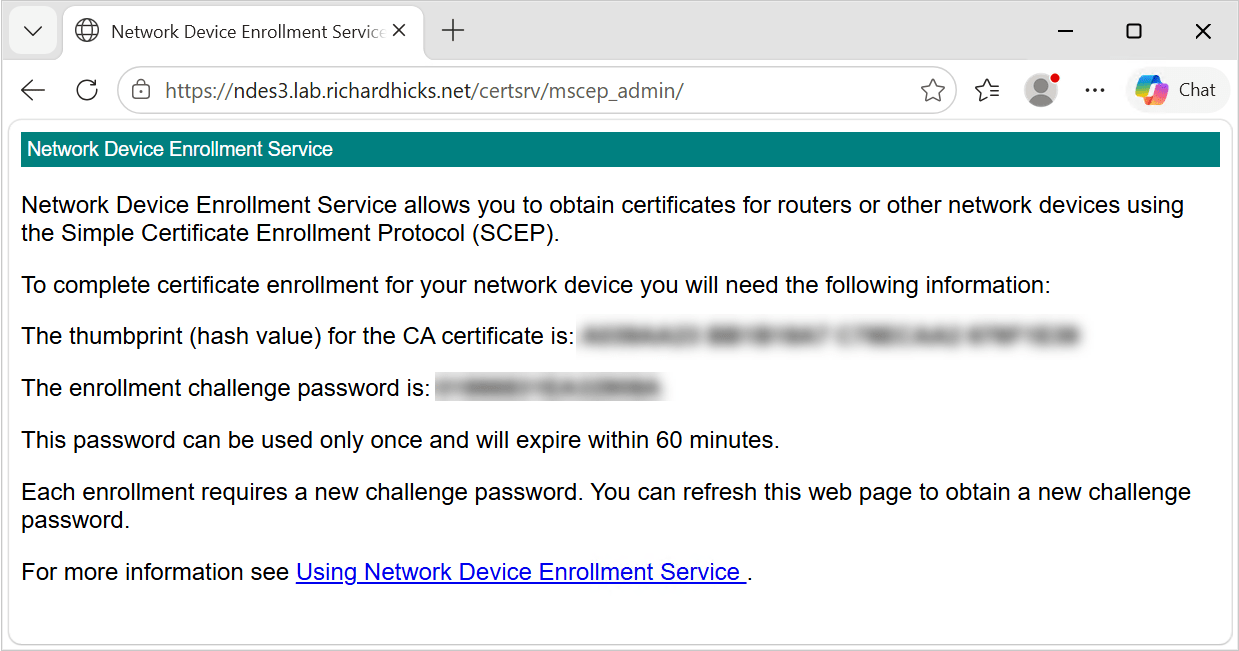
NDES exposes its web-based functionality through applications hosted in Internet Information Services (IIS). A default NDES installation creates two IIS applications under the CertSrv virtual directory. The first is mscep, which is the SCEP endpoint itself. The second is mscep_admin, which is the NDES administration page used to generate one-time challenge passwords.

NDES IIS virtual directories mscep and mscep_admin

Standalone Configuration

In a standalone NDES deployment, an administrator browses to the administration page, authenticates, and receives a one-time password that is embedded in the certificate request. NDES validates the password against its local cache before forwarding the request to the certification authority (CA).

Intune Certificate Connector

The Intune Certificate Connector does not use this mechanism. Intune generates its own challenge, and the NDES policy module installed by the connector validates the certificate request against the authorizations Intune has granted for that specific device. The connector also disables the standard NDES challenge-password mechanism. As a result, the administration page is not used for Intune certificate enrollment and serves no operational purpose in this configuration.

Preauthentication Limitations

Reverse-proxy preauthentication normally provides an additional security boundary by requiring a client to authenticate before its request is forwarded to the published application. With Microsoft Entra Application Proxy, Microsoft Entra ID preauthentication can block unauthenticated Internet clients from reaching the internal web application, reducing its exposure to scanning, password-spraying attacks, and other malicious requests.

However, SCEP clients cannot complete the Microsoft Entra ID authentication process or present the authentication token required by Application Proxy. Enabling preauthentication would therefore prevent managed endpoints from reaching NDES and enrolling for certificates. When publishing NDES through Microsoft Entra Application Proxy, the Pre Authentication setting must be configured as Passthrough. Other reverse proxies must similarly allow unauthenticated requests to reach the NDES SCEP endpoint. The Intune SCEP policy module, not the reverse proxy, validates and authorizes certificate requests before NDES submits them to the certification authority.

NDES published through a reverse proxy with the Intune Certificate Connector

Information Disclosure

Because the NDES administration page is configured to use Windows authentication, IIS can negotiate NTLM with an unauthenticated client that requests the mscep_admin path. When the client sends an NTLM Type 1 negotiation message, IIS can respond with a Type 2 challenge containing a target information block. No credentials are required to receive this challenge or the information it contains.

Depending on the server configuration and negotiated NTLM options, the Type 2 message can disclose some or all of the following information:

  • NetBIOS domain name
  • NetBIOS computer name
  • DNS domain name
  • DNS computer name (server FQDN)
  • DNS forest name
  • Operating system version and build number

This is significant because the internal Active Directory namespace often differs from the public namespace used to publish NDES. For example, the published external name might be ndes1.example.com, but the NTLM challenge might disclose an internal domain of corp.example.net and a server FQDN of ndes1.corp.example.net. None of that information is available from public DNS.

Testing

To view disclosed information, use curl.exe to send a static NTLM type 1 negotiation message and inspect the response headers. Run the following command on the NDES server.

curl.exe -skI -H 'Authorization: NTLM TlRMTVNTUAABAAAAB4IIAAAAAAAAAAAAAAAAAAAAAAA=' https://localhost/certsrv/mscep_admin

curl output showing the NTLM challenge returned by the NDES administration page

A response containing a WWW-Authenticate header with an NTLM value indicates the endpoint is offering a challenge. When the header includes a base64 payload beginning with TlRMTVNTUAAC, the server has returned a type 2 message, leading to information disclosure on the target host. A response with no WWW-Authenticate header at all is the desired result.

Here are the PowerShell commands to decode and view the base64 payload and the disclosed information.

$Response = curl.exe -skI -H 'Authorization: NTLM TlRMTVNTUAABAAAAB4IIAAAAAAAAAAAAAAAAAAAAAAA=' https://localhost/certsrv/mscep_admin
$Challenge = ($Response | Select-String -Pattern '^WWW-Authenticate:\s*NTLM\s+(\S+)').Matches.Groups[1].Value
$Bytes = [Convert]::FromBase64String($Challenge)
[Text.Encoding]::Unicode.GetString($Bytes) -Replace '[^\x20-\x7E]', ' '

Decoded NTLM challenge revealing server and domain information

PowerShell Script

I have created and published a PowerShell script to simplify testing NDES servers for information leakage. The script is published on GitHub here. In addition, you can install the script from the PowerShell Gallery by running the following command.

Install-Script -Name Get-NdesNtlmDisclosure

The output of the command on a vulnerable server is as follows.

Get-NdesNtlmDisclosure output on a vulnerable NDES server

A Note on External Testing

When NDES is published using Microsoft Entra Application Proxy, external test results can be inconsistent. In my repeated testing across three separate servers, the first request sometimes returned a bare NTLM challenge with no payload, and a second request, seconds later, returned the full type 2 message. Therefore, do not treat a single clean external result as confirmation. Test locally on the server itself, then repeat external tests at least twice to confirm the results.

Additional Security Concerns

Beyond the namespace disclosure, an Internet-accessible NDES administration page introduces some additional security concerns.

Password Spray Attacks

An internet-facing endpoint that accepts domain credentials is a target for password spraying attacks. Failed authentication attempts can count toward the configured account-lockout threshold, introducing a potential denial-of-service risk to user accounts.

Service Disclosure

The presence of an NTLM challenge on the well-known mscep_admin path also identifies the server as an NDES host, providing attackers with useful reconnaissance information for targeted attacks.

Remediation

If the reverse proxy configuration exposes the NDES administration page, it becomes an Internet-accessible authenticated endpoint that no part of the Intune enrollment workflow uses. Removing it is a simple and effective attack-surface reduction measure.

Remove the NDES Administration Page

Administrators can remove the NDES administration page IIS application by opening an elevated PowerShell command window and running the following command.

Remove-WebApplication -Site 'Default Web Site' -Name 'CertSrv/mscep_admin'

After running this command, browsing to the administration page returns HTTP 404. The application is gone, and SCEP enrollment continues to work normally. At this point, most administrators would consider the task complete.

The Problem

If you attempt to browse the administration page after removing it, you will still be prompted to authenticate. If you supply valid credentials, you will receive the expected 404. The authentication prompt itself is the real problem.

IIS Authentication Settings

The NDES role configuration writes IIS authentication settings for the administration page into a separate location element in applicationHost.config. Remove-WebApplication deletes the application definition under the sites element, but it does not touch the location element. IIS continues to match the path and applies the authentication settings it finds there, even though no application exists at that location.

The orphaned configuration is visible only in the raw configuration file. It does not appear in IIS Manager, and Get-WebApplication reports nothing at that path. You can run the following command to view this configuration.

Select-String -Path "$env:SystemRoot\System32\inetsrv\config\applicationHost.config" -Pattern '<location path=|windowsAuthentication enabled='

On a server where the administration page has been removed, the output still includes an entry like the following.

991: <location path=”Default Web Site/CertSrv/mscep_admin”>
997: <windowsAuthentication enabled=”true”>

IIS configuration entries enabling Windows authentication for mscep_admin

Orphaned Configuration

To fully remediate this information disclosure and prevent potential disruption caused by password-spraying attacks, administrators must also remove the orphaned configuration location. This eliminates Windows authentication on the administration path entirely.

Remove-WebConfigurationLocation -Name 'Default Web Site/CertSrv/mscep_admin'

The NDES role configuration also enables Windows authentication on the SCEP application. Because anonymous authentication is also enabled, requests to the SCEP endpoint are ordinarily processed without an authentication challenge. However, Windows authentication is not required on an NDES server supporting the Intune Certificate Connector, and leaving it enabled on an Internet-facing endpoint serves no operational purpose. I recommend disabling it explicitly.

Set-WebConfigurationProperty -PSPath 'MACHINE/WEBROOT/APPHOST' -Location 'Default Web Site/CertSrv/mscep' -Filter 'system.webServer/security/authentication/windowsAuthentication' -Name 'enabled' -Value $False

By default, Windows authentication is handled in kernel mode, so stale state information in HTTP.SYS can continue serving challenges after a configuration change. Be sure to run iisreset.exe after making these changes.

iisreset.exe /restart

Validation

Repeat the NTLM probes demonstrated earlier against the administration page. The absence of a WWW-Authenticate header confirms the challenge has been eliminated.

curl.exe -skI -H 'Authorization: NTLM TlRMTVNTUAABAAAAB4IIAAAAAAAAAAAAAAAAAAAAAAA=' https://localhost/certsrv/mscep_admin

curl output confirming mscep_admin no longer offers an NTLM challenge

Confirm that SCEP still responds anonymously. A status code of 200 with a plain-text capability list is expected.

curl.exe -skI 'https://localhost/certsrv/mscep/mscep.dll?operation=GetCACaps'

curl output showing the SCEP GetCACaps response with status code 200

Repeat the first test against the internal FQDN and the published external FQDN, then perform a device enrollment to confirm the deployment is unaffected.

PowerShell

After making these changes, Get-NdesNtlmDisclosure.ps1 will indicate that the NTLM challenge is not offered.

Get-NdesNtlmDisclosure output showing the NTLM challenge is not offered

Summary

The NDES administration page is not required when the Intune Certificate Connector is installed on an NDES server and should be removed as part of attack surface reduction. However, removing the IIS application leaves behind an orphaned configuration location that continues to apply Windows authentication settings to the path. The result can be an Internet-facing endpoint that discloses the internal domain name, server name, forest name, operating system build, and other information to an unauthenticated remote client that initiates NTLM negotiation.

Removing the admin application alone is not enough. You must also remove the configuration location, disable Windows authentication where it is not required, restart IIS, and validate the result with an NTLM probe to ensure full mitigation.

Additional Information

Get-NdesNtlmDisclosure PowerShell Script on GitHub

NDES Security Hardening: Protecting and Monitoring the SCEP Registry Configuration

Publish NDES with Microsoft Entra Application Proxy

Intune Certificate Connector Configuration Failed

Microsoft Intune Certificate Connector Failure

Certificate Connector for Intune Configuration Failure

Create and Assign SCEP Profiles in Microsoft Intune

Simple Certificate Enrollment Protocol (RFC 8894)

Mastering Certificates with Microsoft Intune September 2026

I’m excited to announce that I will be delivering another edition of the Mastering Certificates with Microsoft Intune course, hosted by ViaMonstra Online Academy. This is a three-day live online training course that takes place September 1-3, 2026. This course dives deep into issuing and managing certificates using Microsoft Intune, covering both on-premises and cloud-based solutions.

Course Overview

This interactive training equips IT professionals with the skills to provision and manage enterprise PKI certificates using Microsoft Intune. It explores Active Directory Certificate Services (AD CS), Microsoft Cloud PKI for Intune, and non-Microsoft solutions, with live demonstrations featuring real-world scenarios.

Key Learning Objectives

Those taking the online training course will learn the following.

  • Certificate Basics: Understand certificate roles and enterprise use cases.
  • Deployment Options: Master Intune certificate deployment (Intune policies, revocation, security) and Microsoft Cloud PKI (licensing, benefits, limitations, BYOCA).
  • Intune Deployment: Learn PKCS and SCEP deployment, security best practices, and troubleshooting.
  • High Availability: Explore strategies for reliable certificate management.

Course Highlights

Here are some key highlights for attendees of the training.

  • Expert-Led: Learn from a veteran IT professional, a Microsoft MVP, with deep PKI and Intune expertise.
  • Interactive Demonstrations: The course includes numerous practical exercises in real-world scenarios.
  • Resources: Access to security best practices and sample scripts for automated configuration.
  • Community: Join a private Facebook group for peer collaboration.
  • Live Q&A: Engage directly with the instructor for a clearer understanding.

Who Should Attend?

This training event is ideal for IT administrators, security professionals, and systems engineers working with Intune, AD CS, or Microsoft Cloud PKI for Intune.

Prerequisites

Those attending the online training course should be familiar with the following.

  • Basic networking knowledge (TCP/IP, DNS).
  • Familiarity with Active Directory, Windows OS, and Intune.
  • Access to an AD CS setup and an Azure subscription with Intune Suite licenses.

Why It Matters

Certificates are vital for secure authentication and communication. This course bridges theory and practice, equipping you to deploy and manage digital certificates effectively in cloud-native environments.

Details

Here is some additional information about the training event.

  • When: September 1-3, 2026 (sessions begin at 9:00 AM CDT).
  • Where: Live online via ViaMonstra Online Academy.
  • Cost: $2,395.00 (Sold separately – not included in All-Access Pass).

Why ViaMonstra?

ViaMonstra delivers top-tier IT training from Microsoft MVPs, focusing on practical, up-to-date skills and fostering a collaborative community.

Take the Next Step

Ready to master certificate management with Microsoft Intune? Register at ViaMonstra Online Academy for the August 2025 Mastering Certificates with Microsoft Intune training course today!

REMINDER: Windows Server 2016 End of Life January 2027 – Plan Your AD CS Migration Now

With just over six months remaining before Windows Server 2016 reaches end of support, now is the time to begin planning migrations for workloads hosted on this platform. Mainstream support ended on January 11, 2022, and Windows Server 2016 has since remained in extended support. However, extended support ends on January 12, 2027. After that date, Microsoft will no longer provide security updates or technical support, increasing the risk of running production workloads due to exposure to newly discovered vulnerabilities and exploits.

Active Directory Certificate Services

Many organizations are still running critical infrastructure on Windows Server 2016. Administrators often delay upgrading Microsoft Active Directory Certificate Services (AD CS) due to its complexity. However, a well-planned AD CS migration not only reduces risk but also provides an opportunity to modernize cryptography, certificate templates, and operational practices.

Certificate Authorities

Administrators must carefully migrate Certificate Authorities (CAs) running on Windows Server 2016 to minimize downtime. In environments where ongoing CA maintenance has been limited, migrating the CA database can be especially challenging. If the CA is installed on a domain controller, now is a good time to consider separating these services to ensure reliable operation. Also, it’s a good idea to evaluate the CA’s configuration and security posture during migration to enhance security and improve service resilience.

NDES Servers

Microsoft Network Device Enrollment Services (NDES) servers, commonly deployed to facilitate certificate enrollment via Microsoft Intune, pose a unique challenge during migration. Unfortunately, configuring NDES is exceedingly complex and error-prone. NDES relies on a delicate combination of specialized IIS configuration, AD service accounts, custom certificate templates, and CA permissions, making even minor changes risky without proper planning. Not surprisingly, administrators are often hesitant to touch these systems as they are notoriously difficult to troubleshoot when problems arise.

Pro Tip: We spend an entire day covering NDES configuration in the Mastering Enterprise PKI Certificates with Microsoft Intune training course. The next session is September 1-3, 2026. Register now!

Intune Certificate Connectors

Don’t overlook Windows Server 2016 servers with the Intune Certificate Connector installed. Fortunately, this is one of the more manageable workloads to migrate. All that’s required is to install new connectors on supported servers and delete the old ones.

Summary

With extended support for Windows Server 2016 ending on January 12, 2027, organizations running production workloads—especially critical infrastructure such as Active Directory Certificate Services (AD CS), Certificate Authorities (CAs), and NDES servers—face significant security risks from unpatched vulnerabilities once the OS reaches end-of-life. Careful migration planning to newer versions such as Windows Server 2022 or 2025 is essential to minimize downtime, improve security posture, and ensure long-term resilience.

Start Planning Now

Don’t leave these mission-critical infrastructure services to the last minute! Begin planning your migration today. If you’d like expert guidance, I have many years of experience migrating these workloads. I have developed specialized tools and techniques to ensure a smooth, secure, and successful transition. Fill out the form below to schedule a free one-hour consultation to assess your Windows Server 2016 AD CS workloads, identify migration risks, and outline next steps.

Additional Information

Windows Server 2016 Lifecycle Policy

PKI Fundamentals with Microsoft Active Directory Certificate Services (AD CS) Online Training Course

Mastering Enterprise PKI Certificates with Microsoft Intune Online Training Course

Troubleshooting NDES Error 0x80070003 Path Not Found on Windows Server 2025

When deploying enterprise PKI certificates with Microsoft Intune using SCEP, administrators must deploy one or more on-premises Network Device Enrollment Service (NDES) servers together with the Intune Certificate Connector. Installing and configuring NDES can be challenging because the solution includes multiple dependencies and has many moving parts. Troubleshooting installation failures can be difficult, particularly on Windows Server 2025 where I have observed installation issues more frequently than on earlier Windows Server releases.

Path Not Found

As I work with customers to migrate their existing NDES services to Windows Server 2025, I frequently encounter installation errors. Specifically, the ‘Path Not Found’ error is increasingly common. Using PowerShell or the Server Manager, administrators may encounter a failed NDES installation that returns the following error message.

CMSCEPSetup::Install: The system cannot find the path specified. 0x80070003 (WIN32: 3 ERROR_PATH_NOT_FOUND)

NDES installation failing with error 0x80070003 ERROR_PATH_NOT_FOUND

Investigation

Reviewing the NDES installation log at C:\Windows\certocm.log yields an important clue.

Microsoft Active Directory Certificate Services: Failed to add the web virtual directory. The system cannot find the path specified. 0x80070003 (WIN32: 3 ERROR_PATH_NOT_FOUND): The system cannot find the path specified. 0x80070003 (WIN32: 3 ERROR_PATH_NOT_FOUND)

Root Cause

This error occurs after a failed installation attempt which corrupts the IIS configuration on the NDES server. This prevents the NDES installer from configuring applications in the default web site. Fortunately, the problem is easy to resolve.

Recovery Steps

To recover from this error, first uninstall the NDES service (not the role) by opening an elevated PowerShell command window and running the following command.

Uninstall-AdcsNetworkDeviceEnrollmentService -Force

Next, remove the corrupt IIS configuration file.

Remove-Item C:\Windows\System32\inetsrv\config\applicationHost.config -Force

Copy a known-good IIS configuration file from the WinSxS folder.

$WinSxSConfig = Get-ChildItem C:\Windows\WinSxS -Recurse -Filter applicationHost.config -ErrorAction SilentlyContinue | Sort-Object LastWriteTime -Descending | Select-Object -First 1
Copy-Item -Path $WinSxSConfig.FullName "C:\Windows\System32\inetsrv\config\applicationHost.config" -Force

And finally, recreate the default website.

& "$env:SystemRoot\System32\inetsrv\appcmd.exe" add site /name:"Default Web Site" /bindings:http/*:80: /physicalPath:"%SystemDrive%\inetpub\wwwroot"

Once complete, proceed with the NDES configuration.

Pro Tip

Because this issue occurs frequently enough in my experience, I recommend backing up the IIS configuration immediately after installing the NDES role and before beginning configuration. You can backup the IIS configuration by opening an elevated PowerShell command window and running the following command.

& "$env:SystemRoot\System32\inetsrv\appcmd.exe" add backup 'Backup Name'

If the NDES configuration subsequently fails, uninstall the configuration, then restore the backup using the following command.

& "$env:SystemRoot\System32\inetsrv\appcmd.exe" restore backup 'Backup Name'

Once complete, proceed with the NDES configuration once again.

Summary

NDES installation failures on Windows Server 2025 can leave IIS in an inconsistent state and trigger 0x80070003 ERROR_PATH_NOT_FOUND errors during configuration. Restoring a known-good IIS configuration and recreating the default web site resolves the issue quickly. Backing up the IIS configuration before beginning NDES configuration can significantly reduce recovery time if installation problems occur.

Additional Information

Troubleshooting NDES Error 0x80094800 Unsupported Cert Type on Windows Server 2025

Intune PKCS and SCEP Certificate Validity Period

TRAINING: Mastering Enterprise PKI Certificates with Microsoft Intune

Troubleshooting NDES Error 0x80094800 Unsupported Cert Type on Windows Server 2025

With Windows Server 2016 fast approaching end of life (EOL – January 2027) I’ve been helping many customers get their existing Network Device Enrollment Service (NDES) server upgraded to Windows Server 2025. In the past I’ve had few problems deploying NDES on Windows Server 2016, 2019, and 2022. However, NDES deployments on Windows Server 2025 have proven more challenging. Unlike previous releases, many installations fail during initial configuration with little indication of the underlying cause. The error described below is quite common, in my experience.

Unsupported Cert Type

When configuring the NDES role on Windows Server 2025, administrators may encounter an installation failure with the following error message.

Failed to enroll RA certificates. The requested certificate template is not supported by this CA. 0x80094800 (-2146875392 CERTSRV_E_UNSUPPORTED_CERT_TYPE)

Investigation

Inspection of the issuing CA confirmed that the required NDES certificate templates had been published successfully and were visible on the target issuing CA server.

After confirming the templates were published, I validated connectivity between the NDEs server and the issuing CA to rule out communication issues.

certutil.exe -config <servername\commonname> -ping

Root Cause

Although the precise root cause remains unclear, the issue appears related to timing or object availability during NDES configuration. In many cases it behaves like a delay in template publication visibility, Active Directory replication latency, or another dependency timing issue encountered during setup.

Note: This error can also occur if the administrator is not a member of the Enterprise Administrators group, or if the security permissions on these default templates has changed.

Recovery

Fortunately, if you encounter this issue you can usually just remove the configuration using PowerShell and run it again.

Uninstall-AdccsNetworkDeviceEnrollmentService -Force

However, in my experience running the installer again results in another error, usually the 0x80070003 ‘Path Not Found’ error. If that happens, see my published guidance for recovering from this error here.

https://directaccess.richardhicks.com/2026/05/26/troubleshooting-ndes-error-0x80070003-path-not-found-on-windows-server-2025

While recovery is usually straightforward, preventing the issue entirely is preferable.

Recommendation

I recommend publishing the required templates on the target issuing CA before proceeding with the NDES configuration. Publishing these templates manually before running NDES configuration ensures they are already visible and available to the CA, potentially avoiding timing-related enrollment failures during setup. The following default templates are required for NDES configuration.

  • IPsec (Offline request)
  • CEP Encryption
  • Exchange Enrollment Agent (Offline request)

Note: Best practice is to remove these templates after configuration because they are intended only for NDES registration authority enrollment and are not typically required for ongoing issuance.

Summary

When deploying NDES on Windows Server 2025, administrators may encounter the 0x80094800 CERTSRV_E_UNSUPPORTED_CERT_TYPE error even when the required templates appear correctly configured. Although the exact cause remains uncertain, the issue appears related to timing or template availability during setup. In most cases, removing and re-running the NDES configuration resolves the problem, while pre-publishing the default NDES templates before configuration can help prevent it entirely.

Additional Information

Troubleshooting NDES Error 0x80070003 Path Not Found on Windows Server 2025

Intune PKCS and SCEP Certificate Validity Period

TRAINING: Mastering Enterprise PKI Certificates with Microsoft Intune

Microsoft AD CS Adds Post-Quantum Cryptography Support with ML-DSA

Despite predictions of its decline, Microsoft Active Directory Certificate Services (AD CS) continues to evolve. Following significant enhancements introduced in late 2025, including CRL partitioning and support for 16K database pages, the May 2026 update adds another important capability: support for Post-Quantum Cryptography (PQC).

ML-DSA

Specifically, the May 2026 update adds support for ML-DSA-44, ML-DSA-65, and ML-DSA-87 in Windows Server 2025 for AD CS. This enables administrators to begin evaluating post-quantum cryptographic algorithms and assessing PQC readiness in enterprise PKI environments

Configuration

After applying the May 2026 update to an issuing Certification Authority (CA), administrators will find new PQC algorithms under the Algorithm name drop-down list, as shown here.

Certificate template Cryptography tab listing the ML-DSA-44, ML-DSA-65, and ML-DSA-87 algorithms

Note: If you don’t see these new algorithms, ensure you have selected Key Storage Provider from the Provider Category drop-down list. In addition, ensure that you select Signature on the Request Handling tab.

Test Results

Initial testing across common enterprise certificate scenarios produced mixed results. While PQC works well in some scenarios, other workloads still show limitations.

Code Signing

Code signing with an ML-DSA-44 certificate issued by AD CS works perfectly. For example, I can use Set-AuthenticodeSignature to sign a PowerShell script, as shown here.

Set-AuthenticodeSignature signing a PowerShell script with an ML-DSA-44 certificate

Viewing the file’s properties shows that the encryption algorithm used to sign the file was ML-DSA-44, as expected.

File digital signature details showing the ML-DSA-44 signature algorithm

IIS

TLS-based workloads proved more challenging. Attempts to configure an HTTPS binding in IIS failed with the following error message.

There was an error while performing this operation. A specified logon session does not exist. It may already have been terminated. (Exception from HRESULT: 0x80070520).

IIS error binding an ML-DSA certificate to an HTTPS site: a specified logon session does not exist

RRAS and SSTP

Similar limitations occurred when testing remote-access VPN scenarios using RRAS and SSTP. Specifically, configuring a PQC TLS certificate for SSTP in RRAS failed. Although I was able to assign the certificate using Set-RemoteAccess, the RemoteAccess service failed to start.

RemoteAccess service failing after assigning an ML-DSA certificate for SSTP

Remote Desktop

Unfortunately, using PQC certificates for RDP also fails. Although I could assign the PQC certificate to the RDP listener, clients fail to connect using RDP and return the following error message.

This computer can’t connect to the remote computer. Try connecting again. If the problem continues, contact the owner of the remote computer or your network administrator.

Error code: 0x904
Extended error code: 0x7

Remote Desktop connection error 0x904 with extended error 0x7 when using an ML-DSA certificate

Summary

The May 2026 update marks an important milestone for AD CS by introducing initial support for PQC algorithms, allowing organizations to begin evaluating ML-DSA certificates in enterprise environments. Early testing shows promising results for signing scenarios such as code signing; however, broader infrastructure workloads, including TLS, VPN, and Remote Desktop, remain limited today. Although PQC support is still in its early stages, these updates demonstrate Microsoft’s ongoing investment in AD CS and provide administrators with an opportunity to begin preparing their PKI environments for the post-quantum future. Additional PQC enhancements, including ML-KEM support and broader ecosystem integration, are anticipated in future Windows updates.

Additional Information

Enterprise PKI with Microsoft Active Directory Certificate Services

Microsoft May 2026 Security Updates (KB5087539)

Post-Quantum Cryptography (PQC) in the Enterprise: Timeline and Readiness

Always On VPN with PEAP Fails in Windows 11 26H1

Always On VPN RasMan Errors in Windows 10 1903

There appears to be a bug in the latest Windows 11 26H1 (no, that’s not a typo – 26H1) build affecting Protected Extensible Authentication Protocol (PEAP). In my testing, all VPN connection attempts (Always On VPN and manual/ad-hoc) failed when PEAP was used for authentication.

Windows 11 26H1

Recently, while reviewing downloads and product keys in Visual Studio, I noticed a new Windows 11 release listed: Windows 11 26H1 (business and consumer editions). I initially thought 26H1 would be ARM-only, but the download is available for x64 as well.

I’m not sure whether this is intended as a general release, because Microsoft describes it as an Insider Experimental Preview Build (28200.1873). I also don’t recall seeing Insider builds offered through Visual Studio downloads, so I’m not sure what to make of it. Either way, if you’re evaluating this build, the notes below document a VPN issue I was able to reproduce.

Troubleshooting

After preparing a Windows 11 26H1 test client, I found that the Always On VPN user tunnel would not connect. The same configuration worked on earlier Windows 11 versions. In the event log, I observed the following errors.

Error 619

When using SSTP, the event log records error code 619 (event ID 20227) from the RasClient event source, with the following error message.

The user [domain\user] dialed a connection named [connection name] which has failed. The error code returned on failure is 619.

Error 691

When using IKEv2, the event log records error code 691 (event ID 20227) from the RasClient event source, with the following error message.

The user [domain\user] dialed a connection named [connection name] which has failed. The error code returned on failure is 691.

Workaround

At the time of writing, the only workaround I’ve found to restore Always On VPN connectivity is to switch authentication from PEAP to EAP-TLS. This may not be a drop-in change for every environment, so evaluate the security and operational impact before rolling it out broadly. You’ll need to enable EAP-TLS on both the client and the NPS/RADIUS server.

Summary

I’m not convinced Windows 11 26H1 will be widely deployed soon, since it appears to be an experimental/Insider build rather than a general release. If you decide to evaluate it, plan to use the workaround above to maintain Always On VPN connectivity.

Feedback

Have you tested Always On VPN with Windows 11 26H1? If so, do you see the same behavior? Share your findings in the comments.

Additional Information

Windows 11 Insider Experimental (26H1) Preview Build 28200.1873

Entra Private Access and Bring Your Own Device (BYOD)

Microsoft Entra Private Access is a Zero Trust Network Access (ZTNA) solution that provides secure access to private enterprise resources. With the release of Global Secure Access (GSA) client version 2.26.108, Microsoft has addressed a crucial functionality gap by adding support for Bring Your Own Device (BYOD), enabling secure access from non-managed endpoints.

BYOD Support in Global Secure Access

Microsoft introduced BYOD support for Entra Private Access with the release of the GSA client version 2.26.108. This update allows the GSA client to be installed on Microsoft Entra-registered devices that are not domain-joined or managed by the organization, enabling secure access to private resources from personal or unmanaged endpoints.

Use Cases

BYOD support in GSA and Entra Private Access enables several common scenarios where network access from managed devices is impractical or unavailable, including:

  • Vendor or contractor access
  • IT incident response from unmanaged endpoints
  • Temporary or seasonal staffing
  • Collaboration with external partners

Replacing Legacy VPN for Ad Hoc Access

Historically, legacy VPN solutions were the primary option for providing ad hoc access to private resources from unmanaged devices. With the introduction of BYOD support in the GSA client, organizations can now extend Entra Private Access to these scenarios without deploying or maintaining a separate VPN infrastructure.

Additional Changes

In addition to adding BYOD support, GSA client v2.26.108 includes the following new enhancements.

  • Improved Intelligent Local Access (ILA) detection
  • Join Type displayed in the client interface
  • GSA traceroute enhancements, including a 50M MB speed test between the client and edge service.

Summary

BYOD support removes a key barrier to adopting Microsoft Entra Private Access. Organizations can now securely provide access to private resources using Zero Trust policies, even when users connect from unmanaged or personal devices, and without relying on legacy VPN solutions.

Additional Information

Microsoft Entra Private Access Bring Your Own Device (BYOD)

Microsoft Global Secure Access Client for Windows v2.26.108

Microsoft Entra Private Access Intelligent Local Access

Always On VPN vs. Entra Private Access

The Myth of the Publish Certificate in Active Directory Setting

Certificate templates in Microsoft Active Directory Certificate Services (AD CS) provide powerful, preconfigured settings that enable administrators to issue certificates tailored for specific purposes. For example, a certificate template could allow a user to authenticate to a Wi-Fi network or VPN gateway. Another template might control policies for enrolling for web server certificates in the enterprise. Templates define settings such as cryptographic parameters (key algorithm and length), validity period, application policies, enrollment requirements, and more. While there are myriad settings to choose from, one in particular is often enabled unnecessarily. And while it works without issue, there can be some hidden downsides to enabling this setting.

Publish Certificate in Active Directory

When creating a certificate template, there’s an option on the General tab called Publish certificate in Active Directory. From experience, this is one of the most misunderstood settings for certificate templates.

Certificate template General tab with the Publish certificate in Active Directory option

Intuitively, it would make sense to check this box on all published certificate templates. After all, I want the users or devices targeted by this certificate template to find them in Active Directory (AD) so they can enroll. Many administrators believe that enabling this setting is required to ‘see’ the published certificate template on the endpoint, as shown here.

Active Directory Users and Computers Published Certificates tab listing certificates published for a user

However, enabling the Publish certificate in Active Directory option is not required for enrollment. To ‘see’ certificates available for enrollment, the user or device must only have the Enroll permission on the template.

What Is It For?

So, what does the Publish certificate in Active Directory setting do? When this option is enabled, the issuing CA adds the certificate to the requesting principal’s Active Directory account. There are two common scenarios where this is required.

S/MIME

Adding a user’s certificate to their AD account makes the public key centrally discoverable, allowing Outlook and other S/MIME-enabled clients to automatically find recipients’ certificates for secure email encryption and signature validation. Without the certificate published in AD, users must manually exchange certificates, breaking seamless S/MIME encryption in most enterprise environments.

Encrypting File System (EFS)

Publishing a user’s EFS certificate to their Active Directory account allows Windows to locate the correct public key automatically when encrypting files. It ensures recovery agents and key archival processes function properly. Without the certificate in AD, EFS can fail to encrypt data consistently across machines or prevent access to encrypted files when users roam or recover profiles.

Drawbacks

There are very few scenarios outside of S/MIME and EFS that require the Publish certificate in Active Directory option to be enabled. However, enabling it doesn’t necessarily break anything, and this setting is often enabled by default (or carried over from the source template when duplicating), so administrators may miss this option. Issuing certificates in this way introduces some potential problems.

AD Database Bloat

Adding a certificate to each principal’s AD object increases the size of each object, thereby increasing the total size of the AD database. For organizations with large directories with hundreds of thousands or even millions of accounts, adding unnecessary data to each account can be very expensive in terms of database size, replication traffic, backup storage, and overall domain performance. Making matters worse, certificates published to AD live perpetually. They are not removed automatically when certificates are revoked or expire.

Service Accounts

Service accounts used for certificate enrollment, such as the Microsoft Intune Certificate connector, can be especially challenging. Here, if the Publish certificate in Active Directory setting is enabled on the Intune certificate template, the CA will add a certificate to the service account for every certificate it issues. While you can have many certificates associated with a single account, there is an upper limit, approximately 1250, based on my testing. After that, certificates will continue to be issued, but adding them to AD will fail.

Remediation

The following recommendations can help administrators correct this misconfiguration and limit its impact in their environment.

Disable Unnecessary Certificate Publishing

Administrators should clear the Publish certificate in Active Directory setting on all certificate templates that do not explicitly require it, such as those used for S/MIME or Encrypting File System (EFS). This prevents new certificates from being written to user or computer objects and does not require certificates to be reissued.

Remove Published Certificates

Administrators can remove unnecessary certificates from user, computer, and service account objects in AD to reduce object and overall AD database sizes. Perform the following steps to remove unneeded certificates.

  1. Open the Active Directory Users and Computers management console (dsa.msc) and double-click the target principal.
  2. Select the Published Certificates tab.
  3. Select a certificate (or all certificates) and click Remove.
Removing published certificates from the Published Certificates tab in Active Directory Users and Computers

Important Note: Use extreme caution when deleting certificates! Do not delete any certificates unless you are certain they are not required.

Managed Service Accounts

Managed Service Accounts in AD do not have a Published Certificates tab. Administrators can use the Attribute Editor to remove individual certificates from the userCertificate attribute on the account.

Attribute Editor for a managed service account showing the userCertificate attribute

Managed Service Account Attribute Editor

userCertificate attribute entries for a managed service account

Managed Service Account userCertificate Entries

Unfortunately, there is no option to view the certificate in the UI for Managed Service Accounts. To view detailed certificate information, see the PowerShell section below.

Existing Certificates Are Not Removed Automatically

Disabling the Publish certificate in Active Directory setting only stops future certificates from being published in AD. Certificates already written to Active Directory are never removed automatically, even after they expire or are revoked. In environments where this setting has been enabled for an extended period, large numbers of stale certificates often accumulate and continue to increase the AD database size.

Intune Certificate Connector Considerations

This issue is especially problematic for high-volume enrollment scenarios that use service accounts, such as the Microsoft Intune Certificate Connector. When publishing is enabled for Intune certificate templates, certificates issued on behalf of users are added to the service account, quickly leading to excessive certificate accumulation and potential attribute limits.

ADPrincipalCertificate PowerShell Module

Manually performing this cleanup at scale is impractical. To assist administrators with cleaning up unnecessarily published certificates, I’ve created the ADPrincipalCertificate PowerShell module. This module includes functions to enumerate AD accounts that include certificates, show and optionally export certificates for AD accounts, and remove published certificates. The module also includes a function to enumerate published certificate templates that include the Publish certificate in Active Directory option enabled. You can install the ADPrincipalCertificate PowerShell module from the PowerShell gallery by running the following command.

Install-Module -Name ADPrincipalCertificate -Scope CurrentUser

See the ADPrincipalCertificate GitHub repository for detailed usage information.

Summary

While the Publish certificate in Active Directory option is helpful for S/MIME and EFS deployments, it is unnecessary for most other scenarios and is often enabled when it isn’t needed. This results in the unnecessary addition of certificates to AD accounts, causing individual objects and the entire AD database to grow without benefit. Sadly, many vendor guides indicate that this setting is required when it often isn’t, so many environments suffer from this misconfiguration. Administrators should review the certificate template configuration and disable this setting when it isn’t needed. Additionally, use the ADPrincipalCertificate PowerShell module to perform cleanup, if required.

Additional Information

Enterprise PKI with Microsoft Active Directory Certificate Services

ADPrincipalCertificate PowerShell Module on GitHub

ADPrincipalCertificate PowerShell Module in the PowerShell Gallery