

What’s New in Entra Global Secure Access Client for Windows v2.34.222

On October 19, 2026, Microsoft announced an update for the Entra Global Secure Access (GSA) client. This latest release, v2.34.222, adds support for a new sign-in option, updates Conditional Access sign-in frequency, improves diagnostics, and enhances local network bypass. It also improves Windows Firewall behavior off network, along with telemetry and accessibility improvements.

Changes in v2.34.222

GSA client v2.34.222 includes the following new features and enhancements.

Web Sign-In

The GSA client now supports Web sign-in for Windows. This credential provider enables browser-based Windows sign-in using methods such as Microsoft Authenticator, Temporary Access Pass (TAP), or a SAML-P federated identity. Web sign-in requires a Microsoft Entra-joined device running Windows 11 version 22H2 with KB5030310 or later, plus internet connectivity.

Windows Firewall Profile

This release improves Windows Firewall profile selection when Private Access is enabled. When the device is not directly connected to the corporate network, Windows Firewall does not activate the Domain profile.

Traffic Forwarding Profile Details

The new GSA client features improved diagnostics. With this update, the Forwarding profile tab in the Advanced diagnostics section now displays the Traffic Forwarding Profile Name as it appears in the Entra admin center, along with the Traffic Forwarding Profile ID.
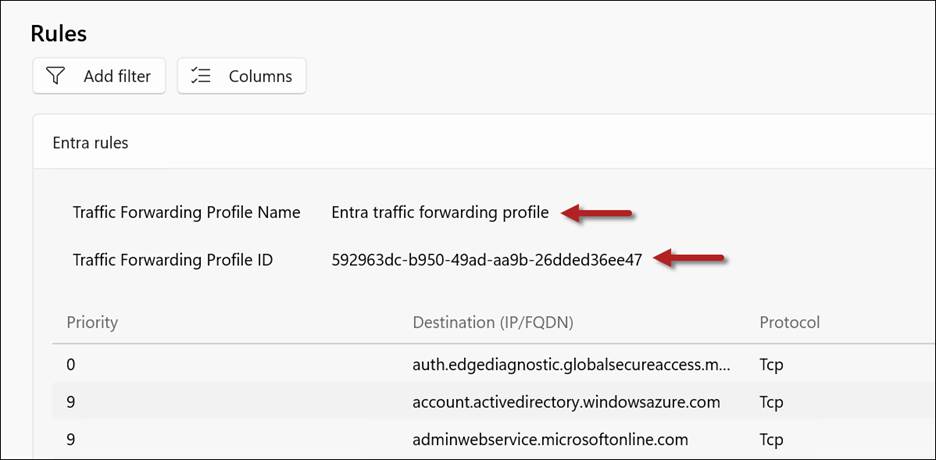
Traffic Forwarding Profile Name and ID

Conditional Access

GSA client v2.34.222 now includes support for Conditional Access sign-in frequency for Private Access applications. This feature is part of a phased rollout and might not be available in all tenants immediately.

Prefer Local Network Bypass

With this update, the Prefer local network option limits bypass to connections destined for IP addresses in common private network ranges. Microsoft documentation doesn’t elaborate on specifically which ‘common private network ranges’, but I suspect this means private IPv4 address ranges as defined in RFC 1918.

GSA Traceroute Changes

In GSA client v2.34.222, Microsoft has replaced the command-line version of the GSA traceroute tool (GsaTracert.exe) with a new GUI version. However, during my initial testing (and confirmed by others testing this feature), it appears to be broken at this time. When I launch GsaTracert.exe, the UI returns the following error message.

“Could not retrieve the forwarding profile from the registry. Ensure the Global Secure Access Client is installed and running.”

I will post an update as soon as Microsoft resolves this issue.

Additional Changes

In addition to the changes highlighted above, the new GSA client includes the following additional enhancements.

  • UDP tunneling improvements
  • Memory utilization improvements
  • New telemetry capabilities
  • Accessibility improvements
  • Bug fixes and other miscellaneous improvements

Summary

GSA client v2.34.222 introduces several useful enhancements for administrators and users. Organizations should validate the update against their existing configuration before broad deployment. My initial testing also identified an issue with the updated diagnostic tool, as described above.

Additional Information

Microsoft Entra Global Secure Access Client v2.34.222

Microsoft Entra Global Secure Access (GSA)

Microsoft Entra Private Access

Microsoft Entra Internet Access

Entra Private Access and VPN Migration Strategies on Entra.News

Microsoft Global Secure Access (GSA) Traffic Forwarding Profiles v2

Microsoft recently introduced custom Entra Private Access traffic forwarding profiles in public preview. Administrators can now provide different sets of private applications to selected users, groups, devices, and device platforms. This post explains how the profiles are assigned and prioritized, how to configure one, and how the new local network option handles overlapping address space.

Forwarding Profiles v1

Previously, organizations could assign the default Private Access traffic forwarding profile to selected users and groups, but they could not create separate Private Access profiles with different acquisition rules for different target groups. That made it difficult to give Windows devices one set of private application destinations and mobile devices another. Administrators could still control access through application assignments and Conditional Access, but the traffic the client acquired was less tailored to the user or device.

Forwarding Profiles v2

Global Secure Access (GSA) provides default traffic forwarding profiles for Microsoft traffic, Private Access, and Internet Access. Administrators can also create custom Private Access profiles and scope them to users, groups, devices, and device platforms. During the preview, a tenant can have up to 10 custom Private Access profiles.

Policy Processing

GSA evaluates traffic against the Microsoft, Private Access, and Internet Access profile types in that order. Traffic that matches none of them is not forwarded to the service. This order is separate from the priority used to choose between multiple applicable Private Access profiles.

Multiple Profiles

Each custom Private Access profile has its own acquisition rules, assignments, status, and priority. Assign a priority from 101 through 199. A lower number represents a higher priority. When more than one enabled Private Access profile applies to the same user and device, the client uses only the highest-priority applicable profile. The application rules from the other profiles are not combined with it.

Configure a Custom Private Access Profile

In the Microsoft Entra admin center, go to Global Secure Access > Connect > Traffic forwarding. Select Create new traffic forwarding profile, then Private access profile. Enter a descriptive name and, optionally, a description. Set a priority from 101 through 199 and choose whether the profile is enabled. Select Next, review the settings, and select Create. Note that the new profile has no acquisition rules or assignments until you configure them.

Acquisition Rules

Open the new profile and select Acquisition rules. Choose whether to include Quick Access destinations, then select the Private Access applications whose destinations the profile should acquire. Adding an application to a forwarding profile determines which traffic the client captures. Users must also be authorized to connect to the application’s resources.

Including Quick Access Destinations

Including Quick Access adds its configured destinations to the acquisition rules of this profile alongside the selected Private Access applications. This can provide a common set of destinations across custom profiles, but it does not change the Quick Access application’s configuration or grant users access to its resources. Confirm that the intended users are assigned to Quick Access as well as to the forwarding profile.

Assignments

Under Assignments, select View next to User and device assignments. Choose All users and devices or Selected users and devices, then save your selection.

Next, select View next to Device platform assignments and choose the supported platforms that should receive the profile. A device must match both assignment conditions. For example, selecting a user group and Windows limits the profile to Windows devices used by members of that group.

The new profile appears in the traffic forwarding list by priority, as shown here.

On an assigned client, open Advanced diagnostics > Forwarding profile to confirm that the expected Private Access application segments are present, as shown here.

Prefer Local Network

The Windows GSA client includes a Prefer local network option for cases where a local subnet overlaps with a configured private application destination. When an administrator enables the option, it appears in the client settings. A user can select it to keep applicable local subnet traffic on the local network, such as traffic to a printer or screen casting device, instead of having the client acquire that destination for Private Access. Microsoft introduced the option in Windows GSA client version 2.32.294.

The Problem It Solves

Overlapping private address space can make a local destination look like a destination defined in a Private Access application segment. For example, a user’s home printer and a corporate resource might both use 192.168.1.50. Prefer local network lets the user favor the directly connected local destination in this situation, such as when printing or screen casting.

Intelligent Local Access

Intelligent Local Access (ILA) serves a different purpose. It uses configured DNS probes to identify a corporate private network and can then send traffic directly to specified Private Access applications available on that network. Prefer local network addresses when there is an overlap between the device’s local subnet and a Private Access destination, such as a printer on a home network. ILA depends on a matching configured private network and application. An address overlap alone does not trigger it.

Summary

Custom Private Access traffic forwarding profiles give administrators more control over which private application destinations the Global Secure Access (GSA) client acquires for different users and devices. Assignments determine who receives a profile, while priority determines which profile applies when assignments overlap. The Prefer local network option also helps Windows users reach local devices when their subnet overlaps a Private Access destination.

Additional Information

Global Secure Access traffic forwarding profiles

Create a Private Access traffic forwarding profile

Entra Private Access Intelligent Local Access

Entra Global Secure Access (GSA) Client Intune Deployment PowerShell Script

The Microsoft Entra Global Secure Access (GSA) client is commonly deployed using Microsoft Intune. To deploy the client as an Intune Win32 app, administrators package the installer and a PowerShell installation script into an .intunewin file. Microsoft provides a sample PowerShell script that creates a log, configures Windows to prefer IPv4 over IPv6, and launches the installer. However, the sample has several limitations that can make it unreliable in production environments. To address these shortcomings, I’ve refactored the code to make it more robust and better aligned with enterprise deployment best practices.

Script Improvements

Microsoft’s PowerShell script for installing the GSA client has several significant limitations. My refactored version includes the following improvements.

  1. Preserved the existing DisabledComponents setting. Microsoft’s example overwrites the entire registry value, potentially removing previously configured settings. My version sets the 0x20 bit to prefer IPv4 while preserving any other flags already present.
  2. Validates the installer’s Authenticode signature. My revised script verifies that the installer has a valid Authenticode signature and that the signing certificate identifies Microsoft Corporation as the publisher.
  3. Preserves the pending reboot state. My script records when the registry setting was changed and compares that timestamp with the device’s last boot time. If the device has not restarted, subsequent runs continue to return exit code 3010, even if an earlier installation attempt failed.
  4. Expanded exit-code handling. The script writes a timestamped PowerShell transcript to the Intune Management Extension log directory, allowing it to be included with collected Intune diagnostics. Logging failures do not prevent the installation from continuing.
  5. Intune-integrated logging. I’ve updated the script’s logging to use the Intune Management Extensions logs folder, so logs are captured by Intune’s diagnostics collection. Each run of the script generates its own timestamped log file, making troubleshooting easier. Also, logging failures never block installation.
  6. Best practice alignment. I’ve added comment-based help, culture-invariant timestamps, and a $PSScriptRoot guard with a clean error to handle script execution issues. In addition, the script is digitally signed to support environments that enforce signed-script execution policies.

GitHub

I’ve published my refactored GSA client installation script on GitHub. You can download the script here:

https://github.com/richardhicks/gsa/blob/main/Install-GSAClient.ps1

Note: The script expects the installer to be named GlobalSecureAccessInstaller.exe. However, downloaded installers typically include the version number in the filename, such as GlobalSecureAccessInstaller_<version>.exe. Before creating the .intunewin package, either rename the installer or update the $InstallerName variable in the script.

Contribute

Suggestions and contributions are welcome. If you have ideas for making the GSA client deployment more robust or reliable, please submit a pull request on GitHub.

Summary

Microsoft provides a PowerShell script to deploy the Entra GSA client via Intune, but it has several limitations. This refactored version preserves existing registry settings, validates the installer, improves reboot and exit-code handling, integrates logging with Intune diagnostics, and better aligns with enterprise deployment best practices.

Additional Information

Install-GSAClient.ps1 PowerShell Script on GitHub

Prepare Win32 App Content for Upload to Microsoft Intune

Install the Global Secure Access Client for Microsoft Windows