Entra Internet Access TLS Inspection and Always On VPN: Troubleshooting SSTP Connection Failures

Microsoft Entra Global Secure Access (GSA) is a cloud-based Security Service Edge (SSE) solution that includes Entra Private Access to provide zero-trust network access to private data and applications, and Entra Internet Access to provide security controls for general internet access. Entra Internet Access includes features such as web content filtering, AI prompt controls, TLS inspection, and more. Entra Private Access and Entra Internet Access share a common client: the Global Secure Access Client.

TLS Inspection

TLS inspection is a powerful feature of Entra Internet Access that allows inspection and policy enforcement for encrypted internet traffic. It enables more thorough inspection and is required for features such as AI prompt policies. When TLS inspection is enabled, the TLS connection from the target server (origin server) is terminated by the Entra service. A new session is created between the cloud and the endpoint using a dynamically generated TLS certificate issued by Entra. As Entra holds the private key for this certificate, it can decrypt and inspect traffic as necessary.

Always On VPN

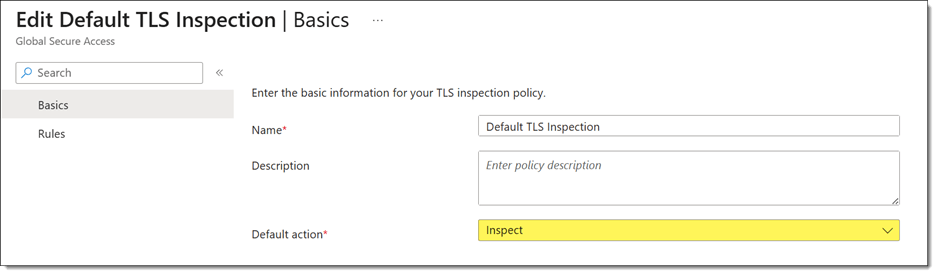
Recently, a customer asked me to help troubleshoot an Always On VPN user tunnel connectivity issue. The problem began shortly after deploying the Global Secure Access client with TLS inspection enabled. Administrators had configured the default TLS inspection policy to inspect traffic for all websites.

User Tunnel Failures

Attempts to manually start the Always On VPN user tunnel resulted in a failed connection attempt with the following error message.

Error 0x800704D4: The network connection was aborted by the local system.

Event Logs

Reviewing the client event logs revealed numerous Event ID 20227 entries from the RasClient source with the following error message.

The user DOMAIN\User dialed a connection named [connection name] which has failed. The error code returned on failure is -2147023660.

Note: Error code -2147023660 is the decimal equivalent of 0x800704D4.

Troubleshooting

Initial testing with Test-NetConnection confirmed that TCP port 443 on the VPN server was reachable. However, using Get-TlsCertificate revealed the real problem.

Although the certificate subject matched the VPN server, the issuer did not. Instead of the VPN server’s issuing CA, the certificate had been issued by Microsoft Entra Global Secure Access, confirming that TLS inspection was intercepting the connection.

SSTP and TLS Inspection

The Secure Socket Tunneling Protocol (SSTP) is a Microsoft proprietary VPN transport that uses HTTP for tunneling and TLS for security. Unlike a web browser, which can establish a new trusted TLS session with an inspection proxy, SSTP validates the VPN server’s certificate as part of establishing the VPN tunnel. Any certificate substitution, even by a trusted TLS inspection service, changes the server certificate thumbprint and causes SSTP validation to fail.

Workaround

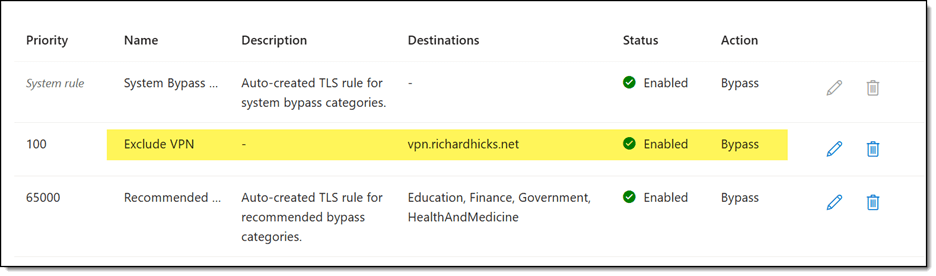
The solution is to create a TLS inspection exclusion policy to exempt inspection for the VPN server FQDN(s), as shown here.

Summary

Microsoft Entra Internet Access TLS inspection can unintentionally interfere with Always On VPN deployments that use SSTP. Because TLS inspection replaces the VPN server’s certificate with one issued by Microsoft Entra, SSTP detects the certificate mismatch and terminates the connection. If you use Always On VPN with Entra Internet Access, configure a TLS inspection exclusion for your VPN server FQDNs to prevent interception while preserving TLS inspection for general internet traffic.

Additional Information

Always On VPN vs. Entra Private Access: Choosing the Right Access Model for your Organization

What is Microsoft Entra Global Secure Access?

Microsoft Entra Internet Access

Microsoft Entra Private Access

Always On VPN SSTP and 47-Day TLS Certificates

Always On VPN SSTP and HSTS

Microsoft AD CS Adds Post-Quantum Cryptography Support with ML-DSA

Despite predictions of its decline, Microsoft Active Directory Certificate Services (AD CS) continues to evolve. Following significant enhancements introduced in late 2025, including CRL partitioning and support for 16K database pages, the May 2026 update adds another important capability: support for Post-Quantum Cryptography (PQC).

ML-DSA

Specifically, the May 2026 update adds support for ML-DSA-44, ML-DSA-65, and ML-DSA-87 in Windows Server 2025 for AD CS. This enables administrators to begin evaluating post-quantum cryptographic algorithms and assessing PQC readiness in enterprise PKI environments

Configuration

After applying the May 2026 update to an issuing Certification Authority (CA), administrators will find new PQC algorithms under the Algorithm name drop-down list, as shown here.

Note: If you don’t see these new algorithms, ensure you have selected Key Storage Provider from the Provider Category drop-down list. In addition, ensure that you select Signature on the Request Handling tab.

Test Results

Initial testing across common enterprise certificate scenarios produced mixed results. While PQC works well in some scenarios, other workloads still show limitations.

Code Signing

Code signing with an ML-DSA-44 certificate issued by AD CS works perfectly. For example, I can use Set-AuthenticodeSignature to sign a PowerShell script, as shown here.

Viewing the file’s properties shows that the encryption algorithm used to sign the file was ML-DSA-44, as expected.

IIS

TLS-based workloads proved more challenging. Attempts to configure an HTTPS binding in IIS failed with the following error message.

There was an error while performing this operation. A specified logon session does not exist. It may already have been terminated. (Exception from HRESULT: 0x80070520).

RRAS and SSTP

Similar limitations occurred when testing remote-access VPN scenarios using RRAS and SSTP. Specifically, configuring a PQC TLS certificate for SSTP in RRAS failed. Although I was able to assign the certificate using Set-RemoteAccess, the RemoteAccess service failed to start.

Remote Desktop

Unfortunately, using PQC certificates for RDP also fails. Although I could assign the PQC certificate to the RDP listener, clients fail to connect using RDP and return the following error message.

This computer can’t connect to the remote computer. Try connecting again. If the problem continues, contact the owner of the remote computer or your network administrator.

Error code: 0x904
Extended error code: 0x7

Summary

The May 2026 update marks an important milestone for AD CS by introducing initial support for PQC algorithms, allowing organizations to begin evaluating ML-DSA certificates in enterprise environments. Early testing shows promising results for signing scenarios such as code signing; however, broader infrastructure workloads, including TLS, VPN, and Remote Desktop, remain limited today. Although PQC support is still in its early stages, these updates demonstrate Microsoft’s ongoing investment in AD CS and provide administrators with an opportunity to begin preparing their PKI environments for the post-quantum future. Additional PQC enhancements, including ML-KEM support and broader ecosystem integration, are anticipated in future Windows updates.

Additional Information

Microsoft May 2026 Security Updates (KB5087539)

Post Quantum Cryptography in the Enterprise

CertKit Agent Support for Always On VPN SSTP and DirectAccess IP-HTTPS TLS Certificates

With public TLS certificate lifetimes set to drop to 200 days soon (next week!), Always On VPN and DirectAccess administrators face an increased risk of service disruption if certificates aren’t renewed on time. These shorter certificate lifetimes require more frequent renewals, substantially increasing management overhead. Although 200 days equate to roughly a twice-a-year renewal, lifetimes will decrease further to 100 days next year and eventually to just 47 days in 2029. SSTP and IP-HTTPS are TLS-based tunneling protocols used by Always On VPN and DirectAccess, respectively, tying their certificate health directly to remote access availability. Now is the time to automate the enrollment and renewal of Always On VPN SSTP and DirectAccess IP-HTTPS/TLS certificates to ensure reliable operation in the future.

Always On VPN

Previously, I wrote about using CertKit.io to automate the enrollment and renewal of public TLS certificates for Always On VPN. CertKit is an online service that administrators can use to delegate the task of enrolling for short-lived certificates from Let’s Encrypt. In that post, I shared some sample code to retrieve the certificate from CertKit and assign it to the SSTP listener for the Routing and Remote Access Service (RRAS). However, CertKit added new features to its solution, eliminating the need for additional code.

CertKit Agents

Recently, CertKit introduced CertKit Agents. These lightweight software agents are installed on Windows Servers (other operating systems are supported as well) to automate the process of downloading CertKit certificates and installing them in the local computer certificate store. Importantly, they now specifically support both the Always On VPN (SSTP) and DirectAccess (IP-HTTPS) workloads natively.

Always On VPN

The CertKit agent automatically detects the Routing and Remote Access (RRAS) workload and updates the certificate binding for the SSTP listener accordingly. Since this process requires a service restart, which terminates all current VPN connections, CertKit allows you to select an outage window for certificate updates.

Here, administrators can define the day(s) and time window during which the agent is authorized to restart the RemoteAccess service when updating the TLS certificate for SSTP. The day and time are based on the server’s configured time zone settings.

DirectAccess

Beginning with CertKit agent v1.6.2, the agent automatically detects whether DirectAccess is configured, enabling IP-HTTPS TLS certificates to be automatically enrolled and renewed. However, additional configuration is required. The following changes must be made to support CertKit for DirectAccess.

  • Service Account – Administrators must configure a service account in Active Directory for the CertKit agent. A Group Managed Service Account (gMSA) is preferred, but a standard domain service account is also supported.
  • GPO Delegation – CertKit service account must be delegated the ‘Edit settings, delete, and modify security’ permission on the DirectAccess server and client settings GPOs.
  • Log On as a Service – When using a domain service account, administrators must grant the CertKit service the ‘Log on as a service’ right on the DirectAccess server. However, when using gMSA, the ‘Log on as a service’ right is not required.
  • Local Administrator – Administrators must also add the CertKit agent service account to the Local Administrators group on the server.

Configuration Script

I have published a PowerShell script to simplify configuring the CertKit agent on DirectAccess servers. The script automatically performs all required tasks for the CertKit agent to work with DirectAccess. You will find the Enable-DACertKit.ps1 PowerShell script on GitHub. Alternatively, you can install the script directly from the PowerShell Gallery.

Install-Script -Name Enable-DACertKit -Scope CurrentUser

After installing the CertKit agent, run the PowerShell script to complete the configuration. Next, authorize the agent in the CertKit management portal and assign a certificate. Once complete, CertKit can fully manage the IP-HTTPS TLS certificate for DirectAccess.

Note: Like Always On VPN, changes to the DirectAccess IP-HTTPS certificate require a service restart, which is disruptive. Be sure to define a maintenance window (as shown previously) to ensure the change is made during non-peak times.

Summary

As TLS certificate lifecycles continue to shrink, automating certificate enrollment and renewal has become essential for both Always On VPN and DirectAccess environments. CertKit agents streamline this process by automatically retrieving, installing, and binding certificates for SSTP and IP-HTTPS, all while supporting scheduled outage windows to minimize disruption. With these new capabilities, administrators can significantly reduce operational overhead and ensure consistent, reliable remote access services without manual intervention. Visit CertKit.io to get started today.

More Information

If you would like to learn more about CertKit or see a demonstration with Always On VPN or DirectAccess, fill out the form below, and I’ll provide you with more details.

Additional Information

Always On VPN SSTP Certificate Automation with CertKit

CertKit Agents

Enable-DACertKit.ps1 on GitHub

Enable Group Managed Service Accounts