





 One of the first places administrators look for information about the DirectAccess client connection is the Network Connectivity Assistant (NCA). The NCA is used to view current connection status and to gather detailed information that is helpful for troubleshooting failed DirectAccess connections. The NCA was first integrated with the client operating system beginning with Windows 8. Similar functionality can be extended to Windows 7 clients by installing and configuring the Windows 7 DirectAccess Connectivity Assistant (DCA).
NCA
The DirectAccess NCA can be accessed by pressing the Windows Key + I and then clicking on Network & Internet and DirectAccess. Here you’ll find a helpful visual indicator of current connectivity status, and for multisite deployments you’ll also find details about the current entry point.

DirectAccess Missing?
If DirectAccess does not appear in the list, open an elevated PowerShell window and restart the Network Connectivity Assistant service (NcaSvc) using the following command.
Restart-Service NcaSvc
If you receive the error “Failed to start service ‘Network Connectivity Assistant (NcaSvc)‘”, ensure that the client operating system is Enterprise or Education edition. The NCA service will always fail to start on Professional edition as it is not a supported DirectAccess client.
Log Collection
The DirectAccess NCA also provides access to crucial troubleshooting information. Clicking on the Collect button creates a detailed diagnostic log file that is often helpful for troubleshooting DirectAccess connectivity issues.

Troubleshooting Info Missing?
The option to collect a log, and email it to your IT admin will only be displayed if a support email address is defined in the DirectAccess configuration. To define a support email address, open the Remote Access Management console and perform the following steps.
1. Click Edit on Step 1.
2. Click Network Connectivity Assistant.
3. Enter an email address in the Helpdesk email address field.
4. Click Finish to complete Step 1.
5. Click Finish to apply the changes.
Email Program
Microsoft assumes that an end user will be generating the DirectAccess client troubleshooting log and will be emailing them to their administrator. If an email program is not installed on the client, the following information is displayed.
There is no email program associated to perform the requested action. Please install an email program or, if one is already installed, create an associate in the Default Programs control panel.

If you wish to simply view the log file on the client and not email them, you can find the generated DirectAccess troubleshooting log file in HTML format in the following location.
%SystemDrive%\Users\%Username%\AppData\Local\Temp

Unable to Generate Log Files
There are numerous reports that generating the DirectAccess troubleshooting log fails on Windows 10 v1709. DirectAccess administrators have been reporting that the process seems to fail during the creation of the log file, leaving it truncated and incomplete. To resolve this issue, open an elevated PowerShell window and enter the following command.
New-ItemProperty -Path “HKLM:\SYSTEM\CurrentControlSet\Services\NcaSvc\” -Name SvcHostSplitDisable -PropertyType DWORD -Value 1 -Force
The computer must be restarted for this change to take effect. If initial testing of this workaround is successful, the registry setting can be pushed out to all DirectAccess clients using Active Directory Group Policy Preferences.
Additional Information
Installing and Configuring DirectAccess Connectivity Assistant 2.0 on Windows 7 Clients
Planning and Implementing DirectAccess with Windows Server 2016 Video Training Course on Pluralsight
Managing and Supporting DirectAccess with Windows Server 2016 Video Training Course on Pluralsight
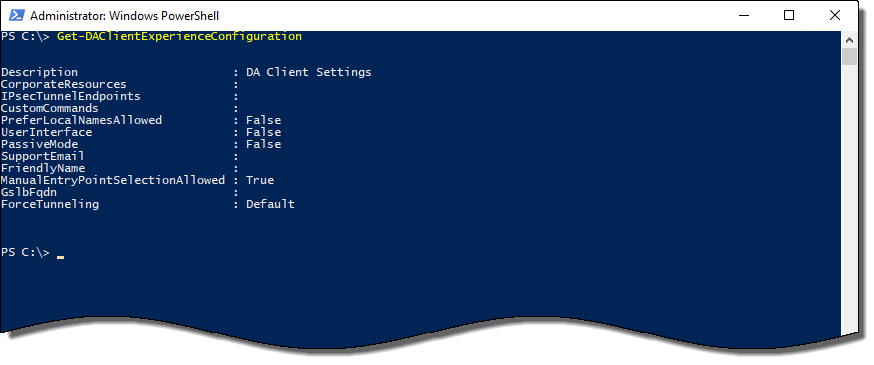
 Native PowerShell commands in Windows 10 make DirectAccess troubleshooting much easier than older operating systems like Windows 7. For example, with one PowerShell command an administrator can quickly determine if a DirectAccess client has received the DirectAccess client settings policy. In addition, PowerShell can be used to view the status of the connection and retrieve additional information or error codes that can be helpful for determining the cause of a failed connection. Further, PowerShell can also be used to review configuration details and perform other troubleshooting and connectivity validation tasks.


 The DirectAccess Network Connectivity Assistant (NCA), first introduced in Windows 8, provides DirectAccess connectivity status information as well as diagnostic support on the client. The NCA validates that DirectAccess is working end-to-end by attempting to reach internal resources defined by the administrator during the configuration of DirectAccess. NCA configuration and operation is a source of much confusion. This article serves to provide best practice configuration guidance for the NCA to ensure optimum and reliable operation.


