Always On VPN Certificate Requirements for IKEv2

Always On VPN Certificate Requirements for IKEv2Internet Key Exchange version 2 (IKEv2) is one of the VPN protocols supported for Windows 10 Always On VPN deployments. When the VPN server is Windows Server 2016 with the Routing and Remote Access Service (RRAS) role configured, a computer certificate must first be installed on the server to support IKEv2. There are some unique requirements for this certificate, specifically regarding the subject name and Enhanced Key Usage (EKU) configuration. In addition, some deployment scenarios may require a certificate to be provisioned to the client to support IKEv2 VPN connections.

Server Certificate

The IKEv2 certificate on the VPN server must be issued by the organization’s internal private certification authority (CA). It must be installed in the Local Computer/Personal certificate store on the VPN server. The subject name on the certificate must match the public hostname used by VPN clients to connect to the server, not the server’s hostname. For example, if the VPN server’s hostname is VPN1 and the public FQDN is vpn.example.net, the subject field of the certificate must include vpn.example.net, as shown here.

Always On VPN Certificate Requirements for IKEv2

In addition, the certificate must include the Server Authentication EKU (1.3.6.1.5.5.7.3.1) and the IP security IKE intermediate EKU (1.3.6.1.5.5.8.2.2).

Always On VPN Certificate Requirements for IKEv2

Client Certificate

Client certificate requirements vary depending on the type of VPN tunnel and authentication method being used.

User Tunnel

No certificates are required on the client to support IKEv2 when using MSCHAPv2, EAP-MSCHAPv2, or Protected EAP (PEAP) with MSCHAPv2. However, if the option to verify the server’s identity by validating the certificate is selected when using PEAP, the client must have the certificates for the root CA and any subordinate CAs installed in its Trusted Root Certification and Intermediate Certificate Authorities certificate stores, respectively.

Always On VPN Certificate Requirements for IKEv2

User Tunnel with Certificate Authentication

Using certificate authentication for the user tunnel is the recommended best practice for Always On VPN deployments. A client certificate must be installed in the Current User/Personal store to support PEAP authentication with smart card or certificate authentication. The certificate must include the Client Authentication EKU (1.3.6.1.5.5.7.3.2).

Always On VPN Certificate Requirements for IKEv2

Device Tunnel

A computer certificate must be installed in the Local Computer/Personal certificate store to support IKEv2 machine certificate authentication and the Always On VPN device tunnel. The certificate must include the Client Authentication EKU (1.3.6.1.5.5.7.3.2). Optionally (but recommended), the certificate should also include the IP Security IKE Intermediate EKU (1.3.6.1.5.5.8.2.2).

Always On VPN Certificate Requirements for IKEv2

More information about configuring the Always On VPN device tunnel can be found here.

Additional Information

Always On VPN with Trusted Platform Module (TPM) Certificates

Always On VPN Protocol Recommendations for Windows Server 2016 RRAS

Always On VPN and Windows Server RRAS

Always On VPN Training

Enabling Secure Remote Administration for the NetMotion Mobility Console

During the initial setup of a NetMotion Mobility gateway server, the administrator must choose to allow either Secure (HTTPS) or Non-secure (HTTP) connections when using the web-based Mobility Console.

Enabling Secure Remote Administration for the NetMotion Mobility Console

Configuring HTTPS

Security best practices dictate HTTPS should be enabled to protect credentials used to log on to the gateway remotely. Immediately after selecting the Secure (https:) option, the administrator is prompted to enter server certificate information. Enter this information and click OK to continue and complete the rest of the configuration as necessary.

Enabling Secure Remote Administration for the NetMotion Mobility Console

Self-Signed Certificate

When logging in to the Mobility console, the administrator is presented with a certificate error indicating there is a problem with the website’s security certificate. This is because the certificate is self-signed by the NetMotion Mobility gateway server and is not trusted.

Enabling Secure Remote Administration for the NetMotion Mobility Console

PKI Issued Certificate

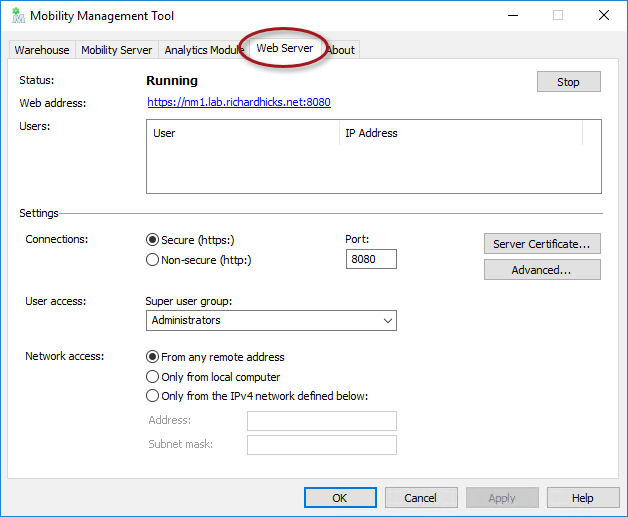
The recommended way to resolve this is to request a certificate from a trusted certification authority (CA). To do this, open the Mobility Management Tool on the Mobility gateway server and click on the Web Server tab.

Enabling Secure Remote Administration for the NetMotion Mobility Console

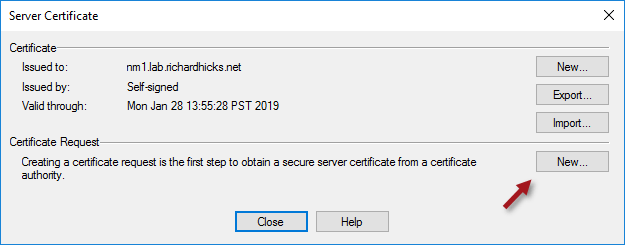
Click on the Server Certificate button and then click New in the Certificate Request section.

Enabling Secure Remote Administration for the NetMotion Mobility Console

In the SAN (subject alternative name) field of the Optional Extension section enter the Fully Qualified Domain Name (FQDN) of the server using the syntax dns:fqdn. Include both the FQDN and the single-label hostname (short name) separated by a comma to ensure both names work without issue. For example:

dns:nm1.lab.richardhicks.net,dns:nm1

Enabling Secure Remote Administration for the NetMotion Mobility Console

Before requesting a certificate from a CA, the root and any intermediate CA certificates must first be imported. Click the Import button next to each, as required.

Enabling Secure Remote Administration for the NetMotion Mobility Console

Click Copy in the Certificate Request section to copy the Certificate Signing Request (CSR) to the clipboard and then save it to a text file. Now submit the CSR to be signed by the CA using the certreq.exe command. Open an elevated command or PowerShell window and enter the following commands.

certreq.exe -attrib “CertificateTemplate:[TemplateName]” -submit [Path_to_CSR_file]

For example:

certreq.exe -attrib “CertificateTemplate:LabWebServer” -submit certreq.txt

Select a CA from the list and click OK, then save the certificate response when prompted.

Enabling Secure Remote Administration for the NetMotion Mobility Console

Enabling Secure Remote Administration for the NetMotion Mobility Console

Click Response and specify the location of the certificate response file saved in the previous step.

Enabling Secure Remote Administration for the NetMotion Mobility Console

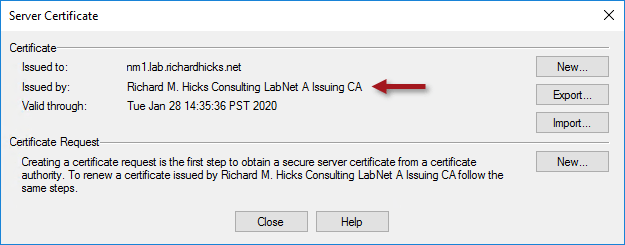
Once complete, the newly issued certificate will be in place. Click Close to complete the process.

Enabling Secure Remote Administration for the NetMotion Mobility Console

Click Yes when prompted to restart the Mobility console.

Enabling Secure Remote Administration for the NetMotion Mobility Console

Trusted Certificate

Opening the Mobility Console no longer produces a certificate error message with a certificate installed from a trusted CA.

Enabling Secure Remote Administration for the NetMotion Mobility Console

In addition, if you followed the guidance above and included the single-label hostname in the SAN field, accessing the server using the short name will also work without issue.

Enabling Secure Remote Administration for the NetMotion Mobility Console

Summary

Always select the option to use HTTPS to ensure the highest level of security and protection of credentials when remotely administering a NetMotion Mobility gateway server. For optimal security and to provide the best user experience, use a certificate issued and managed by a trusted CA to prevent certificate errors when opening the Mobility console.

Additional Information

NetMotion Mobility as an Alternative to DirectAccess

NetMotion Mobility Device Tunnel Configuration

Comparing NetMotion Mobility and DirectAccess Part 1 – Security

Comparing NetMotion Mobility and DirectAccess Part 2 – Performance

DirectAccess and NetMotion Mobility Webinar


KEMP LoadMaster Load Balancer Certificate Format Invalid

When implementing a KEMP LoadMaster load balancer, one of the first configuration tasks performed is importing root and intermediate Certification Authority (CA) certificates. When doing this, it is not uncommon to encounter the following error message.

Certificate Format Invalid.

KEMP LoadMaster Load Balancer Certificate Invalid

To resolve this issue, .CER files must first be converted to .PEM format before being imported in to the LoadMaster. Using OpenSSL, .CER files can quickly be converted to .PEM with the following command.

openssl x509 -inform der -in example.cer -out example.pem

Optionally, .CER files can be converted to .PEM online here.

If the root and/or intermediate certificates are from an internal PKI, export the certificates using the Base-64 encoded x.509 (.CER) option. Certificates exported using this format can be imported directly in to the LoadMaster without first having to be converted to .PEM.

KEMP LoadMaster Load Balancer Certificate Format Invalid

Pro tip: When entering the Certificate Name, it is not necessary to enter a file extension. The name will be appended with .PEM automatically upon import.

KEMP LoadMaster Load Balancer Certificate Format Invalid

KEMP LoadMaster Load Balancer Certificate Format Invalid

Additional Resources

DirectAccess Deployment Guide for KEMP LoadMaster Load Balancers

Maximize Your Investment in Windows 10 with KEMP LoadMaster Load Balancers

DirectAccess and the FREE KEMP LoadMaster Load Balancer

Configure KEMP LoadMaster Load Balancer for DirectAccess Network Location Server (NLS)

Planning and Implementing DirectAccess Video Training Course on Pluralsight

Implementing DirectAccess with Windows Server 2016 Book