





By default, DirectAccess is configured to use split tunneling. In this scenario, a remote DirectAccess client is connected to the internal corporate network and the public Internet at the same time. Some security administrators perceive split tunneling as a security risk, and the use of split tunneling may be prohibited by corporate security policy. In addition, enforcing web browsing policies on remote DirectAccess clients might be desired to reduce the risk of exposure from browsing unapproved web sites. In either case, force tunneling can be configured to meet these requirements.
When force tunneling is enabled, DirectAccess administrators can also define an on-premises proxy server for DirectAccess clients to use. The following is guidance for enabling force tunneling and configuring DirectAccess clients to use a proxy server to access the Internet.
Enabling Force Tunneling
To enable force tunneling, open the Remote Access Management console and perform the following steps.
- Expand Configuration and select DirectAccess and VPN.
- Click Edit on Step 1 Remote Clients.
- Click Select Groups in the navigation tree.
- Select the option to Use force tunneling.
 Figure 1. Enable DirectAccess force tunneling in the Remote Access Management console.
Alternatively, force tunneling can quickly be enabled by opening an elevated PowerShell command window and running the following command.
Set-DAClient -ForceTunnel Enabled -PassThru
 Figure 2. Enable DirectAccess force tunneling using PowerShell.
Configure a Proxy Server
Once force tunneling has been enabled, run the following PowerShell script to configure an on-premises proxy server for DirectAccess clients to use. Be sure to substitute the fully-qualified domain name (FQDN) and port for your proxy server in the $proxy variable below.
$gpo = (Get-RemoteAccess).ClientGpoName
$gpo = $gpo.Split(‘\’)[1]
$proxy = “proxy.corp.example.net:8080”
$rule = (Get-DnsClientNrptRule -GpoName $gpo | Where-Object Namespace -eq “.” | Select-Object -ExpandProperty “Name”)
Set-DnsClientNrptRule -DAEnable $true -DAProxyServerName $proxy -DAProxyType “UseProxyName” -Name $rule -GpoName $gpo
If multisite is enabled and Windows 7 clients are supported, run the following PowerShell script on one DirectAccess server in each entry point.
$downlevelgpo = (Get-RemoteAccess).DownlevelGpoName
$downlevelgpo = $downlevelgpo.Split(‘\’)[1]
$proxy = “proxy.corp.example.net:8080”
$downlevelrule = (Get-DnsClientNrptRule -GpoName $downlevelgpo | Where-Object Namespace -eq “.” | Select-Object -ExpandProperty “Name”)
Set-DnsClientNrptRule -DAEnable $true -DAProxyServerName $proxy -DAProxyType “UseProxyName” -Name $downlevelrule -GpoName $downlevelgpo
Remove Proxy Server
Run the following PowerShell script to remove the proxy server, if necessary.
$gpo = (Get-RemoteAccess).ClientGpoName
$gpo = $gpo.Split(‘\’)[1]
Set-DnsClientNrptRule -DAEnable $true -DAProxyType “UseDefault” -Name $rule -GpoName $gpo
$downlevelgpo = (Get-RemoteAccess).DownlevelGpoName
$downlevelgpo = $downlevelgpo.Split(‘\’)[1]
Set-DnsClientNrptRule -DAEnable $true -DAProxyType “UseDefault” -Name $downlevelrule -GpoName $downlevelgpo
Disable Force Tunneling
To disable force tunneling completely, run the following PowerShell command.
Set-DAClient -ForceTunnel Disabled -PassThru
Force Tunneling Caveats
When force tunneling is enabled, the user experience is typically poor when accessing the Internet. Web browsing performance is significantly reduced because of the added protocol overhead imposed by DirectAccess IPv6 transition technologies and IPsec encryption. This problem is further compounded when users access resources that are already encrypted, such as secure web sites. Increased packet fragmentation, along with the additional network latency caused by suboptimal network paths and increased network load on the server and Internet connection all contribute to degraded network performance for DirectAccess clients.
Force Tunneling Alternatives
Instead of enabling force tunneling, consider alternative solutions to address the security concerns associated with split tunneling. For example, implement technologies that enforce web browsing policies on the client. Many secure web gateways and next-generation firewalls (NGFW) have remote filtering capabilities that allow administrators to enforce web browsing policies on remote client machines. In addition, there are some excellent cloud-based solutions such as Zscaler and OpenDNS that can protect DirectAccess clients without the drawbacks associated with force tunneling.
Additional Information
Planning and Implementing DirectAccess with Windows Server 2016 video training course on Pluralsight
Managing and Supporting DirectAccess with Windows Server 2016 video training course on Pluralsight
Implementing DirectAccess with Windows Server 2016 Book
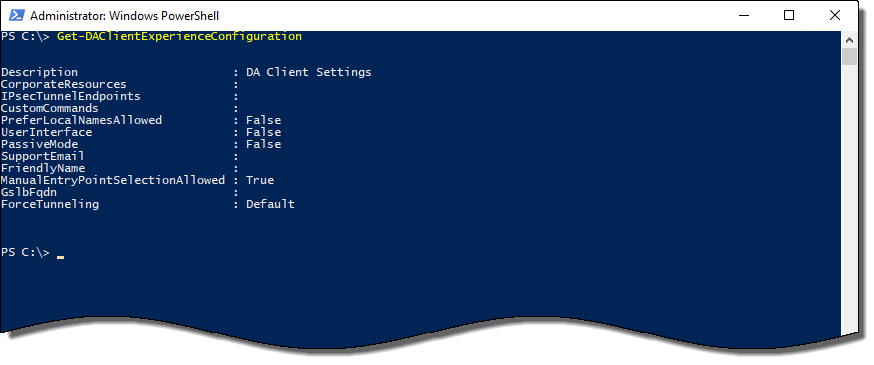
 Native PowerShell commands in Windows 10 make DirectAccess troubleshooting much easier than older operating systems like Windows 7. For example, with one PowerShell command an administrator can quickly determine if a DirectAccess client has received the DirectAccess client settings policy. In addition, PowerShell can be used to view the status of the connection and retrieve additional information or error codes that can be helpful for determining the cause of a failed connection. Further, PowerShell can also be used to review configuration details and perform other troubleshooting and connectivity validation tasks.


 DirectAccess clients are automatically connected to the corporate network any time they have a working Internet connection. Having consistent corporate network connectivity means they receive Active Directory group policy updates on a regular basis, just as on-premises systems do. Importantly, they check in with internal management systems such as System Center Configuration Manager (SCCM) and Windows Server Update Services (WSUS) servers, enabling them to receive updates in a timely manner. Thus, DirectAccess clients are better managed, allowing administrators to more effectively maintain the configuration state and security posture for all their managed systems, including those that are predominantly field-based. This is especially crucial considering the prevalence WannaCry, Cryptolocker, and a variety of other types of ransomware.
 When manage out is configured with DirectAccess, hosts on the internal network can initiate connections outbound to remote connected DirectAccess clients. SCCM Remote Control and Remote Desktop Connection (RDC) are commonly used to remotely connect to systems for troubleshooting and support. With DirectAccess manage out enabled, these and other popular administrative tools such as VNC, Windows Remote Assistance, and PowerShell remoting can also be used to manage remote DirectAccess clients in the field. In addition, enabling manage out allows for the proactive installation of agents and other software on remote clients, such as the SCCM and System Center Operation Manager (SCOM) agents, third-party management agents, antivirus and antimalware software, and more. A user does not have to be logged on to their machine for manage out to work.


