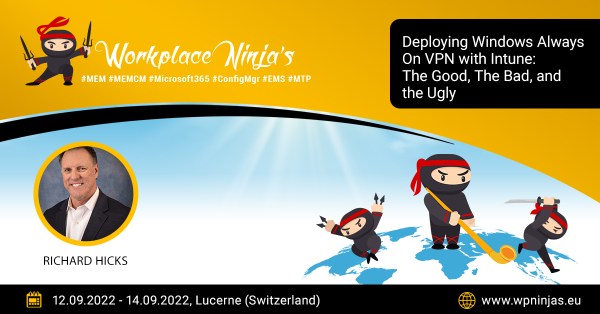
The Workplace Ninja Summit takes place from 12-14 September 2022 in Lucerne, Switzerland. The conference focuses on endpoint management and security with platforms such as System Center Configuration Manager (SCCM) and Microsoft Endpoint Manager/Intune.
Conference Sessions
If you are participating in the conference, be sure to attend one of my sessions! I’m delivering the following three talks during the event.
This session will explore the options for deploying enterprise PKI certificates using Intune. I’ll be sharing lots of security and implementation best practices.
This talk will dive into the options for deploying Always On VPN using Intune. I’ll be covering many tips, tricks, and best practices and shining a light on many limitations and shortcomings of using Intune for Always On VPN.
Join Me!
Unfortunately, the conference is sold out, so if you haven’t made arrangements to attend you’ll have to wait until next year. If you are attending, please be sure to say hello!
The Network Policy Server (NPS) event log is incredibly valuable for administrators when troubleshooting Always On VPN user tunnel connectivity issues. Administrators can find these pertinent events by opening the Event Viewer on the NPS server (eventvwr.msc) and navigating to Custom Views > Server Roles > Network Policy and Access Services.
Event Logs
When configured correctly, event logs will record the disposition of all authentication requests, allowed or denied. The two most common recorded events are event IDs 6272 (access granted) and 6273 (access denied).
NPS Event ID 6272 – Access granted.
NPS Event ID 6273 – Access denied.
Auditing
In some cases, administrators may find none of these events recorded even though user authentication is working correctly. Here, the only events recorded are NPS informational events indicating which domain controller the NPS server is using to perform authentication.
The lack of 6272 and 6273 events in the event log indicates that auditing for NPS events is not enabled. Open an elevated PowerShell window and run the following command to view the current auditing setting for NPS events.
Alternatively, consider using Active Directory group policy to enforce the NPS server auditing settings. Open the Group Policy Management Console (GPMC) and create a new GPO. Next, navigate to Computer Configuration > Policies > Windows Settings > Security Settings > Advanced Audit Policy Configuration > Audit Policies > Logon/Logoff > Audit Network Policy Server and select the option to audit both success and failure attempts.
Once complete, link this GPO to the OU where the NPS servers reside.
Missing Events
If auditing is enabled and there are no recorded 6272 or 6273 events, the NPS server did not receive any authentication requests from the VPN server. Review the event logs on any other NPS servers if there is more than one configured. In addition, this may indicate that network communication between the VPN and NPS server is blocked. Ensure network connectivity and name resolution are working as expected.
Troubleshooting Guides
Are you interested in learning more about Always On VPN troubleshooting? My Always On VPN book contains an entire chapter dedicated to troubleshooting. Also, my Always On VPN video training course on Pluralsight includes a module on troubleshooting. The video training course is available to Pluralsight subscribers only. If you don’t have a Pluralsight subscription, you can sign up for a free trial here.
Implementing Microsoft Windows Always On VPN, my latest video training course on Pluralsight is now available! This course provides comprehensive training for designing, implementing, and supporting a Windows Always On VPN solution. The course is nearly seven hours long (!) and covers all Always On VPN configuration aspects. The video training course covers the following Always On VPN topics.