


Enabling Secure Remote Administration for the NetMotion Mobility Console

During the initial setup of a NetMotion Mobility gateway server, the administrator must choose to allow either Secure (HTTPS) or Non-secure (HTTP) connections when using the web-based Mobility Console.

Enabling Secure Remote Administration for the NetMotion Mobility Console

Configuring HTTPS

Security best practices dictate HTTPS should be enabled to protect credentials used to log on to the gateway remotely. Immediately after selecting the Secure (https:) option, the administrator is prompted to enter server certificate information. Enter this information and click OK to continue and complete the rest of the configuration as necessary.

Enabling Secure Remote Administration for the NetMotion Mobility Console

Self-Signed Certificate

When logging in to the Mobility console, the administrator is presented with a certificate error indicating there is a problem with the website’s security certificate. This is because the certificate is self-signed by the NetMotion Mobility gateway server and is not trusted.

Enabling Secure Remote Administration for the NetMotion Mobility Console

PKI Issued Certificate

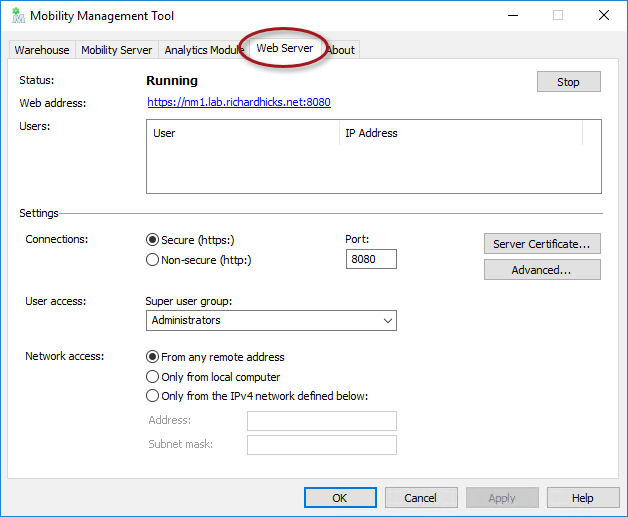
The recommended way to resolve this is to request a certificate from a trusted certification authority (CA). To do this, open the Mobility Management Tool on the Mobility gateway server and click on the Web Server tab.
Enabling Secure Remote Administration for the NetMotion Mobility Console

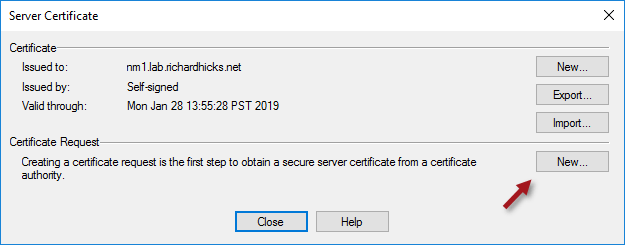
Click on the Server Certificate button and then click New in the Certificate Request section.
Enabling Secure Remote Administration for the NetMotion Mobility Console

In the SAN (subject alternative name) field of the Optional Extension section enter the Fully Qualified Domain Name (FQDN) of the server using the syntax dns:fqdn. Include both the FQDN and the single-label hostname (short name) separated by a comma to ensure both names work without issue. For example:

dns:nm1.lab.richardhicks.net,dns:nm1

Enabling Secure Remote Administration for the NetMotion Mobility Console

Before requesting a certificate from a CA, the root and any intermediate CA certificates must first be imported. Click the Import button next to each, as required.

Enabling Secure Remote Administration for the NetMotion Mobility Console

Click Copy in the Certificate Request section to copy the Certificate Signing Request (CSR) to the clipboard and then save it to a text file. Now submit the CSR to be signed by the CA using the certreq.exe command. Open an elevated command or PowerShell window and enter the following commands.

certreq.exe -attrib “CertificateTemplate:[TemplateName]” -submit [Path_to_CSR_file]

For example:

certreq.exe -attrib “CertificateTemplate:LabWebServer” -submit certreq.txt

Select a CA from the list and click OK, then save the certificate response when prompted.

Enabling Secure Remote Administration for the NetMotion Mobility Console

Enabling Secure Remote Administration for the NetMotion Mobility Console

Click Response and specify the location of the certificate response file saved in the previous step.

Enabling Secure Remote Administration for the NetMotion Mobility Console

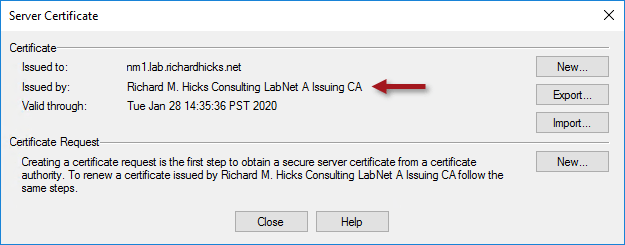
Once complete, the newly issued certificate will be in place. Click Close to complete the process.
Enabling Secure Remote Administration for the NetMotion Mobility Console

Click Yes when prompted to restart the Mobility console.

Enabling Secure Remote Administration for the NetMotion Mobility Console

Trusted Certificate

Opening the Mobility Console no longer produces a certificate error message with a certificate installed from a trusted CA.

Enabling Secure Remote Administration for the NetMotion Mobility Console

In addition, if you followed the guidance above and included the single-label hostname in the SAN field, accessing the server using the short name will also work without issue.

Enabling Secure Remote Administration for the NetMotion Mobility Console

Summary

Always select the option to use HTTPS to ensure the highest level of security and protection of credentials when remotely administering a NetMotion Mobility gateway server. For optimal security and to provide the best user experience, use a certificate issued and managed by a trusted CA to prevent certificate errors when opening the Mobility console.

Additional Information

NetMotion Mobility as an Alternative to DirectAccess

NetMotion Mobility Device Tunnel Configuration

Comparing NetMotion Mobility and DirectAccess Part 1 – Security

Comparing NetMotion Mobility and DirectAccess Part 2 – Performance

DirectAccess and NetMotion Mobility Webinar


Always On VPN Protocol Recommendations for Windows Server Routing and Remote Access Service (RRAS)

Always On VPN Protocol Recommendations for Windows Server Routing and Remote Access Service (RRAS)Windows 10 Always On VPN is infrastructure independent and can be implemented using third-party VPN devices. It is not necessary to deploy any Windows servers at all to support an Always On VPN solution. However, in a recent blog post I outlined some compelling reasons to consider using Windows Server’s Routing and Remote Access Service (RRAS) feature to terminate VPN connections. RRAS supports both modern and legacy VPN protocols, each with their own advantages and disadvantages. The choice of which protocols to support will be determined by many factors, but it is important to understand the capabilities of each to make an informed decision.

RRAS VPN Protocols

Windows RRAS supports the following VPN protocols.

  • Internet Key Exchange version 2 (IKEv2) – RFC7296
  • Secure Sockets Tunneling Protocol (SSTP) – Microsoft
  • Layer Two Tunneling Protocol over IPsec (L2TP/IPsec) – RFC2661
  • Point-to-Point Tunneling Protocol (PPTP) – RFC2637

There are pros and cons associated with each of these VPN protocols. Here’s a breakdown of each.

IKEv2

This IPsec-based VPN protocol is the preferred choice for deployments where the highest level of security is required. The latest version of IKE (v2) features streamlined messaging during connection establishment and enhanced session management that reduce protocol overhead and improve performance.

Advantages: Best security options.
Disadvantages: Firewalls may block required UDP ports.

SSTP

SSTP is an excellent alternative to IKEv2 and is recommended for most deployments. It uses industry standard Transport Layer Security (TLS), making it widely accessible from most locations. It provides good security out of the box but can be improved upon with additional configuration. SSTP lends itself well to load balancing, making it much easier to scale out than IKEv2. Optionally, TLS can be offloaded to an Application Delivery Controller (ADC) to reduce resource utilization on the RRAS server and further improve performance.

Advantages: Easy to configure with firewall friendly access.
Disadvantages: Fewer security options than IKEv2.

L2TP

While technically supported for Always On VPN, L2TP is a legacy VPN protocol that offers no real advantages over IKEv2. Its use is unnecessary and should be avoided.

Advantages: None.
Disadvantages: Firewalls may block required UDP ports.

PPTP

PPTP is considered an obsolete VPN protocol with many known security vulnerabilities. Its use should be avoided at all costs.

Advantages: None.
Disadvantages: Insecure.

Summary

The recommendation is to use SSTP for user-based VPN connections to ensure operational reliability and optimum performance. Use IKEv2 only when the highest level of security is required. Avoid the use of L2TP/IPsec and PPTP at all costs.

Additional Resources

Frequently Asked Questions about Microsoft’s PPTP Implementation

Always On VPN and Windows Server Routing and Remote Access Services (RRAS)

Windows 10 Always On VPN and the Future of DirectAccess 

5 Things DirectAccess Administrators Should Know about Always On VPN 

3 Important Advantages of Windows 10 Always On VPN over DirectAccess 

Windows 10 Always On VPN Hands-On Training Classes

NetMotion Mobility Device Tunnel Configuration

NetMotion Mobility Device Tunnel ConfigurationIn its default configuration, NetMotion Mobility connections are established at the user level. In most cases this level of access is sufficient, but there are some common uses cases that require VPN connectivity before the user logs on. Examples include provisioning a new device to a user who has never logged on before, or to allow support engineers to connect to a remote device without requiring a user to log in first.

Infrastructure Requirements

To support NetMotion Mobility’s “unattended mode” (device tunnel) it will be necessary to deploy a Windows Server 2016 (or 2012R2) Network Policy Server (NPS). In addition, an internal private certification authority (CA) will be required to issue certificates to the NPS server and all NetMotion Mobility client computers.

Client Certificate Requirements

A certificate with the Client Authentication Enhanced Key Usage (EKU) must be provisioned to the local computer certificate store on all NetMotion Mobility clients that require a device tunnel (figure 1). The subject name on the certificate must match the fully qualified domain name of the client computer (figure 2). It is recommended that certificate auto enrollment be used to streamline the provisioning process.

NetMotion Mobility Device Tunnel Configuration

Figure 1. Computer certificate with Client Authentication EKU.

NetMotion Mobility Device Tunnel Configuration

Figure 2. Computer certificate with subject name matching the client computer’s hostname.

NPS Server Certificate Requirements

A certificate with the Server Authentication EKU must be provisioned to the local computer certificate store on the NPS server (figure 3). The subject name on the certificate must match the fully qualified domain name of the NPS server (figure 4).

NetMotion Mobility Device Tunnel Configuration

Figure 3. Computer certificate with Server Authentication EKU.

NetMotion Mobility Device Tunnel Configuration

Figure 4. Computer certificate with subject name matching the NPS server’s hostname.

NPS Server Configuration

Next install the NPS server role by running the following PowerShell command.

Install-WindowsFeature NPAS -IncludeMamagementTools

Once complete, open the NPS server management console and perform the following steps.

Note: Below is a highly simplified NPS configuration designed for a single use case. It is provided for demonstration purposes only. The NPS server may be used by more than one network access server (NAS) so the example policies included below may not work in every deployment.

  1. Expand RADIUS Clients and Servers.
  2. Right-click RADIUS clients and choose New.
  3. Select the option to Enable this RADIUS client.
  4. Enter a friendly name.
  5. Enter the IP address or hostname of the NetMotion gateway server.
  6. Click Verify to validate the hostname or IP address.
  7. Select Manual to enter a shared secret, or select Generate to create one automatically.
  8. Copy the shared secret as it will be required when configure the NetMotion Mobility gateway server later.
  9. Click OK.
    NetMotion Mobility Device Tunnel Configuration
  10. Expand Policies.
  11. Right-click Network Policies and choose New.
  12. Enter a descriptive name for the new policy.
  13. Select Type of network access server and choose Unspecified.
  14. Click Next.
    NetMotion Mobility Device Tunnel Configuration
  15. Click Add.
  16. Select Client IPv4 Address.
  17. Click Add.
  18. Enter the internal IPv4 address of the NetMotion Mobility gateway server.
  19. Click OK.
  20. Click Next.
    NetMotion Mobility Device Tunnel Configuration
  21. Select Access granted.
  22. Click Next.
    NetMotion Mobility Device Tunnel Configuration
  23. Click Add.
  24. Choose Microsoft: Protected EAP (PEAP).
  25. Click OK.
  26. Select Microsoft: Protected EAP (PEAP).
  27. Click Edit.
  28. Choose the appropriate certificate in the Certificate issued to drop down list.
  29. Select Secure password (EAP-MSCHAP v2).
  30. Click Remove.
  31. Click Add.
  32. Choose Smart Card or other certificate.
  33. Click OK.
  34. Select Smart Card or other certificate.
  35. Click Edit.
  36. Choose the appropriate certificate in the Certificate issued to drop down list.
  37. Click OK.
    NetMotion Mobility Device Tunnel Configuration
  38. Uncheck all options beneath Less secure authentication methods.
  39. Click Next three times.
  40. Click Finish.
    NetMotion Mobility Device Tunnel Configuration

Mobility Server Configuration

Open the NetMotion Mobility management console and perform the following steps.

  1. In the drop-down menu click Configure.
  2. Click Authentication Settings.
  3. Click New.
  4. Enter a descriptive name for the new authentication profile.
  5. Click OK.
  6. Expand Authentication.
  7. Select Mode.
  8. Select Unattended Mode Authentication Setting Override.
  9. From the Authentication mode drop-down box choose Unattended.
  10. Click Apply.
    NetMotion Mobility Device Tunnel Configuration
  11. Expand RADIUS: Device Authentication.
  12. Select Servers.
  13. Select [Profile Name] Authentication Setting Override.
  14. Click Add.
  15. Enter the IP address of the NPS server.
  16. Enter the port (default is 1812).
  17. Enter the shared secret.
  18. Click OK.
    NetMotion Mobility Device Tunnel Configuration
  19. In the drop-down menu click Configure.
  20. Click Client Settings.
  21. Expand Device Settings.
  22. Select the device group to enable unattended mode for.
  23. Expand Authentication.
  24. Select Settings Profile.
  25. Select [Device Group Name] Group Settings Override.
  26. In the Profile drop-down menu choose the authentication profile created previously.
  27. Click Apply.
    NetMotion Mobility Device Tunnel Configuration

Validation Testing

If everything is configured correctly, the NetMotion Mobility client will now indicate that the user and the device have been authenticated.

NetMotion Mobility Device Tunnel Configuration

Summary

Enabling unattended mode with NetMotion Mobility provides feature parity with DirectAccess machine tunnel and Windows 10 Always On VPN device tunnel. It ensures that domain connectivity is available before the user logs on. This allows users to log on remotely without cached credentials. It also allows administrators to continue working seamlessly on a remote computer after a reboot without having a user present to log on.

Additional Resources

NetMotion Mobility as an Alternative to DirectAccess