What is the Difference Between DirectAccess and Always On VPN?

Always On VPN Device Tunnel Configuration Guidance Now AvailableDirectAccess has been around for many years, and with Microsoft now moving in the direction of Always On VPN, I’m often asked “What’s the difference between DirectAccess and Always On VPN?” Fundamentally they both provide seamless and transparent, always on remote access. However, Always On VPN has a number of advantages over DirectAccess in terms of security, authentication and management, performance, and supportability.

Security

DirectAccess provides full network connectivity when a client is connected remotely. It lacks any native features to control access on a granular basis. It is possible to restrict access to internal resources by placing a firewall between the DirectAccess server and the LAN, but the policy would apply to all connected clients.

Windows 10 Always On VPN includes support for granular traffic filtering. Where DirectAccess provides access to all internal resources when connected, Always On VPN allows administrators to restrict client access to internal resources in a variety of ways. In addition, traffic filter policies can be applied on a per-user or group basis. For example, users in accounting can be granted access only to their department servers. The same could be done for HR, finance, IT, and others.

Authentication and Management

DirectAccess includes support for strong user authentication with smart cards and one-time password (OTP) solutions. However, there is no provision to grant access based on device configuration or health, as that feature was removed in Windows Server 2016 and Windows 10. In addition, DirectAccess requires that clients and servers be joined to a domain, as all configuration settings are managed using Active Directory group policy.

Windows 10 Always On VPN includes support for modern authentication and management, which results in better overall security. Always On VPN clients can be joined to an Azure Active Directory and conditional access can also be enabled. Modern authentication support using Azure MFA and Windows Hello for Business is also supported. Always On VPN is managed using Mobile Device Management (MDM) solutions such as Microsoft Intune.

Performance

DirectAccess uses IPsec with IPv6, which must be encapsulated in TLS to be routed over the public IPv4 Internet. IPv6 traffic is then translated to IPv4 on the DirectAccess server. DirectAccess performance is often acceptable when clients have reliable, high quality Internet connections. However, if connection quality is fair to poor, the high protocol overhead of DirectAccess with its multiple layers of encapsulation and translation often yields poor performance.

The protocol of choice for Windows 10 Always On VPN deployments is IKEv2. It offers the best security and performance when compared to TLS-based protocols. In addition, Always On VPN does not rely exclusively on IPv6 as DirectAccess does. This reduces the many layers of encapsulation and eliminates the need for complex IPv6 transition and translation technologies, further improving performance over DirectAccess.

Supportability

DirectAccess is a Microsoft-proprietary solution that must be deployed using Windows Server and Active Directory. It also requires a Network Location Server (NLS) for clients to determine if they are inside or outside the network. NLS availability is crucial and ensuring that it is always reachable by internal clients can pose challenges, especially in very large organizations.

Windows 10 Always On VPN supporting infrastructure is much less complex than DirectAccess. There’s no requirement for a NLS, which means fewer servers to provision, manage, and monitor. In addition, Always On VPN is completely infrastructure independent and can be deployed using third-party VPN servers such as Cisco, Checkpoint, SonicWALL, Palo Alto, and more.

Summary

Windows 10 Always On VPN is the way of the future. It provides better overall security than DirectAccess, it performs better, and it is easier to manage and support.

Here’s a quick summary of some important aspects of VPN, DirectAccess, and Windows 10 Always On VPN.

Traditional VPN DirectAccess Always On VPN
Seamless and Transparent No Yes Yes
Automatic Connection Options None Always on Always on, app triggered
Protocol Support IPv4 and IPv6 IPv6 Only IPv4 and IPv6
Traffic Filtering No No Yes
Azure AD Integration No No Yes
Modern Management Yes No (group policy only) Yes (MDM)
Clients must be domain-joined? No Yes No
Requires Microsoft Infrastructure No Yes No
Supports Windows 7 Yes Yes Windows 10 only

Always On VPN Hands-On Training

If you are interested in learning more about Windows 10 Always On VPN, consider registering for one of my hands-on training classes. More details here.

Additional Resources

Always On VPN and the Future of Microsoft DirectAccess

5 Important Things DirectAccess Administrators Should Know about Windows 10 Always On VPN

3 Important Advantages of Windows 10 Always On VPN over DirectAccess

Enabling Secure Remote Administration for the NetMotion Mobility Console

During the initial setup of a NetMotion Mobility gateway server, the administrator must choose to allow either Secure (HTTPS) or Non-secure (HTTP) connections when using the web-based Mobility Console.

Enabling Secure Remote Administration for the NetMotion Mobility Console

Configuring HTTPS

Security best practices dictate HTTPS should be enabled to protect credentials used to log on to the gateway remotely. Immediately after selecting the Secure (https:) option, the administrator is prompted to enter server certificate information. Enter this information and click OK to continue and complete the rest of the configuration as necessary.

Enabling Secure Remote Administration for the NetMotion Mobility Console

Self-Signed Certificate

When logging in to the Mobility console, the administrator is presented with a certificate error indicating there is a problem with the website’s security certificate. This is because the certificate is self-signed by the NetMotion Mobility gateway server and is not trusted.

Enabling Secure Remote Administration for the NetMotion Mobility Console

PKI Issued Certificate

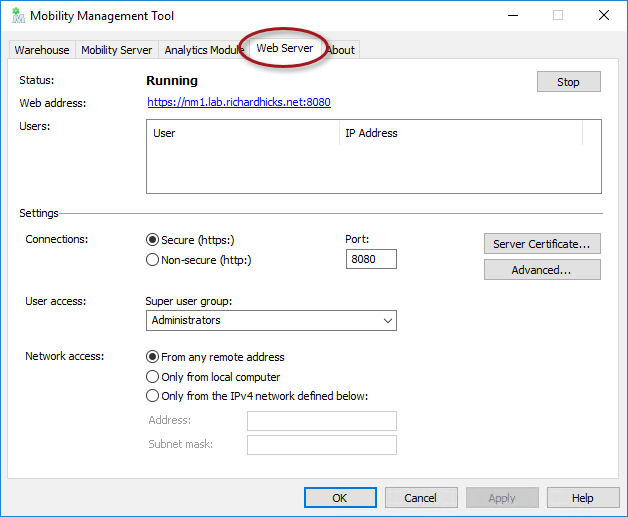
The recommended way to resolve this is to request a certificate from a trusted certification authority (CA). To do this, open the Mobility Management Tool on the Mobility gateway server and click on the Web Server tab.

Enabling Secure Remote Administration for the NetMotion Mobility Console

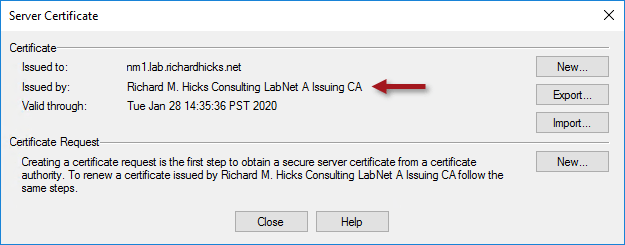
Click on the Server Certificate button and then click New in the Certificate Request section.

Enabling Secure Remote Administration for the NetMotion Mobility Console

In the SAN (subject alternative name) field of the Optional Extension section enter the Fully Qualified Domain Name (FQDN) of the server using the syntax dns:fqdn. Include both the FQDN and the single-label hostname (short name) separated by a comma to ensure both names work without issue. For example:

dns:nm1.lab.richardhicks.net,dns:nm1

Enabling Secure Remote Administration for the NetMotion Mobility Console

Before requesting a certificate from a CA, the root and any intermediate CA certificates must first be imported. Click the Import button next to each, as required.

Enabling Secure Remote Administration for the NetMotion Mobility Console

Click Copy in the Certificate Request section to copy the Certificate Signing Request (CSR) to the clipboard and then save it to a text file. Now submit the CSR to be signed by the CA using the certreq.exe command. Open an elevated command or PowerShell window and enter the following commands.

certreq.exe -attrib “CertificateTemplate:[TemplateName]” -submit [Path_to_CSR_file]

For example:

certreq.exe -attrib “CertificateTemplate:LabWebServer” -submit certreq.txt

Select a CA from the list and click OK, then save the certificate response when prompted.

Enabling Secure Remote Administration for the NetMotion Mobility Console

Enabling Secure Remote Administration for the NetMotion Mobility Console

Click Response and specify the location of the certificate response file saved in the previous step.

Enabling Secure Remote Administration for the NetMotion Mobility Console

Once complete, the newly issued certificate will be in place. Click Close to complete the process.

Enabling Secure Remote Administration for the NetMotion Mobility Console

Click Yes when prompted to restart the Mobility console.

Enabling Secure Remote Administration for the NetMotion Mobility Console

Trusted Certificate

Opening the Mobility Console no longer produces a certificate error message with a certificate installed from a trusted CA.

Enabling Secure Remote Administration for the NetMotion Mobility Console

In addition, if you followed the guidance above and included the single-label hostname in the SAN field, accessing the server using the short name will also work without issue.

Enabling Secure Remote Administration for the NetMotion Mobility Console

Summary

Always select the option to use HTTPS to ensure the highest level of security and protection of credentials when remotely administering a NetMotion Mobility gateway server. For optimal security and to provide the best user experience, use a certificate issued and managed by a trusted CA to prevent certificate errors when opening the Mobility console.

Additional Information

NetMotion Mobility as an Alternative to DirectAccess

NetMotion Mobility Device Tunnel Configuration

Comparing NetMotion Mobility and DirectAccess Part 1 – Security

Comparing NetMotion Mobility and DirectAccess Part 2 – Performance

DirectAccess and NetMotion Mobility Webinar


Always On VPN Protocol Recommendations for Windows Server Routing and Remote Access Service (RRAS)

Always On VPN Protocol Recommendations for Windows Server Routing and Remote Access Service (RRAS)Windows 10 Always On VPN is infrastructure independent and can be implemented using third-party VPN devices. It is not necessary to deploy any Windows servers at all to support an Always On VPN solution. However, in a recent blog post I outlined some compelling reasons to consider using Windows Server’s Routing and Remote Access Service (RRAS) feature to terminate VPN connections. RRAS supports both modern and legacy VPN protocols, each with their own advantages and disadvantages. The choice of which protocols to support will be determined by many factors, but it is important to understand the capabilities of each to make an informed decision.

RRAS VPN Protocols

Windows RRAS supports the following VPN protocols.

  • Internet Key Exchange version 2 (IKEv2) – RFC7296
  • Secure Sockets Tunneling Protocol (SSTP) – Microsoft
  • Layer Two Tunneling Protocol over IPsec (L2TP/IPsec) – RFC2661
  • Point-to-Point Tunneling Protocol (PPTP) – RFC2637

There are pros and cons associated with each of these VPN protocols. Here’s a breakdown of each.

IKEv2

This IPsec-based VPN protocol is the preferred choice for deployments where the highest level of security is required. The latest version of IKE (v2) features streamlined messaging during connection establishment and enhanced session management that reduce protocol overhead and improve performance.

Advantages: Best security options.
Disadvantages: Firewalls may block required UDP ports.

SSTP

SSTP is an excellent alternative to IKEv2 and is recommended for most deployments. It uses industry standard Transport Layer Security (TLS), making it widely accessible from most locations. It provides good security out of the box but can be improved upon with additional configuration. SSTP lends itself well to load balancing, making it much easier to scale out than IKEv2. Optionally, TLS can be offloaded to an Application Delivery Controller (ADC) to reduce resource utilization on the RRAS server and further improve performance.

Advantages: Easy to configure with firewall friendly access.
Disadvantages: Fewer security options than IKEv2.

L2TP

While technically supported for Always On VPN, L2TP is a legacy VPN protocol that offers no real advantages over IKEv2. Its use is unnecessary and should be avoided.

Advantages: None.
Disadvantages: Firewalls may block required UDP ports.

PPTP

PPTP is considered an obsolete VPN protocol with many known security vulnerabilities. Its use should be avoided at all costs.

Advantages: None.
Disadvantages: Insecure.

Summary

The recommendation is to use SSTP for user-based VPN connections to ensure operational reliability and optimum performance. Use IKEv2 only when the highest level of security is required. Avoid the use of L2TP/IPsec and PPTP at all costs.

Additional Resources

Frequently Asked Questions about Microsoft’s PPTP Implementation

Always On VPN and Windows Server Routing and Remote Access Services (RRAS)

Windows 10 Always On VPN and the Future of DirectAccess 

5 Things DirectAccess Administrators Should Know about Always On VPN 

3 Important Advantages of Windows 10 Always On VPN over DirectAccess 

Windows 10 Always On VPN Hands-On Training Classes