Native PowerShell commands in Windows 10 make DirectAccess troubleshooting much easier than older operating systems like Windows 7. For example, with one PowerShell command an administrator can quickly determine if a DirectAccess client has received the DirectAccess client settings policy. In addition, PowerShell can be used to view the status of the connection and retrieve additional information or error codes that can be helpful for determining the cause of a failed connection. Further, PowerShell can also be used to review configuration details and perform other troubleshooting and connectivity validation tasks.
Here are my top 5 PowerShell commands for troubleshooting DirectAccess on Windows 10.
1. Get-DAClientExperienceConfiguration
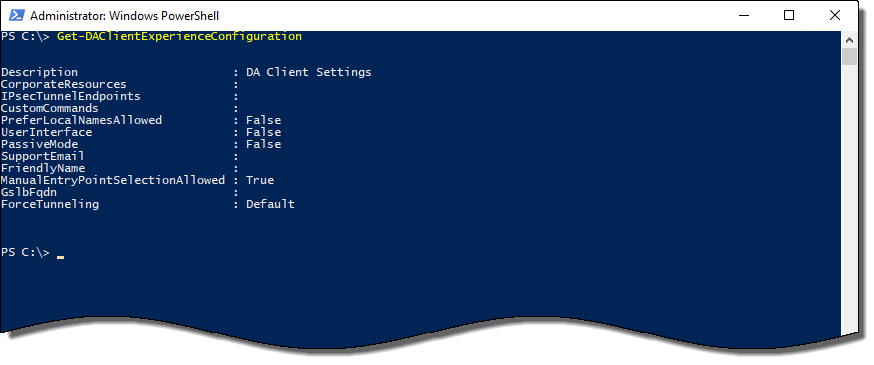
Ensuring that the DirectAccess Client Settings group policy has been applied to the client is one of the first steps in troubleshooting failed DirectAccess connections. While it is possible to use gpresult to do this, using the Get-DAClientExperienceConfiguration PowerShell command is much simpler. If DirectAccess client settings have been applied, the output of the command will include information such as the IPsec tunnel endpoint IPv6 addresses and the Network Connectivity Assistant (NCA) corporate resource URL. If DirectAccess client settings have not been applied, this information will be missing.

Figure 1. DirectAccess Client Settings group policy successfully applied.

Figure 2. DirectAccess Client Settings group policy not applied.
2. Get-NetIPHttpsState
Performance improvements first introduced in Windows 8 have made IP-HTTPS the IPv6 transition technology of choice when it comes to supporting DirectAccess client connectivity. Also, if the DirectAccess server is located behind an edge device performing Network Address Translation (NAT), IP-HTTPS is the only supported transition technology. Using the Get-NetIPHttpsState PowerShell command, the DirectAccess administrator can quickly determine if the IP-HTTPS connection was successful. If it was not, the command will return an error code and interface status that will indicate why the IP-HTTPS connection was unsuccessful.

Figure 3. Get-NetIPHttpsState
3. Get-NetIPHttpsConfiguration
When troubleshooting IP-HTTPS connection failures, it is necessary to obtain additional information to continue the troubleshooting process. Using the Get-NetIPHttpsConfiguration PowerShell command, the DirectAccess administrator can obtain the public hostname for the DirectAccess server and ensure that the name resolves to the correct IP address in DNS and that it is reachable on TCP port 443.

Figure 4. Get-NetIPHttpsConfiguration
4. Resolve-DnsName
Using the Resolve-DnsName PowerShell command is crucial when performing any name resolution tasks on the DirectAccess client. This is because Resolve-DnsName is aware of the Name Resolution Policy Table (NRPT) and will direct name resolution requests accordingly. Tools like nslookup are DNS server testing tools and are unaware of the NRPT. Typically they do not yield expected results when testing name resolution on a DirectAccess client.

Figure 5. Name resolution results from Resolve-DnsName and nslookup.
5. Get-DnsClientNrptPolicy
Often the cause of DirectAccess client connectivity issues is a misconfigured NRPT. Using the Get-DnsClientNrptPolicy PowerShell command the DirectAccess administrator can validate that name resolution requests for host names in any internal namespaces are being sent to the DirectAccess DNS64 IPv6 address.

Figure 6. Get-DnsClientNrptPolicy
Additional Resources
Top 5 DirectAccess Troubleshooting Tips
Troubleshooting Name Resolution Issues on DirectAccess Clients
Learn PowerShell in a Month of Lunches Book by Don Jones and Jeff Hicks
Implementing DirectAccess with Windows Server 2016 Book
Planning and Implementing DirectAccess with Windows Server 2016 Video Training Course
Managing and Supporting DirectAccess with Windows Server 2016 Video Training Course






 I’m pleased to announce that I’ll be speaking at the TechMentor Conference (which is part of Live! 360) in Orlando, FL. The event takes place November 12-17 and I will be delivering several sessions on DirectAccess, DNS policies, and network troubleshooting in Windows Server 2016. More details these sessions can be found here.