






Many organizations are modernizing their networks by migrating from legacy IPv4 to IPv6. The goal is to replace IPv4 with IPv6 entirely. However, even though an organization can successfully migrate to IPv6-only networks internally, they do not control networks outside its boundaries. In some cases, a host on an IPv6-only network may need to communicate with an IPv4 resource. Administrators must deploy an IPv6 transition technology to support this scenario. A common solution to address this need is DNS64 and NAT64.
What are DNS64 and NAT64?
DNS64 and NAT64, defined in RFCs 6147 and 6146, respectively, work together to ensure endpoints on an IPv6-only network can still communicate with IPv4-only resources. DNS64 enables IPv6-only clients to communicate with IPv4-only servers by synthesizing AAAA DNS records from A records. When an IPv6-only client queries a domain with only an IPv4 address (A record), the DNS64 server creates a synthetic IPv6 address by embedding the IPv4 address within an administrator-defined NAT64 IPv6 prefix. The default (referred to as ‘well known’) prefix is 64:ff9b::/96. In the example below, the IPv4-only resource ipv4.test-ipv6.com is resolved using the Cloudflare public DNS64 resolver.

Using the synthetic DNS64 address allows the client to send IPv6 packets to a NAT64 gateway, which translates them to IPv4 for the destination server. DNS64 ensures seamless address resolution for IPv6-only networks accessing IPv4 resources without requiring actual IPv6 addresses for the target.
Caveat
While DNS64 is great for ensuring IPv4 access on IPv6-only networks, it has one critical limitation. The client must connect to a resource using a hostname or a fully qualified domain name. If a client attempts to connect to an IPv4 resource directly (e.g., https://172.16.21.12 or \\10.21.12.83\data), the resource will be unreachable. To address this limitation, the 464XLAT IPv6 transition technology must be used. For more information about 464XLAT, see my previous article, Windows Server DHCP and Option 108.
Enterprise DNS64
While there are public DNS64 resolves from Cloudflare, Google, and others, they aren’t helpful when trying to resolve internal hostnames in the enterprise. Organizations must deploy their own private DNS64 services in this scenario.
Windows Server and DNS64
Today, Windows Server does not natively support DNS64. Organizations are advised to use an enterprise DNS solution such as Infoblox or BlueCat for DNS64 services. Alternatively, administrators can deploy BIND DNS on the Linux platform of their choice. DNS64 is supported in BIND 9.8.0 and later.
DNS64 Proxy
To support testing and evaluation (and perhaps production deployment for smaller organizations), it is possible to configure any supported version of Windows Server to serve as a DNS64 proxy. In this scenario, a Windows Server is configured as a DNS64 server, but the server itself is not an actual DNS server. It does not have a DNS database or zone file; it is not authoritative for any zones and can’t perform conditional forwarding. It simply forwards DNS queries to the servers defined on its own network interface.
Windows Server DNS64 Configuration
The DNS64 service must be installed using PowerShell and the Set-NetDnsTransitionConfiguration command. Administrators will define some variables, configure DNS64, and create firewall rules to allow DNS traffic inbound to the server.
Configure DNS64
On a Windows Server member server (domain-join is optional), open an elevated PowerShell command window and run the following commands.
# Define variables
$AcceptInterface = ‘Ethernet’ # The interface name or alias that will accept DNS64 traffic
$SendInterface = ‘Ethernet’ # The interface name or alias that will send DNS64 traffic
$Nat64Prefix = ’64:ff9b::/96′ # The NAT64 prefix
# Configure DNS64
Set-NetDnsTransitionConfiguration -State Enabled -AcceptInterface $AcceptInterface -SendInterface $SendInterface -PrefixMapping “$Nat64Prefix,0.0.0.0/0” -PassThru

Configure Windows Firewall
Run the following PowerShell commands to configure the Windows Firewall to allow inbound DNS requests.
# Create firewall rules to allow DNS64 traffic inbound
New-NetFirewallRule -Name ‘DNSSrv-DNS-UDP-In’ -DisplayName ‘DNS (UDP, Incoming)’ -Description ‘Inbound rule to allow remote UDP access to the DNS64 service.’ -Group ‘DNS64 Service’ -Protocol UDP -LocalPort 53 -Direction Inbound -Profile Any -Action Allow -Enabled True
New-NetFirewallRule -Name ‘DNSSrv-DNS-TCP-In’ -DisplayName ‘DNS (TCP, Incoming)’ -Description ‘Inbound rule to allow remote TCP access to the DNS64 service.’ -Group ‘DNS64 Service’ -Protocol TCP -LocalPort 53 -Direction Inbound -Profile Any -Action Allow -Enabled True

GitHub
For reference, I’ve posted the relevant commands for configuring DNS64 on Windows Server on GitHub here.
DNS64 Testing
Once DNS64 is configured on the Windows Server, administrators can test operation by sending a DNS query for an IPv4-only resource to the DNS64 server using the following PowerShell command.
Resolve-DnsName -Name ipv4.test-ipv6.com -Server <DNS64 server IPv6 address>
For example.
Resolve-DnsName -Name ipv4.test-ipv6.com -Server 2001:579:6024:510::64

The DNS64 server responds with the native IPv4 address along with the synthesized IPv6 address. However, if the target resource has only an IPv6 address or has both IPv4 and IPv6 addresses, both are returned, as shown below.


Summary
DNS64 and NAT64 are essential tools for enabling communication between IPv6-only networks and IPv4 resources. While public resolvers exist, enterprises often need their own DNS64 service for internal hostname resolution. Windows Server does not natively support DNS64, but administrators can configure it as a DNS64 proxy for testing and smaller deployments. In this scenario, Windows Server can provide DNS64 functionality, helping organizations transition toward IPv6-only networks while maintaining access to legacy IPv4 systems.
Additional Information
IPv6 Transition Technology Options – IPv6 Buzz Podcast
Set-NetDnsTransitionConfiguration
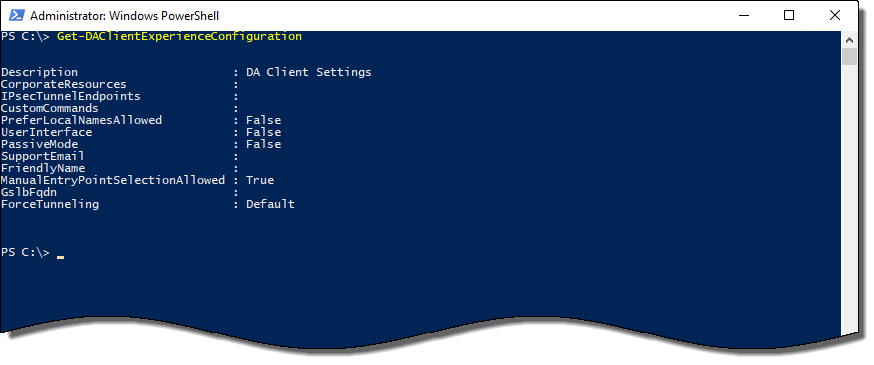
 Native PowerShell commands in Windows 10 make DirectAccess troubleshooting much easier than older operating systems like Windows 7. For example, with one PowerShell command an administrator can quickly determine if a DirectAccess client has received the DirectAccess client settings policy. In addition, PowerShell can be used to view the status of the connection and retrieve additional information or error codes that can be helpful for determining the cause of a failed connection. Further, PowerShell can also be used to review configuration details and perform other troubleshooting and connectivity validation tasks.


 DirectAccess clients are automatically connected to the corporate network any time they have a working Internet connection. Having consistent corporate network connectivity means they receive Active Directory group policy updates on a regular basis, just as on-premises systems do. Importantly, they check in with internal management systems such as System Center Configuration Manager (SCCM) and Windows Server Update Services (WSUS) servers, enabling them to receive updates in a timely manner. Thus, DirectAccess clients are better managed, allowing administrators to more effectively maintain the configuration state and security posture for all their managed systems, including those that are predominantly field-based. This is especially crucial considering the prevalence WannaCry, Cryptolocker, and a variety of other types of ransomware.
 When manage out is configured with DirectAccess, hosts on the internal network can initiate connections outbound to remote connected DirectAccess clients. SCCM Remote Control and Remote Desktop Connection (RDC) are commonly used to remotely connect to systems for troubleshooting and support. With DirectAccess manage out enabled, these and other popular administrative tools such as VNC, Windows Remote Assistance, and PowerShell remoting can also be used to manage remote DirectAccess clients in the field. In addition, enabling manage out allows for the proactive installation of agents and other software on remote clients, such as the SCCM and System Center Operation Manager (SCOM) agents, third-party management agents, antivirus and antimalware software, and more. A user does not have to be logged on to their machine for manage out to work.


