The Active Directory Certificate Services (AD CS) Network Device Enrollment Service (NDES) is widely deployed to support the issuance and management of enterprise PKI certificates via Microsoft Intune and the Intune Certificate Connector. NDES relies on registry settings to identify its issuing CA, certificate templates, and other SCEP configuration parameters. An attacker with sufficient access to an NDES server could alter these settings and redirect enrollment to another template published on the issuing CA and accessible to the NDES service account. Because enrollment might continue without an obvious service failure, administrators could overlook the change. This article explains how to restrict access to the MSCEP registry key, audit modifications, and use Sysmon to collect additional investigative context.
Understanding the MSCEP Registry Configuration
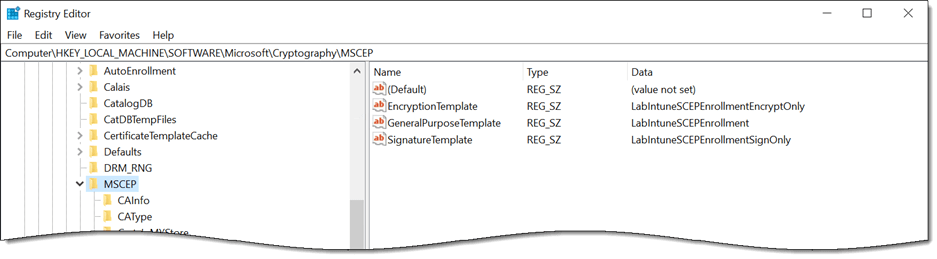
NDES stores its core SCEP configuration under the HKLM\SOFTWARE\Microsoft\Cryptography\MSCEP registry key. These settings identify the issuing CA and certificate templates used for enrollment and control other aspects of NDES operation. Because they directly influence how certificate requests are processed, unauthorized changes could alter enrollment behavior without modifying the NDES application itself.
Enrollment Templates
NDES uses the following registry values to identify the certificate templates used for SCEP enrollment.
HKLM\SOFTWARE\Microsoft\Cryptography\MSCEP\EncryptionTemplate
HKLM\SOFTWARE\Microsoft\Cryptography\MSCEP\GeneralPurposeTemplate
HKLM\SOFTWARE\Microsoft\Cryptography\MSCEP\SignatureTemplate
In many deployments, all three values reference the same template. If the environment supports distinct signature, encryption, or general-purpose enrollment scenarios, each value can reference a template designed for that specific purpose.
Additional MSCEP Settings
The MSCEP key contains more than certificate template assignments. Its CAInfo and CAType subkeys identify the CA to which NDES submits requests, while other subkeys control settings such as the hash algorithm and capabilities advertised to SCEP clients.
Information Disclosure and Reconnaissance
The default permissions for the MSCEP registry key are inherited from HKLM\SOFTWARE, which grants the local Users group read access. This allows locally authenticated users, as well as users granted remote registry access, to read the template names and CA configuration. Template names can aid reconnaissance, as an attacker can query Active Directory for the corresponding template definitions and evaluate their configurations against known AD CS escalation techniques. The CAInfo subkey can also disclose the internal fully qualified domain name of the issuing CA. Restricting access to the MSCEP key reduces unnecessary exposure of this information.
Why the MSCEP Key Is an Effective Monitoring Target
After NDES is deployed to production, these values should change only during planned reconfiguration. This makes the MSCEP key a high-value, low-noise monitoring target. Legitimate modifications should be rare and documented, while any unexpected change warrants immediate investigation.
Before You Begin
The changes described in this article modify access permissions and configure auditing for registry settings that NDES requires. An incorrect service identity, incomplete allowlist, or unsupported environmental assumption can prevent certificate enrollment. Test these changes in a nonproduction environment first, confirm that you have a working backup and rollback procedure, and validate successful enrollment before applying them broadly. Adapt the examples to your environment and follow your organization’s change management and security review processes.
In addition, be sure to back up the configuration before making any changes. A full server backup or a virtual machine snapshot is helpful. However, administrators can perform additional steps to save information before altering the default settings.
Determine the NDES Service Account
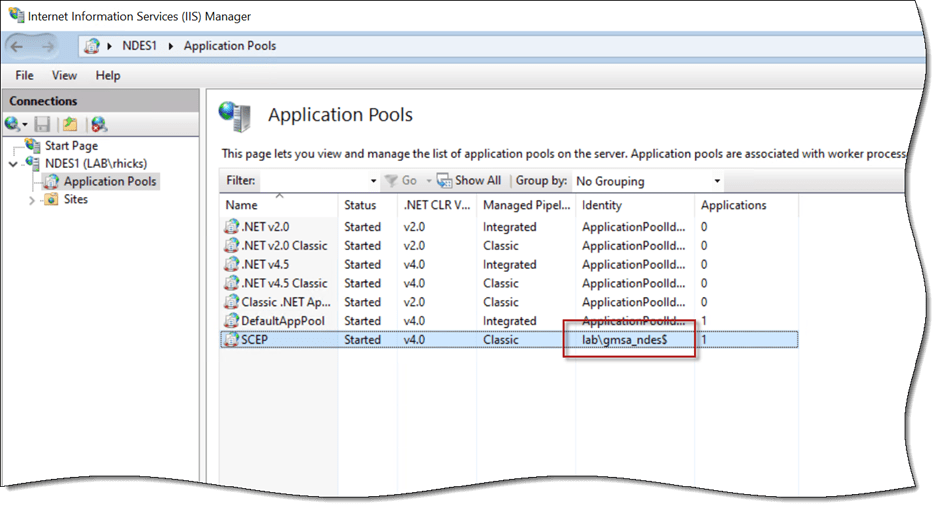
The permissions applied below grant access to the account used by the SCEP application pool. Confirm this account before proceeding by opening IIS Manager (inetmgr.exe), expanding the IIS server, and selecting Application Pools. Highlight the SCEP application pool and note the account shown in the Identity column.
Back Up the Current Permissions
A registry export with reg.exe captures data but not the security descriptor, so it is not a rollback for this change. Run the following PowerShell commands to capture the descriptor in SDDL format instead.
The rollback process is covered later in this post.
Restricting Access to the MSCEP Key
For a dedicated NDES server, restrict the MSCEP key to SYSTEM, the local Administrators group, and the identity used by the SCEP application pool. All other access entries should be removed, including the inherited Read permission for the local Users group. If another service identity requires access in your environment, such as a domain service account used by the Intune Certificate Connector, account for it in both the explicit access rules and the allowlist before applying the changes.
Administrators must retain full control. Even if the Administrators entry were removed, a local administrator could exercise the necessary privileges to take ownership of the key and rewrite its permissions. The ACL therefore reduces unnecessary access but does not provide a security boundary against a local administrator or an attacker with equivalent privileges. This is why the auditing described in the next section is an important complementary control.
Important Note: Registry values do not carry their own security descriptors, so the permissions applied here govern the MSCEP key, every value in it, and every subkey beneath it. The service identity is granted full control rather than read because NDES writes to this key during normal operation, and read-only access will break it.
Removing Inheritance
The inherited entries from HKLM\SOFTWARE are where the broad access comes from, so they must be removed first. On the NDES server, open an elevated PowerShell command window and run the following commands.
The -Audit parameter reads the system access control list (SACL) and the discretionary access control list (DACL), so both can be updated and committed in a single write later. The second parameter of SetAccessRuleProtection is set to false, which discards the inherited entries rather than converting them to explicit copies. This approach is intentional. Inherited entries cannot be removed with PurgeAccessRules method, so preserving them would leave the broad grants in place and defeat the entire exercise. No explicit deny entry is required anywhere in this process. After this change, the local Users group has no access to the key at all.
Granting Explicit Access
Breaking inheritance also removes the SYSTEM and Administrators grants, so our explicit entries will replace them. Well-known security identifiers (SIDs) are used instead of account names, so this works correctly on non-English Windows installations.
S-1-5-18 is the well-known SID for SYSTEM, and S-1-5-32-544 is the well-known SID for the local Administrators group. ContainerInherit ensures the rights propagate to the subkeys.
Removing Unapproved Access Entries
The remaining explicit entries are evaluated against an allowlist, and anything that does not belong to those three identities is purged.
Sweeping against an allowlist rather than purging a fixed list of known principals removes application capability SIDs, CREATOR OWNER, any application pool entry that no longer matches the current SCEP application pool service account, and anything left over from previous administrative changes, without enumerating them in advance. It also makes the operation repeatable, so running it a second time on an already hardened server produces the same result.
Important Note: This code uses SID comparison. Identity references can be returned as either an NTAccount or a SecurityIdentifier, depending on whether the account resolves, so comparing by name will silently miss orphaned entries.
Auditing Changes to the MSCEP Key
Restricting the ACL reduces unnecessary access, but it cannot prevent a local administrator from taking ownership or rewriting the permissions. Auditing provides a complementary detective control by recording attempts to modify the key.
Add the Registry Audit Rule
To enable auditing, add an audit rule to the MSCEP key’s SACL that records successful and failed attempts by any identity to modify its values, subkeys, or permissions. Then commit the DACL and SACL together.
The audited operations are limited to changes. Specifically, setting a value, creating or deleting a subkey, changing permissions, and taking ownership. Reads are intentionally not audited. The three identities that still have access read these values routinely, so auditing that activity would generate excessive noise. Note that failure auditing applies only to the listed modification rights, so a denied read attempt will not be logged.
In addition, TakeOwnership and ChangePermissions are included deliberately because an attempt to alter the key’s security descriptor could indicate that someone is trying to weaken or bypass the applied controls. These operations should be rare after deployment and warrant investigation when they are not associated with an approved administrative change.
Recycle the SCEP Application Pool
Once the permissions are committed, recycle the SCEP application pool to close any existing registry handles and ensure the worker process reopens the MSCEP key under the new access controls.
Enable the Registry Audit Subcategory
An audit rule on its own does not generate events. The Object Access category must have the Registry subcategory enabled before Windows will write anything to the Security event log. Confirm the current setting by running the following command.
The subcategory is referenced by GUID rather than by name for locale independence. If it is not enabled, enable it through Group Policy under Advanced Audit Policy Configuration > Object Access > Audit Registry rather than setting it locally, so the setting survives and applies consistently across your NDES infrastructure.
Recommended Security Alerts
With the Registry audit subcategory and the SACL configured as described, creating, deleting, or modifying a registry value under the MSCEP key generates event ID 4657 in the Security event log, identifying the account, the value name, and both the old and new data. That last detail is what makes the event immediately actionable. You do not have to look up what the template was supposed to be, because the event tells you what it was and what it was changed to.
My recommendation is to alert on every event ID 4657 associated with EncryptionTemplate, GeneralPurposeTemplate, or SignatureTemplate values rather than attempting to tune out individual processes or accounts. These values should remain static after deployment, so their expected change volume is zero. Monitor modifications elsewhere under the MSCEP path as well but establish a baseline before treating every such event as an alert because some NDES configurations may update other values or subkeys during normal operation.
Additional Alerts
Two additional events are worth correlating when one of these fires:
- Event ID 4670 records a change to the permissions on the object. On a hardened key, this is a strong signal, since it means someone modified the ACL you just applied.
- An application pool recycle or an IIS restart shortly after a value change is the corroborating signal. Because NDES caches the template configuration in the worker process, a substituted template does not take effect until the SCEP application pool or server restarts. An attacker seeking immediate activation would therefore need to trigger a recycle or restart, creating another potentially observable event. Otherwise, the change could take effect later during a routine recycle or restart.
Add Process Context with Sysmon
Security event ID 4657 identifies the account, process name, process ID, registry value, and old and new data associated with a change. However, it does not provide the full command line, process lineage, hashes, or surrounding activity needed for a more complete investigation. The System Monitor (sysmon.exe) utility from the Microsoft Sysinternals suite supplements the Security event log with this information.
Sysmon is not a replacement for SACL. The Security event records the authorization decision as Windows made it, which is the authoritative record. Sysmon records the process lineage around that decision. The two sources are complementary. Sysmon can capture the process that triggers an application pool recycle or an IIS restart when that activity matches the configured process creation rules.
Sample Sysmon Configuration for NDES
I have published a sample Sysmon configuration for NDES servers on GitHub. It is available here. This targeted configuration monitors SCEP enrollment settings, IIS application pool activity, registration authority certificates and private keys, credential access, and selected AD CS, certificate store, IIS, and operating-system security events relevant to an NDES deployment. It is not intended to serve as a general enterprise baseline. You can run it as a standalone configuration on an NDES server or merge its rule groups into an existing baseline such as SwiftOnSecurity or Olaf Hartong sysmon-modular.
Install or Update Sysmon
After reviewing and testing the sample configuration, install Sysmon or apply the configuration to an existing Sysmon deployment. To install Sysmon, open an elevated command window and run the following command.
To update an existing installation and confirm the active configuration, run the following commands.
Sysmon events are written to the following event log location.
Applications and Services Logs > Microsoft > Windows > Sysmon > Operational.
Sysmon Monitoring Coverage
The configuration is centered on detecting changes to security-sensitive registry locations. The remaining rules capture the process, file, network, and system activity needed to investigate those changes.
- Registry events 12, 13, and 14 cover the MSCEP key and its subkeys using a contains condition so both the native and WOW6432Node paths are captured. The same rule group covers the Certificate Services configuration key, machine certificate stores and trust anchors, SCHANNEL and TLS configuration, IIS service configuration, and common persistence locations.
- Process creation events capture the tools used to make these changes, including reg.exe, regedit.exe, certutil.exe, appcmd.exe, and iisreset.exe. Tools such as appcmd.exe and iisreset.exe, as well as PowerShell commands such as Restart-WebAppPool, can recycle the SCEP application pool or restart IIS, allowing a modified template configuration to take effect. Sysmon can capture these actions when the initiating process and command line match the configured process-creation rules. PowerShell Script Block Logging provides additional visibility into commands executed within an existing PowerShell session, which might not be captured as separate Sysmon process-creation events.
- Process access events are restricted to handle requests against LSASS with the access masks commonly associated with credential dumping. On a host that holds registration authority private keys and runs under a gMSA identity, this is the single highest-value rule.
- File creation and deletion events cover the private key containers under Crypto\RSA, Crypto\Keys, and Crypto\PCPKSP, the IIS configuration directory, and certificate file extensions. Web content extensions such as .aspx and .ashx are also included, because a file with one of those extensions appearing under the NDES site is a strong indicator of a web shell.
- Network connection events are purposefully scoped to scripting hosts and file transfer utilities rather than everything. An NDES server constantly talks to the CA and enrolling clients, and logging all of it produces excessive noise and provides little insight.
- Named pipe, WMI, and process tampering events are also included. Legitimate volume for these is close to zero on a dedicated NDES server, so they are logged in full.
Note: The registry rule group includes an exclusion for the highest-volume legitimate writers, such as services.exe, svchost.exe, and TrustedInstaller.exe, as well as CreateKey events. Without those exclusions, useful events are buried within minutes. However, broad process-based exclusions can create visibility gaps. Administrators should validate that those exclusions do not suppress meaningful changes to the monitored paths.
Correlating Sysmon and Security Log Events
When a template value is modified, the Security event log records event ID 4657 with the account, value name, and old and new data. Sysmon records event ID 13 for the same operation, including the image path and process GUID associated with the write. If Sysmon also captured the corresponding process-creation event, the process GUID can be used to correlate event ID 13 with event ID 1, which provides the full command line and parent-process information. The Security event identifies the audited account and registry change, while Sysmon supplies richer process lineage and surrounding activity.
Sysmon Deployment Considerations
Before deploying this configuration, confirm that it is compatible with your installed Sysmon version and existing monitoring baseline. Test it on a representative NDES server first, then review the resulting event volume and adjust only those rules that conflict with known, legitimate activity.
- Confirm the schema version supported by your installed Sysmon build by running
sysmon.exe -s before deployment. The sample configuration uses schema version 4.90 and therefore requires Sysmon 15 or later.
- The FileBlockExecutable rules actively block matching executable files rather than merely recording their creation. Review and test these rules carefully before deploying the configuration in production.
- If you already run a Sysmon baseline, merge these rule groups into it rather than installing this configuration over the top of it. Installing a new configuration replaces the existing one entirely.
- Forward both the Sysmon Operational event log and the Security event log to your Security Information and Event Management (SIEM) platform. Local event logs on a compromised server hosting an Internet-published SCEP endpoint are of limited investigative value, and an alert that nobody receives provides little protection.
- Validate the configuration in a lab first. Sysmon rule evaluation order is not always intuitive, and an overly broad include rule on a busy server can generate a surprising amount of data.
NDES Operational Considerations
Tightening permissions on a key that a running service depends on has consequences worth understanding before you make these changes in production.
- If the Intune Certificate Connector service runs as a custom account rather than SYSTEM, add that account to the allowlist and grant it read access. Check the logon account on the connector service before you begin. In this scenario, I recommend running the Intune Certificate Connector as SYSTEM to follow security best practices.
- If you change the SCEP application pool identity later, NDES will fail until the key permissions are updated to include the new identity. These permissions are aligned to a specific account, so any change to that account requires a corresponding change here.
- If you operate multiple NDES servers, apply these changes to all of them to ensure full coverage.
- Document any planned change to the template configuration in your change management process. If you alert on these events as recommended, someone will need to close the ticket the alert generates.
Validate Permissions, Auditing, and Enrollment
Run the following PowerShell command to verify the resulting access rules.
Only SYSTEM, BUILTIN\Administrators, and the NDES service account identity should be listed, and none of the entries should be inherited. Next, run the following command to confirm the audit rule is present.
With the Registry audit subcategory enabled, perform a controlled test in a lab by changing a template value and recycling the SCEP application pool. Verify that event ID 4657 appears in the Security event log and includes the expected old and new values.
If event ID 4657 does not appear in the Security event log after you modify a registry value under the MSCEP key, confirm that the Registry audit subcategory is enabled.
If you deployed the Sysmon configuration, confirm it is loaded and generating events. Sysmon events are recorded in the Applications and Services Logs > Microsoft > Windows > Sysmon > Operational event log. The log should include events related to the test, including the registry value modification. Depending on how the application pool was recycled and which process-creation rules are enabled, it might also contain the process that initiated the recycle.
You will also find events containing process creation details, including the full command line, process ID, parent process ID, and related information.
Finally, perform a device enrollment. Certificate enrollment should remain unaffected by these changes, and confirming successful enrollment after making these changes is essential before returning the NDES server to production.
Restore the Previous Registry Permissions
If enrollment breaks and the cause is not immediately obvious, administrators can restore the security descriptor captured earlier by running the following PowerShell commands.
In practice, the most common cause of failure is granting access to the wrong service identity. This is why confirming the application pool identity is the first step in this process. Administrators should not skip this validation step.
Summary
The MSCEP registry values determine which certificate templates NDES uses for SCEP enrollment. An attacker with administrative access to the NDES server could modify these values and redirect enrollment to an unintended template without creating an obvious service failure. Restricting access to the MSCEP key reduces unnecessary exposure, while registry auditing and Sysmon provide visibility into unauthorized changes and the processes responsible for them. Forward these events to your SIEM, configure alerts for unexpected modifications, and validate the detection workflow before relying on it in production.
Additional Information
Sample Sysmon Configuration for NDES on GitHub
Download Sysmon from Microsoft Sysinternals
Microsoft NDES Information Disclosure: Detection and Remediation
Get-NdesNtlmDisclosure PowerShell Script on GitHub
Configure Infrastructure to Support SCEP with Microsoft Intune
Publish NDES with Microsoft Entra Application Proxy