

Top 5 DirectAccess Troubleshooting PowerShell Commands

Top 5 DirectAccess Troubleshooting PowerShell CommandsNative PowerShell commands in Windows 10 make DirectAccess troubleshooting much easier than older operating systems like Windows 7. For example, with one PowerShell command an administrator can quickly determine if a DirectAccess client has received the DirectAccess client settings policy. In addition, PowerShell can be used to view the status of the connection and retrieve additional information or error codes that can be helpful for determining the cause of a failed connection. Further, PowerShell can also be used to review configuration details and perform other troubleshooting and connectivity validation tasks.

Here are my top 5 PowerShell commands for troubleshooting DirectAccess on Windows 10.

1. Get-DAClientExperienceConfiguration

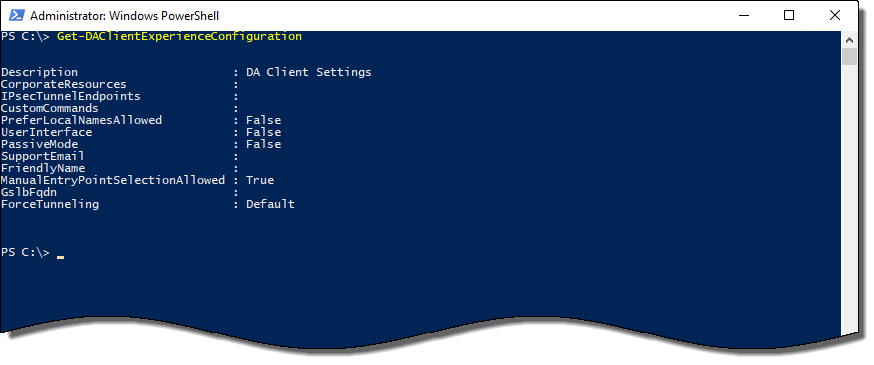
Ensuring that the DirectAccess Client Settings group policy has been applied to the client is one of the first steps in troubleshooting failed DirectAccess connections. While it is possible to use gpresult to do this, using the Get-DAClientExperienceConfiguration PowerShell command is much simpler. If DirectAccess client settings have been applied, the output of the command will include information such as the IPsec tunnel endpoint IPv6 addresses and the Network Connectivity Assistant (NCA) corporate resource URL. If DirectAccess client settings have not been applied, this information will be missing.

Top 5 DirectAccess Troubleshooting PowerShell Commands

Figure 1. DirectAccess Client Settings group policy successfully applied.
Top 5 DirectAccess Troubleshooting PowerShell Commands

Figure 2. DirectAccess Client Settings group policy not applied.

2. Get-NetIPHttpsState

Performance improvements first introduced in Windows 8 have made IP-HTTPS the IPv6 transition technology of choice when it comes to supporting DirectAccess client connectivity. Also, if the DirectAccess server is located behind an edge device performing Network Address Translation (NAT), IP-HTTPS is the only supported transition technology. Using the Get-NetIPHttpsState PowerShell command, the DirectAccess administrator can quickly determine if the IP-HTTPS connection was successful. If it was not, the command will return an error code and interface status that will indicate why the IP-HTTPS connection was unsuccessful.

Top 5 DirectAccess Troubleshooting PowerShell Commands

Figure 3. Get-NetIPHttpsState

3. Get-NetIPHttpsConfiguration

When troubleshooting IP-HTTPS connection failures, it is necessary to obtain additional information to continue the troubleshooting process. Using the Get-NetIPHttpsConfiguration PowerShell command, the DirectAccess administrator can obtain the public hostname for the DirectAccess server and ensure that the name resolves to the correct IP address in DNS and that it is reachable on TCP port 443.

Top 5 DirectAccess Troubleshooting PowerShell Commands

Figure 4. Get-NetIPHttpsConfiguration

4. Resolve-DnsName

Using the Resolve-DnsName PowerShell command is crucial when performing any name resolution tasks on the DirectAccess client. This is because Resolve-DnsName is aware of the Name Resolution Policy Table (NRPT) and will direct name resolution requests accordingly. Tools like nslookup are DNS server testing tools and are unaware of the NRPT. Typically they do not yield expected results when testing name resolution on a DirectAccess client.

Top 5 DirectAccess Troubleshooting PowerShell Commands

Figure 5. Name resolution results from Resolve-DnsName and nslookup.

5. Get-DnsClientNrptPolicy

Often the cause of DirectAccess client connectivity issues is a misconfigured NRPT. Using the Get-DnsClientNrptPolicy PowerShell command the DirectAccess administrator can validate that name resolution requests for host names in any internal namespaces are being sent to the DirectAccess DNS64 IPv6 address.

Top 5 DirectAccess Troubleshooting PowerShell Commands

Figure 6. Get-DnsClientNrptPolicy

Additional Resources

Top 5 DirectAccess Troubleshooting Tips

Troubleshooting Name Resolution Issues on DirectAccess Clients

Learn PowerShell in a Month of Lunches Book by Don Jones and Jeff Hicks

Implementing DirectAccess with Windows Server 2016 Book

Planning and Implementing DirectAccess with Windows Server 2016 Video Training Course

Managing and Supporting DirectAccess with Windows Server 2016 Video Training Course


Top 5 DirectAccess Troubleshooting Tips

Top 5 DirectAccess Troubleshooting TipsDirectAccess is a thing of beauty when everything is working as it should. When it isn’t, troubleshooting can be quite challenging. DirectAccess relies on many Windows platform technologies such as Active Directory for authentication, PKI for certificate management, group policy for settings deployment, IPsec for encryption, and IPv6 for transport. With so many dependencies, locating the source of the problem can be a difficult and daunting task.

I’m frequently called upon to help organizations of all sizes with DirectAccess troubleshooting. While this post is not intended to be a detailed, prescriptive guide for DirectAccess troubleshooting, I did want to share some common troubleshooting tips based on many years of troubleshooting DirectAccess.

Here are my top 5 DirectAccess troubleshooting tips:

  1. Check Prerequisites – Before diving in and collecting network traces and scouring event logs for clues as to why DirectAccess isn’t working, it’s essential to start at the beginning. Often the source of trouble is missing or misconfigured prerequisites. For example, is the DirectAccess client running a supported operating system? Remember, clients must be running Windows 10 Enterprise or Education, Windows 8.x Enterprise, or Windows 7 Enterprise or Ultimate. Also, ensure that the Windows firewall is enabled on DirectAccess servers and clients, that certificates are installed and valid (trusted, correct EKU, etc.), and that the DirectAccess settings GPO has been applied to servers and clients.
  2. Validate External Connectivity – If you are following implementation and security best practices for DirectAccess, the DirectAccess server will be in a perimeter/DMZ network behind an edge firewall. The firewall must be configured to allow inbound TCP port 443 only. If the firewall is also performing Network Address Translation (NAT), the NAT rule must be configured to forward traffic to the DirectAccess server’s dedicated or virtual IP address (VIP), or the VIP of the load balancer. Watch for routing issues when using load balancers too. It’s a good idea to confirm external connectivity using the Test-NetConnection PowerShell command. Even better, use the open source tool Nmap for more thorough testing.
  3. Remove Third Party Software – I can’t tell you how many times I’ve resolved DirectAccess connectivity issues by removing (not just disabling!) third party software on the client and/or server. It’s not uncommon for third-party security software to interfere with IPsec and/or IPv6 communication, both of which are vital to DirectAccess. If your DirectAccess troubleshooting efforts reveal no underlying issues with prerequisites or external connectivity, I’d suggest removing (at least temporarily) any third-party software and testing again.
  4. Isolate Environmental Issues – Occasionally other settings applied manually or via Active Directory group policy will interfere with DirectAccess. Examples include IPv6 being disabled in the registry, IPv6 transition technologies required to support DirectAccess are turned off, essential firewall rules for DirectAccess are disabled, or manipulating local security settings such as Access this computer from the network. To assist with troubleshooting it might be necessary to temporarily place DirectAccess clients and servers in their own dedicated Organizational Units (OUs) and block inheritance to isolate the configuration as much as possible. In addition, if DirectAccess clients are servers are provisioned using images or templates, testing with a clean build straight from the installation source (ISO or DVD) can be helpful.
  5. Check for Unsupported Configurations – If DirectAccess isn’t working, it might be possible the configuration you are trying to use is not supported. Examples including strong user authentication with OTP when force tunneling is enabled, provisioning Windows 7 clients when using Kerberos Proxy authentication, or provisioning Windows 10 clients when Network Access Protection (NAP) integration is enabled. These configurations won’t work and are formally documented here.

This is by no means a comprehensive or exhaustive troubleshooting guide. For more information and additional DirectAccess troubleshooting guidance I would encourage you to purchase my book Implementing DirectAccess with Windows Server 2016, which has an entire chapter devoted just to troubleshooting. In addition, watch my DirectAccess video training courses on Pluralsight for details and information about DirectAccess installation, configuration, management, support, and troubleshooting. And if you’re still struggling to resolve a DirectAccess problem, use the form at the bottom of this page to contact me to inquire about additional troubleshooting help.

Additional Resources

Microsoft Windows DirectAccess Client Troubleshooting Tool
DirectAccess and Windows 10 Professional
DirectAccess Troubleshooting with Nmap
DirectAccess Unsupported Configurations
Planning and Implementing DirectAccess with Windows Server 2016 Video Training Course on Pluralsight
Implementing DirectAccess with Windows Server 2016 Book

Need assistance with DirectAccess troubleshooting? Complete the form below and I’ll get in touch with you.

← Back

Thank you for your response. ✨

DirectAccess IPv6 Support for WorkSite and iManage Work

DirectAccess IPv6 Support for WorkSite and iManage WorkiManage Work (formerly WorkSite) is a popular document management system commonly used in the legal, accounting, and financial services industries. Historically, there have been issues getting WorkSite to function over DirectAccess, because WorkSite used IPv4 addresses and DirectAccess clients use IPv6. When a DirectAccess client is outside of the office, it communicates with the DirectAccess server using IPv6 exclusively, so applications that make calls directly to IPv4 addresses won’t work.

One way DirectAccess administrators could make WorkSite function was to use portproxy to create v4tov6 address and port mappings on the client. However, this method is error prone, difficult to troubleshoot and support, and doesn’t scale effectively.

The good news is that beginning with release 9, the iManage Work client application has been upgraded to support IPv6. However, it is not enabled by default. To enable IPv6 support for iManage Work, add the following registry key on the client side (not the server!). No other changes are required.

HKLM\Software\Wow6432Node\Interwoven\WorkSite\Server Common\

Type: REG_SZ
String: IP Address Family
Value: IPv6

DirectAccess IPv6 Support for WorkSite and iManage Work

You can also use the following PowerShell command to add this registry entry.

New-Item -Path “HKLM:\Software\Wow6432Node\Interwoven\WorkSite\Server Common\” -Force
New-ItemProperty -Path “HKLM:\Software\Wow6432Node\Interwoven\WorkSite\Server Common\”-Name “IP Address Family” -PropertyType String -Value IPv6 -Force

After validation testing is complete, deploy the registry setting via Active Directory group policy preferences to all DirectAccess clients and iManage Work will function perfectly over DirectAccess!

Additional Resources

Active Directory Group Policy Preferences on Microsoft TechNet

iManage Web Site

Implementing DirectAccess with Windows Server 2016